


If you're running pay per call marketing campaigns, tracking every lead is crucial for your performance because under this model, you get paid per each qualified call you generate. In this article, you’ll learn all about PPC call tracking using the right tools.
We’ll walk you through how PPC call tracking works step-by-step, the differences between ad tracking and call tracking, and how to combine platforms like Ringba and ClickFlare to get full visibility from click to call.
Pay per call marketing is a performance-based advertising model where marketers are paid when they generate a qualified phone call.
Usually, the advertiser sets specific criteria to determine what counts as a qualified call. Instead of driving users to a website, like in traditional lead generation models, the goal here is to connect potential clients directly via phone.
Pay per call campaigns have gained traction over the years because they are profitable for both the advertiser and performance marketer. These offers tend to have higher payouts compared to standard lead gen campaigns. This is because qualified calls are considered high-quality leads. They convert faster and have higher conversion rates (30-50% CR compared to 1-2% for clicks), and they allow advertisers to have better quality control and less fraud for the leads they’re buying.
These factors have caused many premium industries to prioritize pay per call marketing, including verticals such as insurance, financial services, home improvement, healthcare, legal services, and more.
To learn more about how you can get started, read our pay per call marketing complete guide.
An important part of running successful pay per call marketing campaigns is tracking your performance to find out which specific ads, campaigns, keywords, or ad networks are generating more revenue.
Without proper PPC call tracking, it would be impossible to spot these winning patterns. That means wasted spend and making optimization decisions without real data.
When you track pay per call marketing campaigns, you can gain insights such as how long calls lasted, whether they met the advertiser criteria, and pinpoint specifically which ad or landing page brought the caller in. Since payouts are directly tied to call quality in this industry, having this data is a necessity.
So, what exactly do you need to track?
The first type of tracking centers around the calls. You need to be able to track details such as the duration, outcome and location of the call. This is where call tracking for pay per call campaigns comes in. It allows you to track all this data about your caller.
To manage this properly, you can use pay per call tracking software like Ringba. These tools record call metadata and ensure that only qualified calls are counted toward your conversions.
On the other hand, you have ad tracking. You need to be able to see which ads, keywords, campaigns, landing pages, or traffic sources were responsible for your leads. Ad tracking software like ClickFlare helps you with this process. ClickFlare has direct integrations with top ad platforms and with Ringba, so it can provide you a full-funnel performance view including data like cost, revenue, and ROI.
As explained above, Ringba is responsible for call tracking for marketing campaigns, while ClickFlare focuses on the ad tracking and attribution part.
ClickFlare connects directly with top ad networks as well as Ringba via API. That means that on the one hand you have detailed performance data such as cost, clicks, performance by ad, ad set and more. On the other hand, you have the ability to pull real-time call tracking data for PPC from Ringba, such as conversion and payout (revenue).
By having both call and ad data in one platform, you can make smart decisions based on complete data.
You can also use ClickFlare to split-test different landers within the same campaign, report custom events (such as button click, phone call click, etc) and see where your users drop off in the funnel.
What sets ClickFlare apart from other trackers is its built-in Tag Manager feature. This feature allows you to inject the Ringba Number Pool script conditionally, dynamically inject different Ringba campaign scripts on the same landing page, all without having to change the page code manually.
Let’s start with a step-by-step tracking guide on how to connect Ringba to ClickFlare in the most common scenario. In this scenario, the user clicks on an ad on Facebook, TikTok, Taboola etc, and is redirected to your landing page.
First, you need to add the Number Pool script directly to your landing page, in the <head> section, so that each user sees a unique number. This is needed for accurate call attribution.
If you have not done this step yet, check out Ringba’s guide on how to set up number pools for PPC call tracking.
With ClickFlare, you can track custom conversions. We recommend tracking these 3 events from Ringba:
If you wish to track more events (such as 10 second calls, 2 minute calls, etc) you can add these conversions in the same way.
Let’s create these events on ClickFlare:
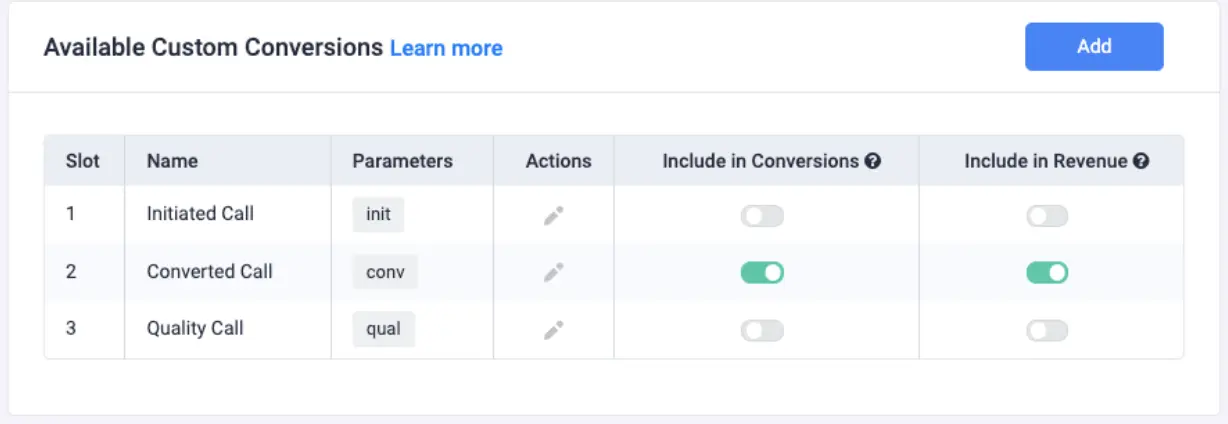
It’s important to track these events not only to understand user behavior and optimize your campaigns, but also to send this data back to your traffic sources. Ad networks like Facebook, Google, and TikTok use this information to build better audiences and improve campaign targeting. This way, the platform doesn’t just know that a user made a call, it knows the call lasted 30 minutes, for example. These behaviors are then prioritized by the ad network’s algorithm to help you reach more users who are likely to convert.
With ClickFlare, you can send all these custom events from Ringba directly to your ad network such as Meta or Google, to optimize your ads.
Under Event Type Mapping, you can map out the three events we created earlier. Here is an example of how you can map them:
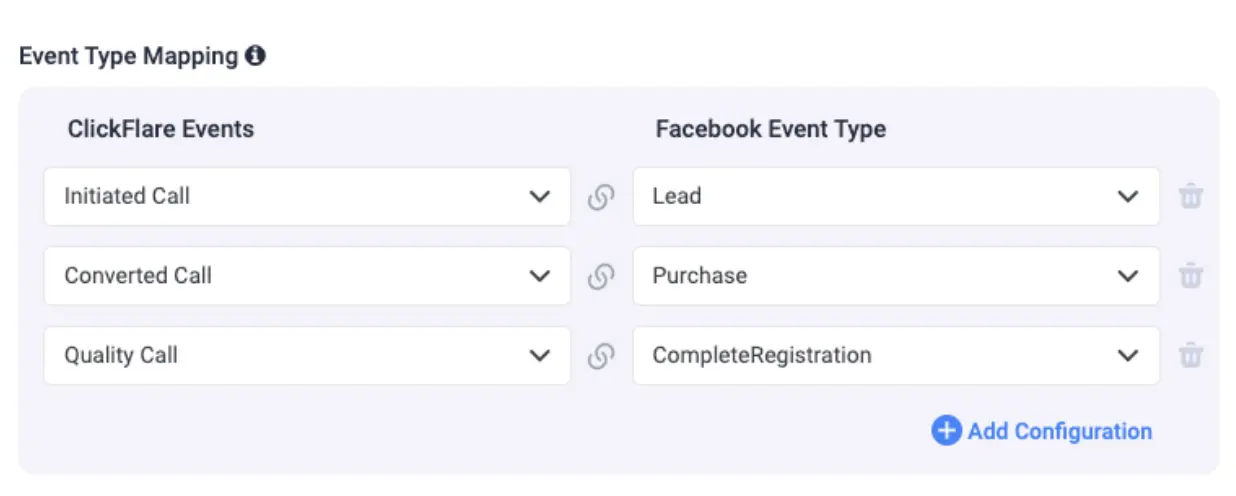
7. The Event Filter feature is optional. You can use this if you want to not send specific events, for example events coming from outside the US.
Next, you need to integrate your cost accounts. ClickFlare has direct cost integrations with various ad platforms including Meta, TikTok, Google, Bing, Snapchat, Outbrain, Taboola, NewsBreak, and other native platforms.
You only create this integration once, and ClickFlare will continuously pull cost data across all campaign levels on autopilot.
Now, it’s time to create the Ringba integration via API.
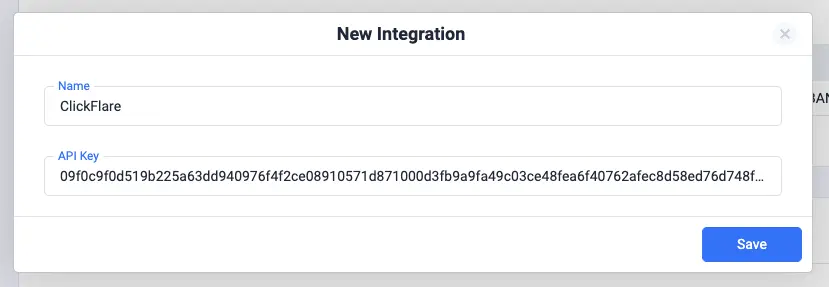
Note: If you are unsure where to find the API Key, you can generate it on Ringba. Simply follow this image and copy the key:
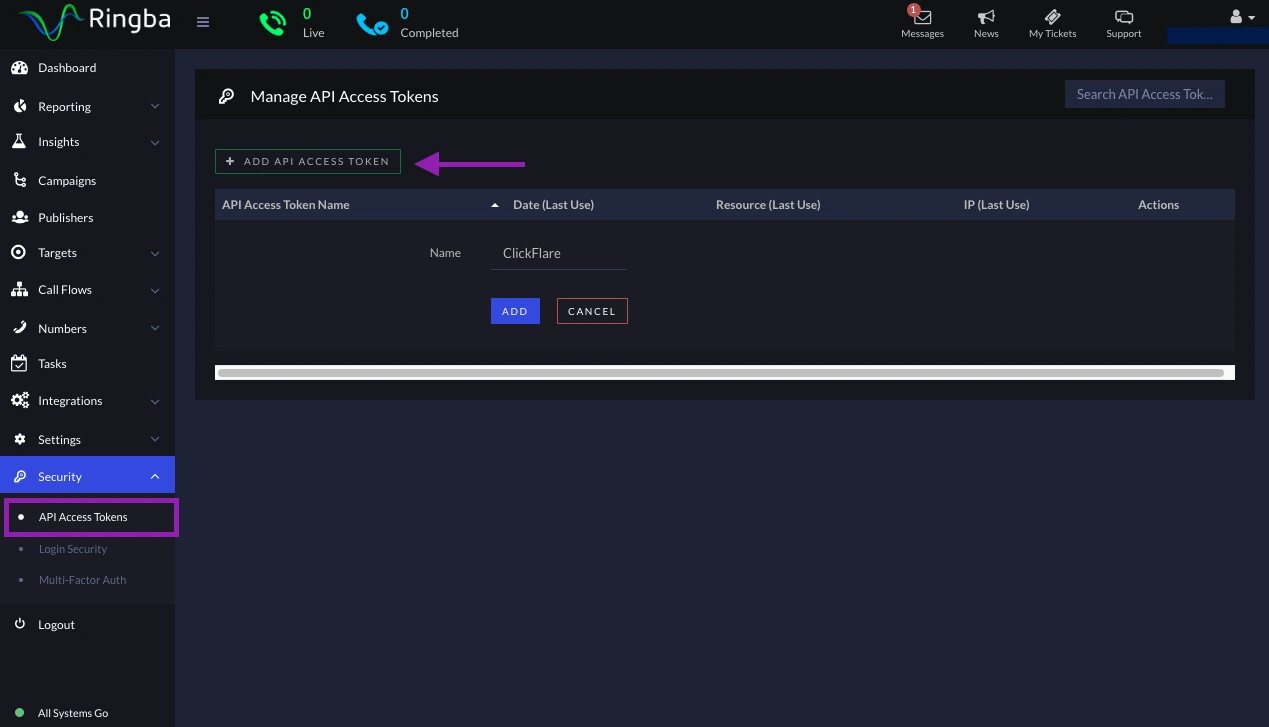
Next, you have to create your landing page as an offer on ClickFlare. The terminology here gets a bit confusing for marketers running PPC campaigns. In ClickFlare, an “offer” simply refers to the page where the final conversion happens.
While PPC marketers usually think of this as a "lander," ClickFlare refers to it as the "offer" because that’s where the conversion happens. So you only need to create the lander in ClickFlare as an offer, even though it's just the page displaying the call number.
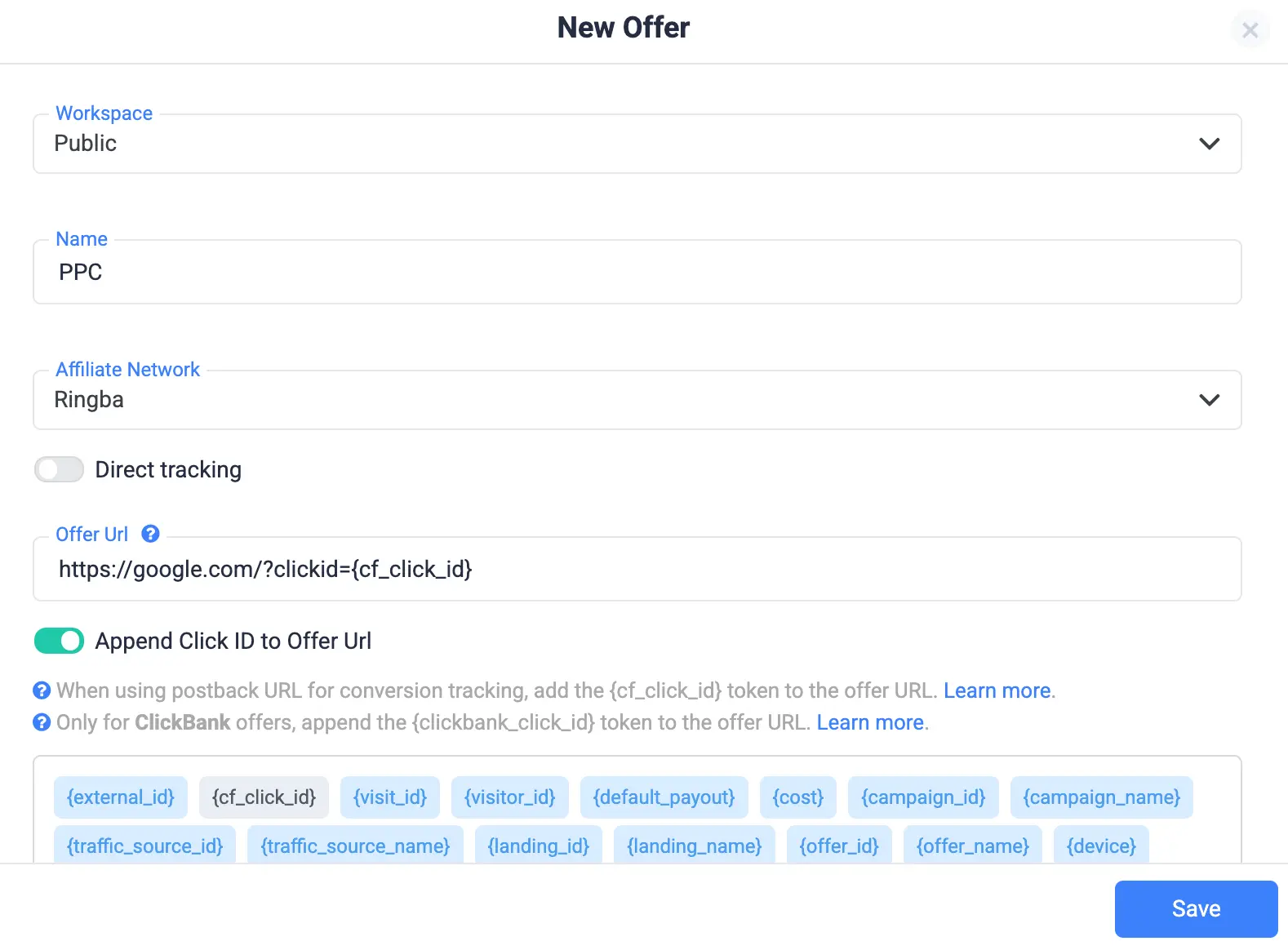
Back inside ClickFlare, you need to do the following steps:
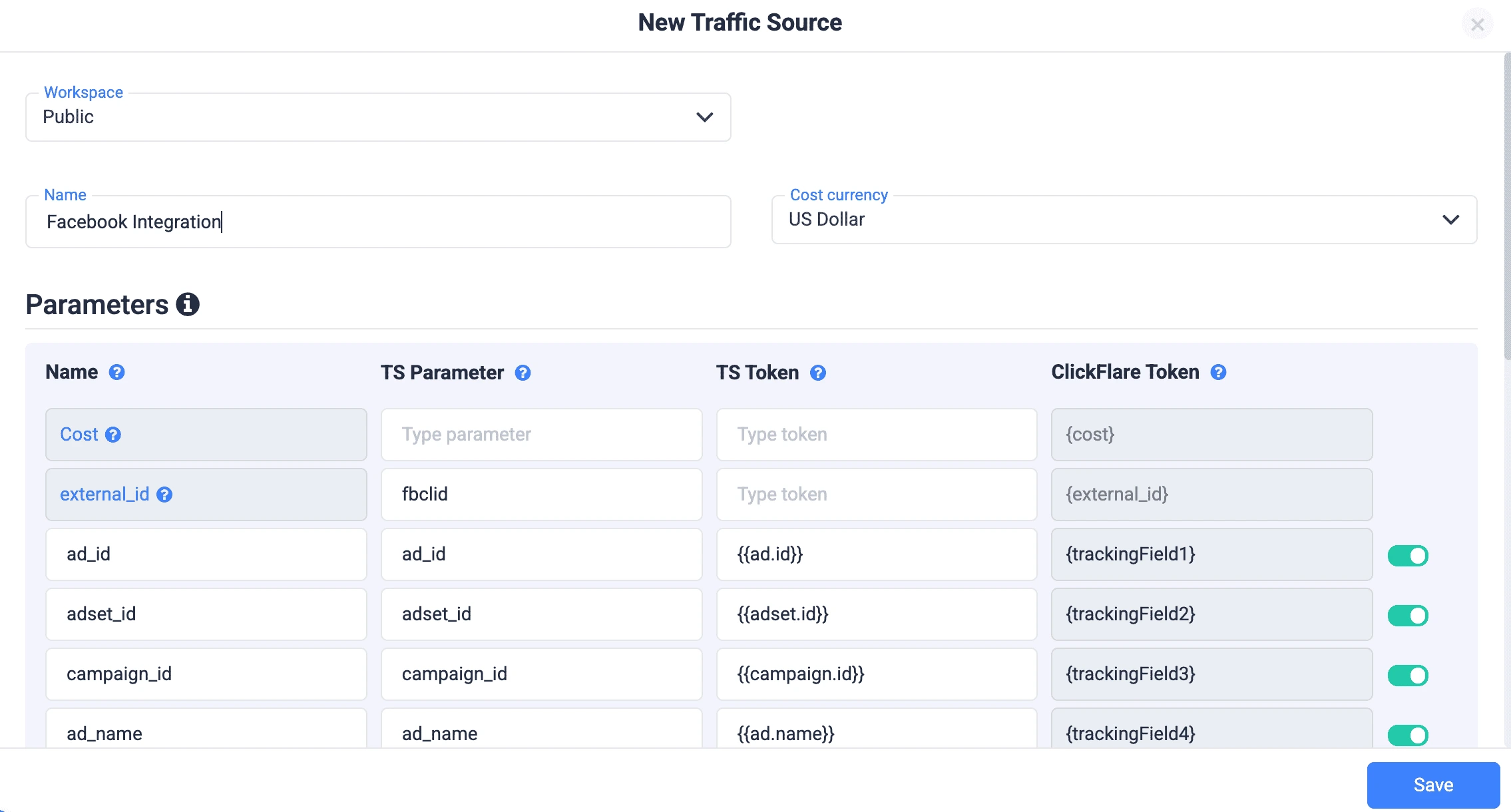
Finally, you need to create your campaign on ClickFlare. Usually one campaign on ClickFlare represents one campaign on your ad network.
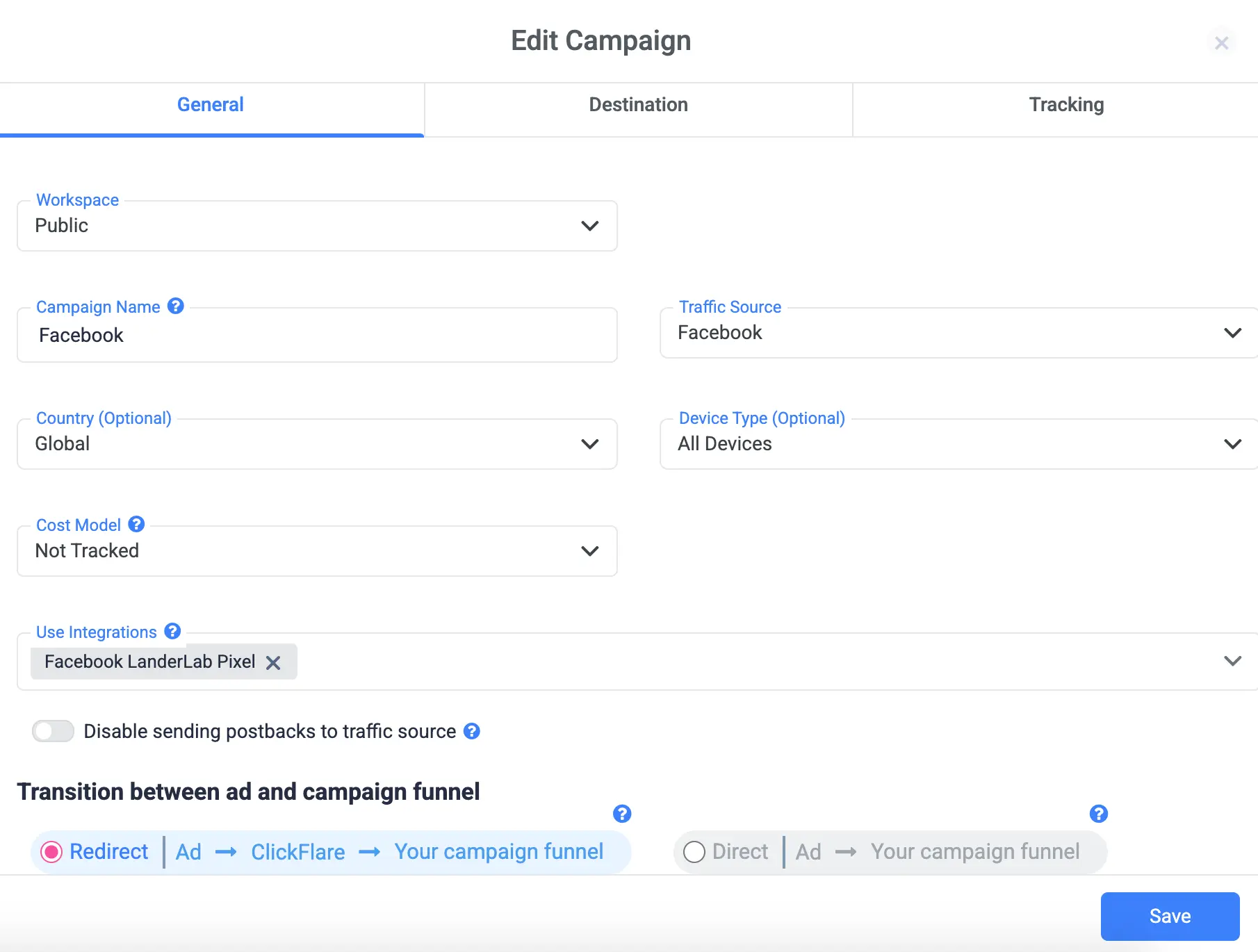
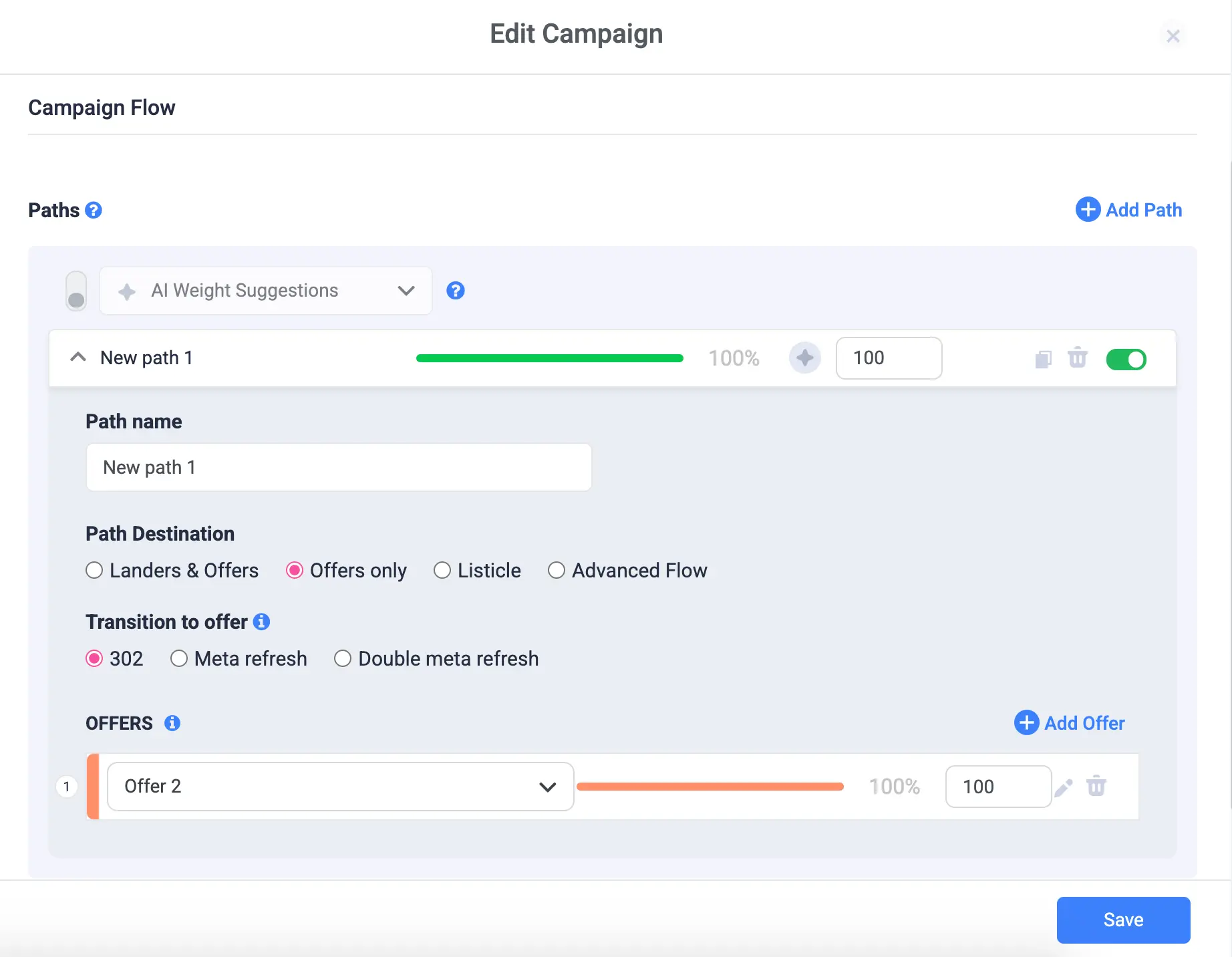
In this next step, you will have to map out the campaign flow (where the user goes after clicking on the ad). In our example, we will send users directly to the offer page. In that case, we should leave the settings as Offers Only. If you have a lander, you need to select Landers & Offers. Leave transition to offer to 302, and select the offer we created.
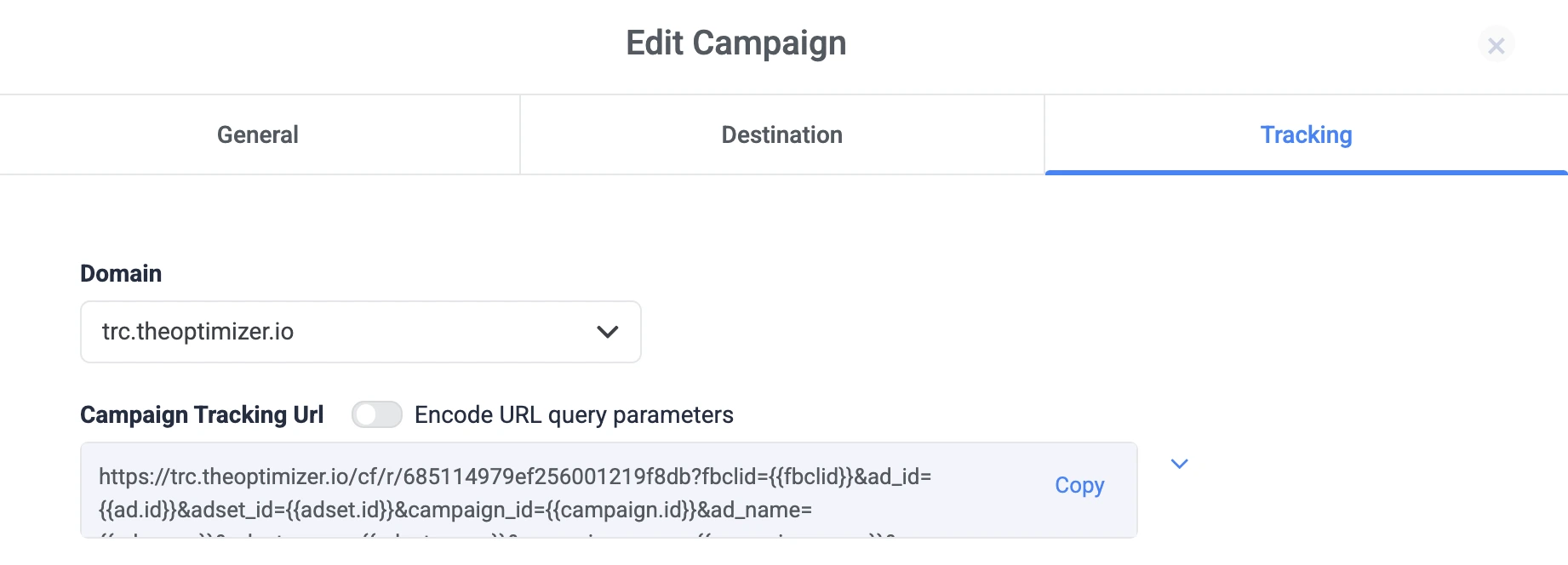
8. In the final step, you will get your Campaign Tracking URL. You need to use this tracking link on your ad network.
The final few steps happen inside Ringba:
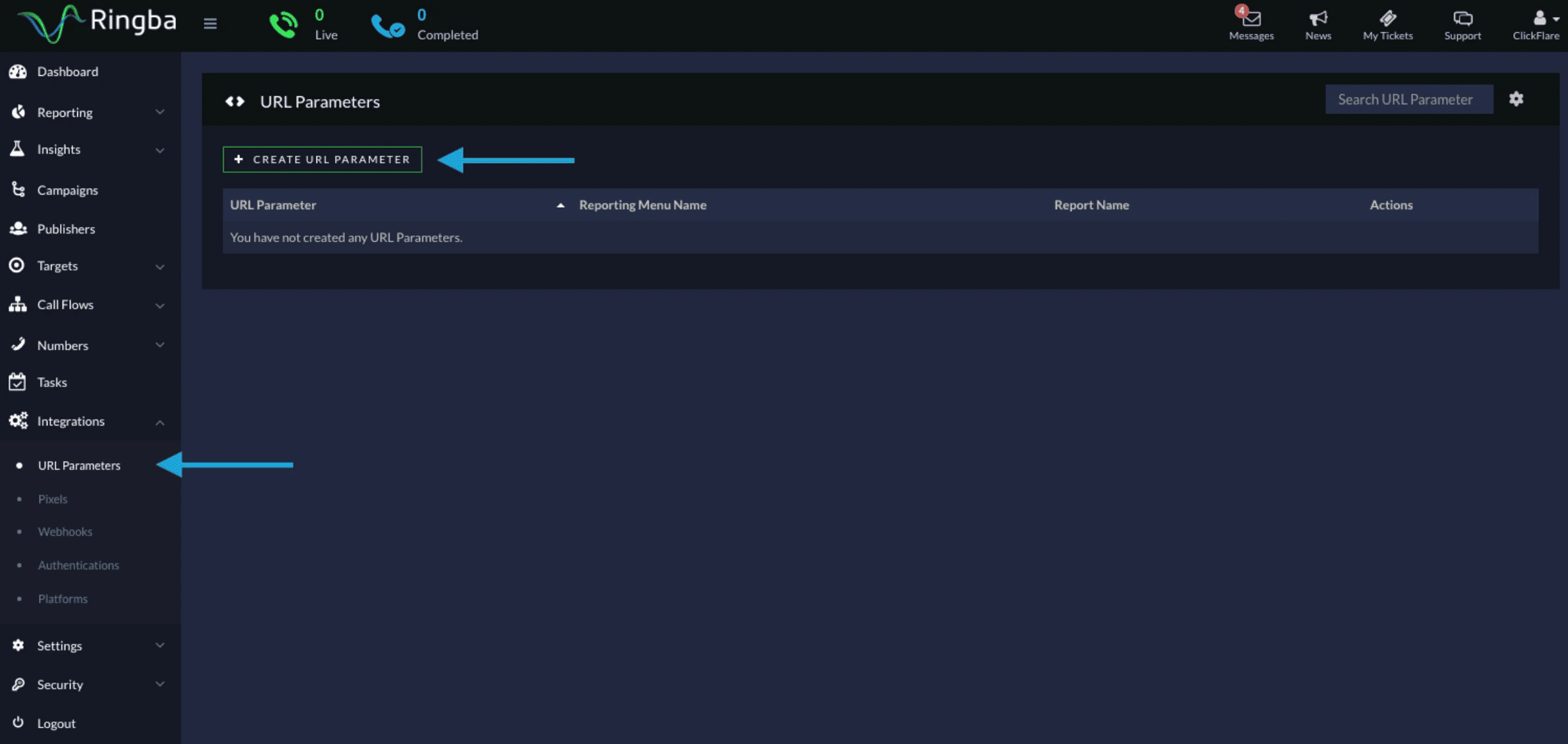
2. Click on Create URL Parameter;
3. Name it clickid;
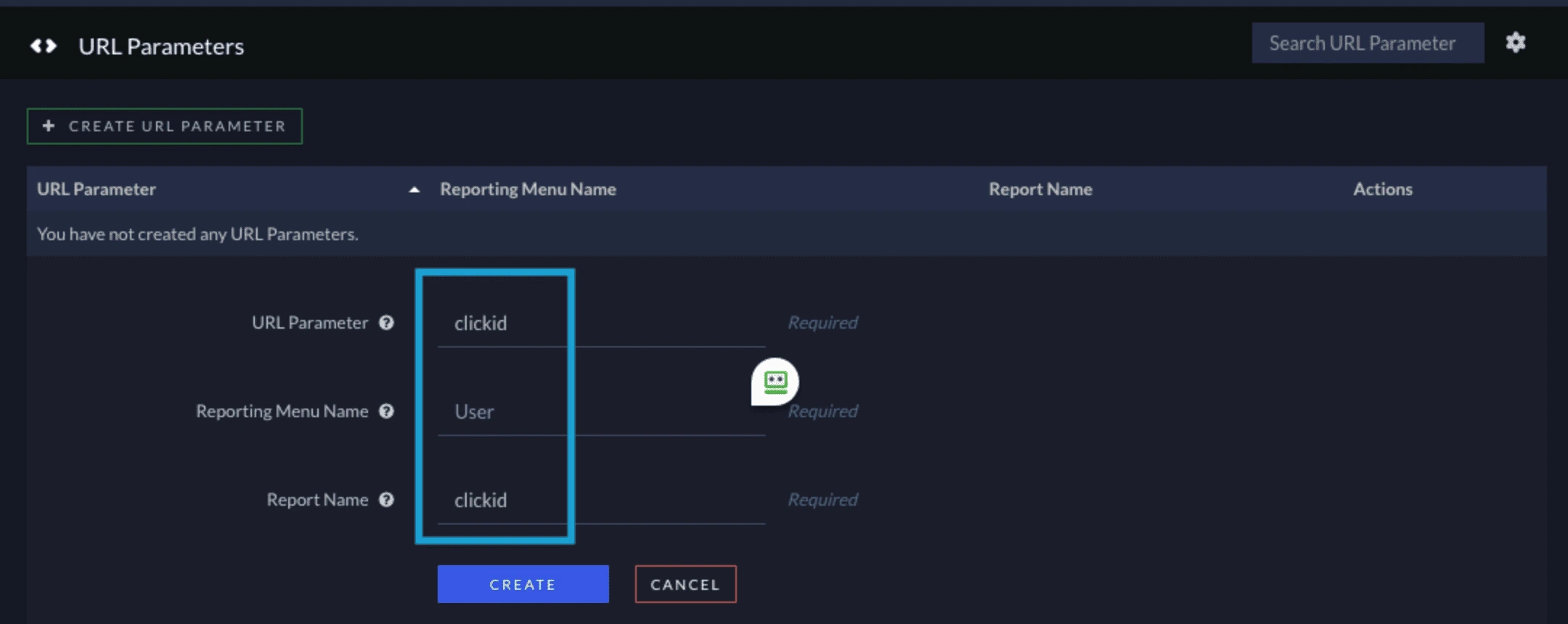
4. Token [tag:User:clickid] will be created.
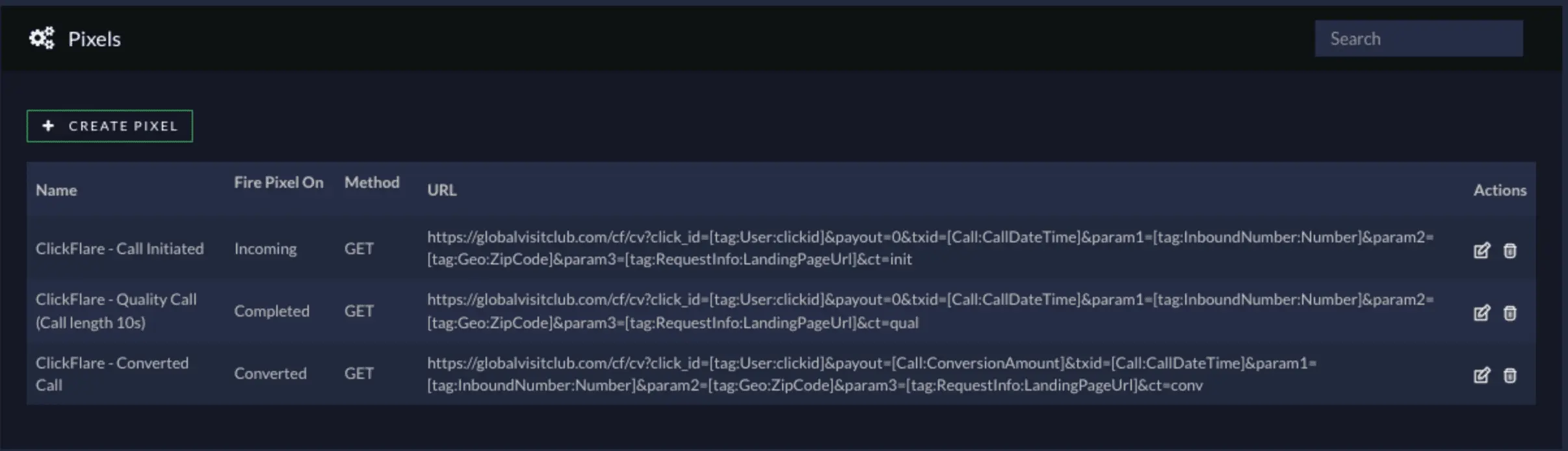
Next, we need to create postbacks that will be fired by Ringba for the events we created at the very start (initiated call, converted call, and quality call).
Here is how to do this:
In some cases, you may want to filter out visitors and only show the phone number if they reached a certain step (for example, if they answered a quiz to qualify, like shown below).
The main reason for doing this is that each time the Ringba script loads, it uses a number from your pool. If it shows a number to every visitor right away, you might run out of available numbers quickly. That can lead to tracking issues within Ringba. By delaying the script, you save available numbers for users who are more likely to call.

The majority of the setup is the same, but in this case you will need to delay the script injection using ClickFlare’s Tag Manager.
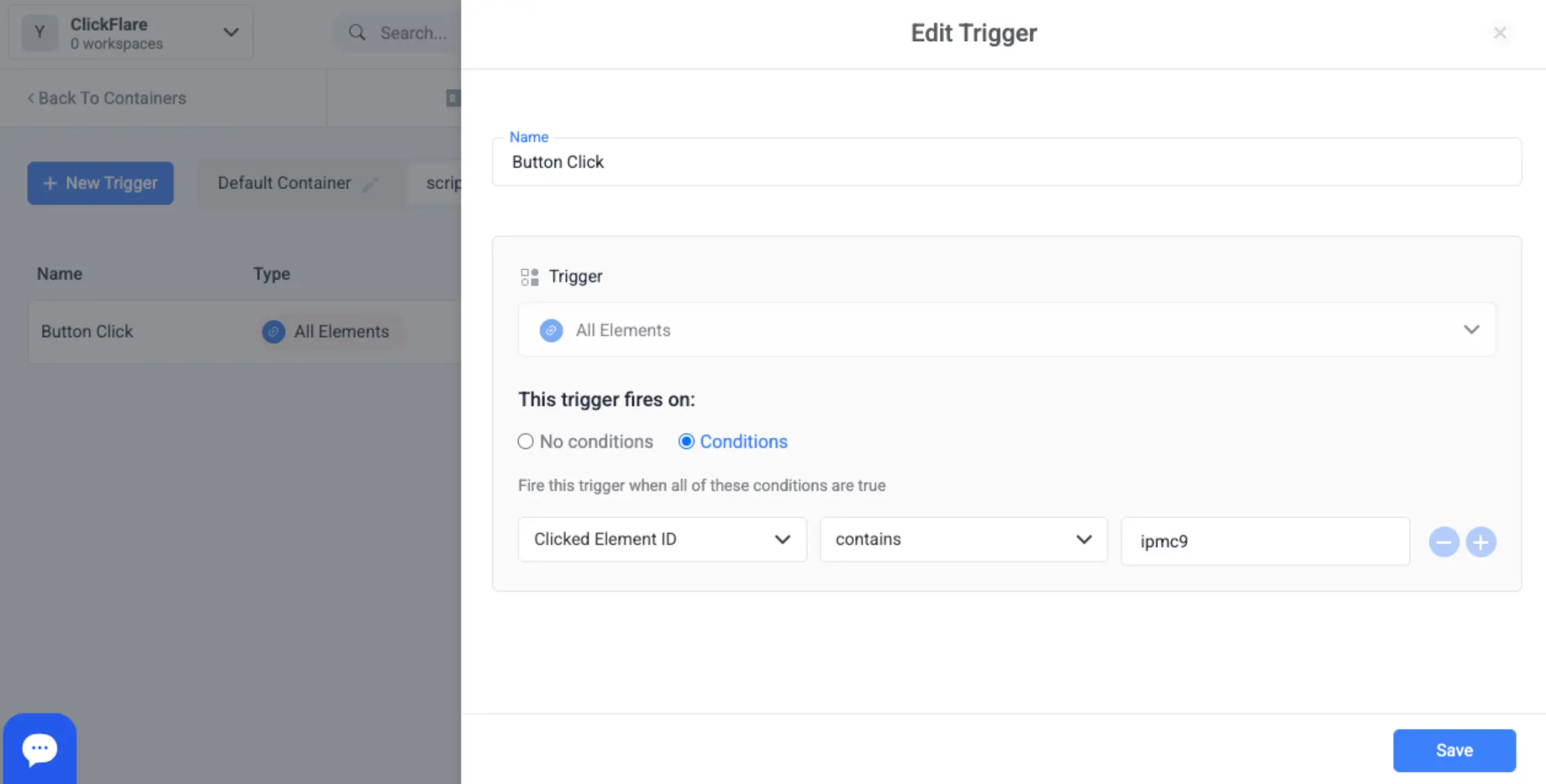
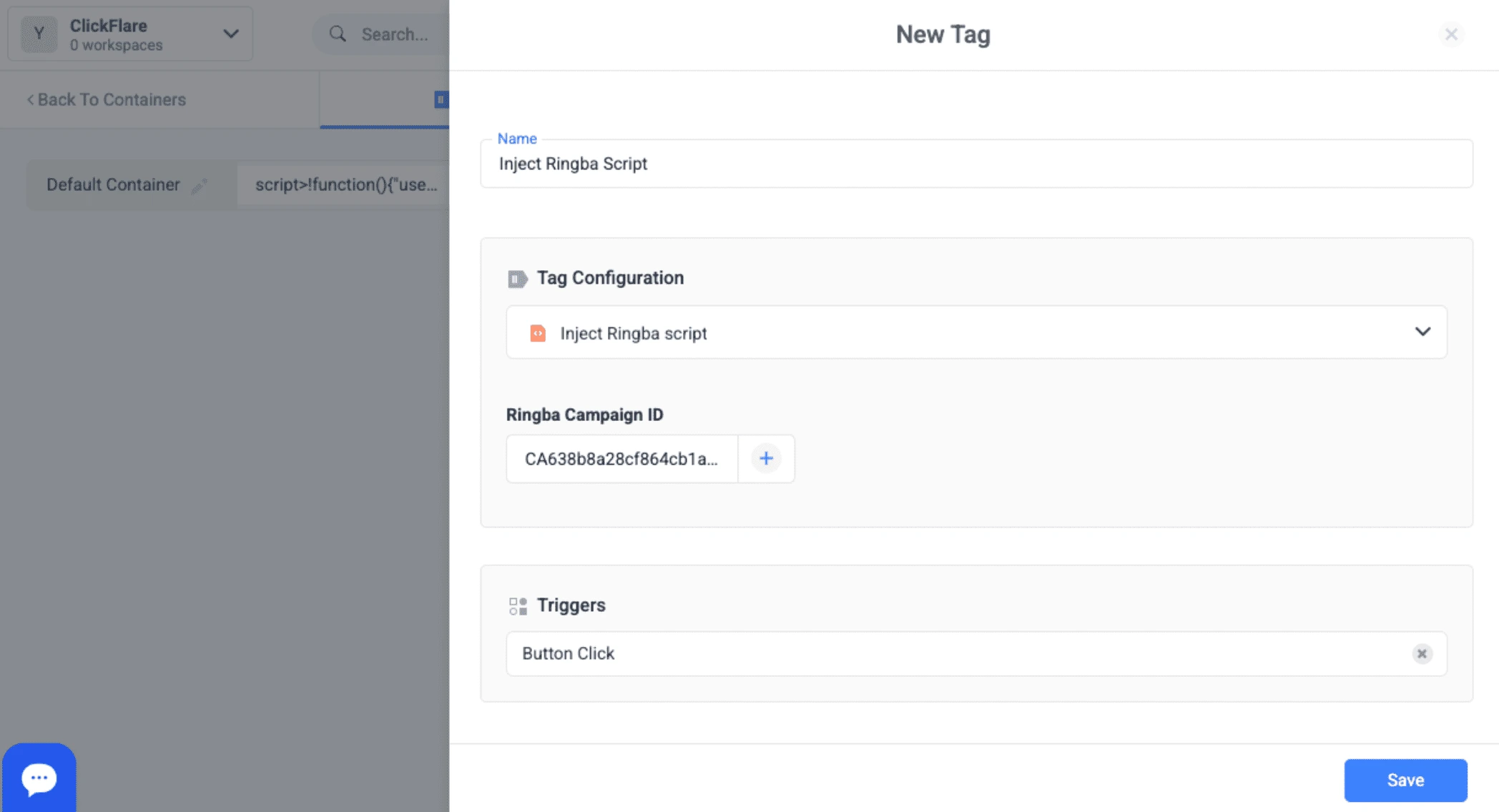
4. Use the pre-made “Inject Ringba Script” tag and add your Ringba Campaign ID.
In some cases, redirect tracking is not an option because the ad network does not allow it. Specifically, this happens for Google Ads, Bing and YouTube.
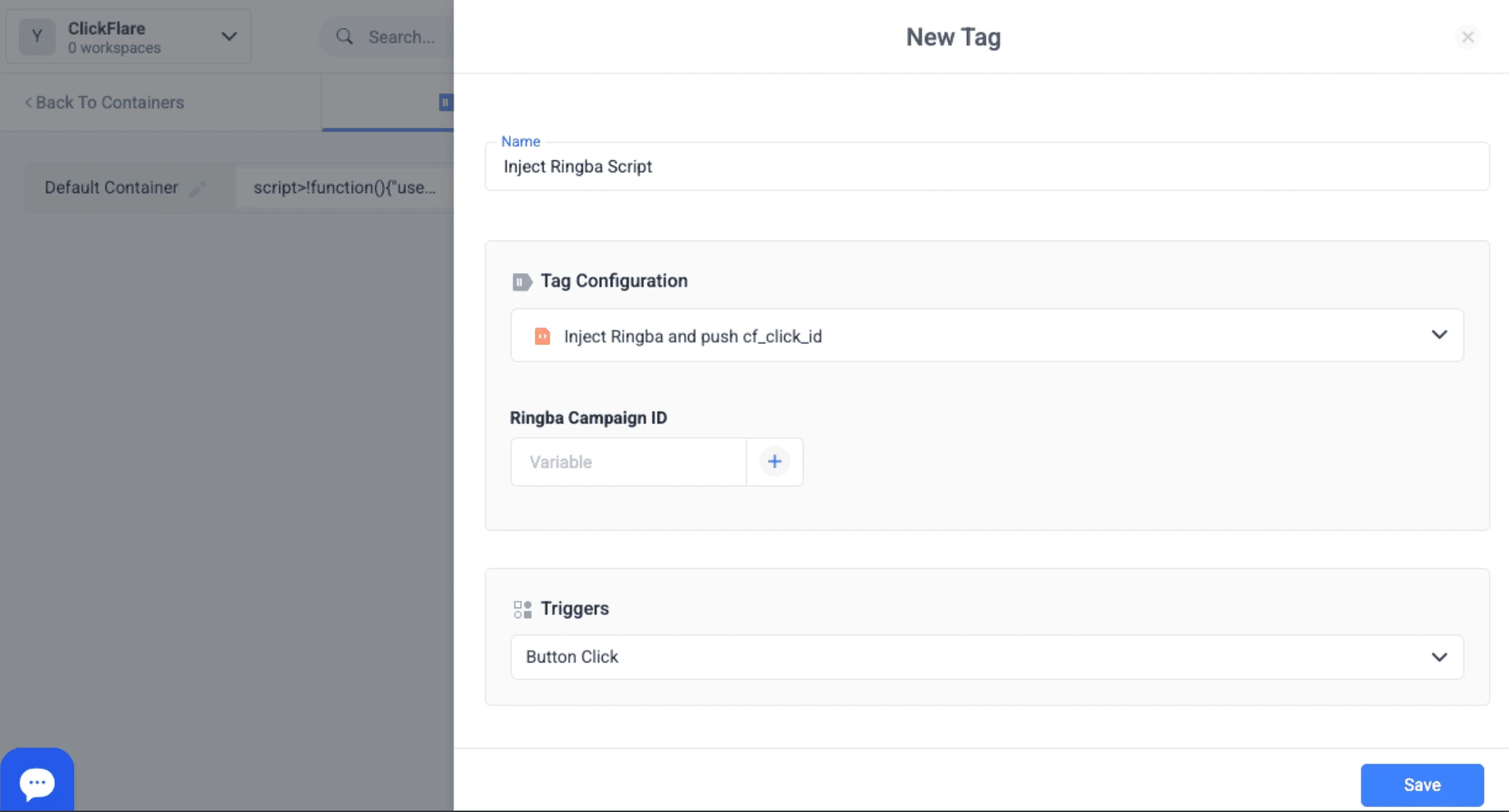
When you use ClickFlare’s Tag Manager, you need to add the ClickFlare container script to your landing page.
At the end, we always recommend running a full test to ensure tracking is working properly. If you open the campaign link through ClickFlare and make a test call, does this properly appear inside your Ringba and ClickFlare dashboards? Always ensure this is tracking accordingly.
Tracking can be tricky, especially when it comes to the small details. Here are a few tracking mistakes you can easily solve for more accurate data:
Without this step, you cannot tie a call back to a specific user, making optimization more difficult. This is why you need to ensure that you have completed Step 9 from above. It’s a small step, but once you do it, Ringba and ClickFlare will pass and store this information accordingly.
When you are advertising across several ad platforms and using third-party tools like Ringba and ClickFlare, it’s easy to fall for mismatched time zones and currencies. It may seem like a small issue but it often leads to broken attribution windows and mismatching reportsWith ClickFlare, you can choose a standard account time zone and currency. You can do this under General Settings.
If you do not connect Ringba for the revenue synchronization, you will have no data for important metrics such as ROAS or Profit. This is why it’s important for your ad tracker to have a seamless integration with Ringba. If you follow our guide from above, your revenue will be automatically updated on ClickFlare.
When you sign up for ClickFlare, you will get automatically assigned a shared tracking domain. That means that you have no control over what other users are doing. This can also negatively impact your performance if other users are engaging in non compliant activities. This is why you need to add your own tracking domain (or purchase a new one if you don’t have one available). The best approach is to register a subdomain of your landing page’s domain in ClickFlare. All the scripts using this domain will be treated as first-party, avoiding any issues with cookies.
As we mentioned at the very start of our guide, it’s essential to track all three separate events on ClickFlare (initiated, converted, and quality call). On Ringba, you can define what a converted call and quality call mean. By tracking these events on ClickFlare and sending them to your ad network, you’re making a clear distinction and optimizing your campaigns based on quality.
To succeed with pay per call marketing campaigns, you need more than just traffic, you need reliable data. Being able to track your campaigns properly gives you full visibility into what’s actually driving qualified calls and revenue. The two sides of pay per call tracking are call tracking and ad tracking. You need both in order to fully understand campaign profitability. You can combine a call tracking platform like Ringba with an ad tracking software like ClickFlare to tie every click to a call, every call to a conversion, and every conversion to real ROI.
PPC call tracking is the process of tracking phone calls generated from your ad campaigns. It helps you see which ads, keywords, landing pages, or traffic sources are driving calls, and whether those calls turn into qualified conversions and revenue.
Call tracking focuses on the call itself, such as call duration, call outcome, caller location, and whether the call met your conversion criteria. Ad tracking focuses on the marketing side, such as which ad, keyword, campaign, or landing page generated the call.
Not always, but using both gives you a more complete view of performance. Ringba handles the call tracking side, while ClickFlare handles ad tracking, attribution, cost tracking, and reporting.
Without proper tracking, you cannot accurately see which campaigns are generating qualified calls and profit. PPC call tracking helps you identify winning ads, reduce wasted spend, optimize based on call quality, and make better scaling decisions.
Yes. PPC call tracking can be used with major ad platforms such as Google Ads, Meta, TikTok, Bing, Taboola, and others. The exact setup may differ by platform, especially when it comes to redirects, tracking scripts, and conversion event reporting.
If the click ID is not passed correctly, you lose accurate attribution. That means you may still see calls in Ringba, but you will not be able to reliably tie them back to the original ad, keyword, or campaign in your tracker.
A number pool is a set of phone numbers that are dynamically assigned to visitors so each user can be tracked individually. This makes it possible to attribute calls back to the correct source.
It’s recommended to track initiated calls, converted calls, and quality calls. This gives you a better idea of both volume and call quality, and it allows you to optimize your campaigns based on complete data.
Yes. That is one of the main advantages of proper PPC call tracking. By tracking quality-based events, such as longer calls or calls that meet specific criteria, you can send better signals back to your ad platforms and optimize toward higher-value leads.
Common mistakes include not passing the click ID correctly, failing to sync time zones or currencies across platforms, not sending revenue back into the tracker, not using a custom tracking domain, and optimizing only for call volume instead of call quality.