

At a glance
How it works
1
ExoClick sends the click
A visitor clicks your ad. ExoClick opens your ClickFlare campaign URL and fills in its dynamic tokens: the click ID in
tag, the price paid in cost, plus the campaign, variation, site, zone and other details.2
ClickFlare stores the ExoClick click ID
ClickFlare saves the value of
tag as the visit’s External ID, records the cost, and redirects the visitor to your lander or offer.3
The conversion reaches ClickFlare
Your affiliate network or store posts the conversion back to ClickFlare, matched on the ClickFlare click ID.
4
ClickFlare posts it back to ExoClick
ClickFlare fires the ExoClick postback for your Conversion Goal, replacing
{external_id} with the stored ExoClick click ID and, if you add it, {payout} with the revenue. ExoClick matches it to the original click.The mirror to keep straight: in the campaign URL you write ClickFlare’s parameter (
tag) and ExoClick’s token ({conversions_tracking}). The template does this for you. In the postback URL you write ExoClick’s parameter (tag) and ClickFlare’s token ({external_id}). The parameter is called tag on both sides, but the value comes from a different system each time.Before you start
- Set up your own tracking domain. Run the campaign and the postback on your own custom domain. Shared domains get flagged by networks and blocked by browsers. See Custom Domains.
- Have an offer ready in ClickFlare, and its affiliate network set up to post conversions back to ClickFlare. See Creating an Offer and Adding an Affiliate Network.
- Create a Conversion Goal in ExoClick. Its Goal ID goes into the postback URL. You create it in Step 2.
- Decide which conversions ExoClick should receive. ExoClick counts and optimizes on the goals you send it. If your funnel has several steps (lead, then sale), decide now whether to send one goal or several. See Tracking several events.
Step 1 – Create the campaign and the ExoClick traffic source
- Go to Campaigns and click New.
- In Traffic Source, open the dropdown and click + New Traffic Source.
- Type
exoclickin the search box and select the ExoClick template. - Enter a Name, for example
ExoClick. - Leave Cost currency on USD unless your ExoClick account is billed in another currency.
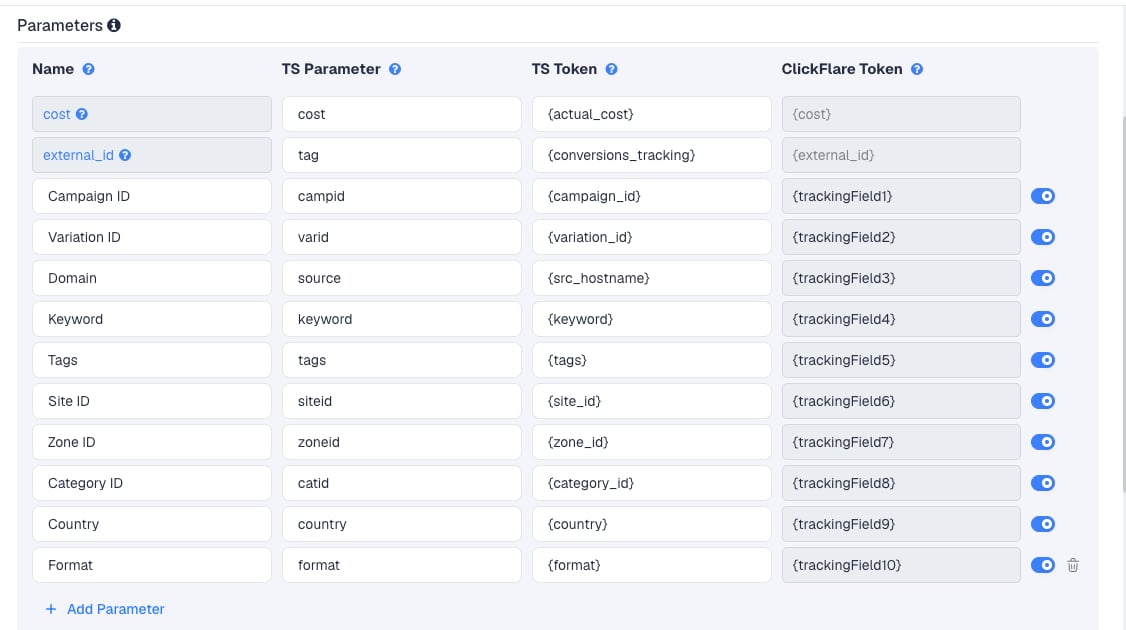
zoneid and siteid are the ones you will use most: they tell you which zones convert, so you can block or bid up zones in ExoClick.
To pass more ExoClick data, click Add Parameter, give it a name and parameter, and enter the ExoClick token as the TS Token. ClickFlare assigns the next free tracking field. ExoClick also offers {language}, {sub} (the publisher’s sub ID), {pricing_model} and {url}, among others. Check the Dynamic Tokens list in ExoClick before adding them.
Step 2 – Set up the postback
The postback is what sends conversions to ExoClick. It lives on the traffic source, so every campaign that uses this ExoClick traffic source sends conversions the same way.Create a Conversion Goal in ExoClick
- In ExoClick, go to Campaigns → Conversion Tracking and click New Conversion Goal.
- Fill in the form:
- Click Create.
- Choose Conversion Tracking API - S2S as the tracking method. ExoClick shows the goal’s postback URL, for example
http://s.magsrv.com/tag.php?goal=GOAL_ID&tag=. - Copy the Goal ID: the 32-character value after
goal=.
Add it to the traffic source in ClickFlare
- Back in the New Traffic Source form, scroll to Passing conversion info to traffic source.
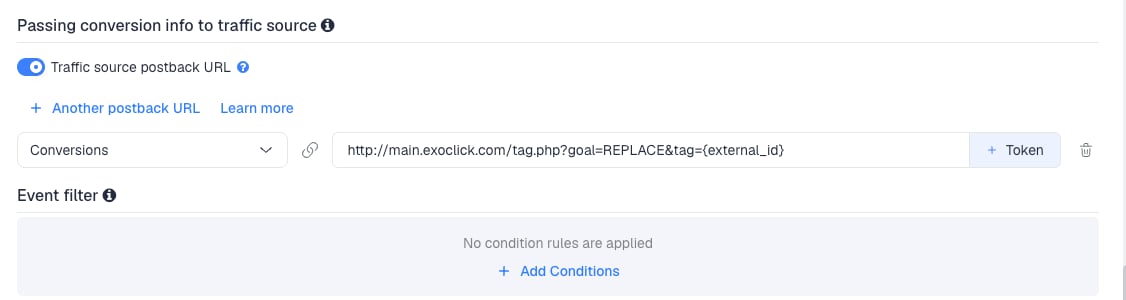
- Turn on Traffic source postback URL. The template’s postback appears:
{external_id}) in ExoClick’s tag parameter. It does not send a payout, and it still uses ExoClick’s old postback domain.
- Replace
REPLACEwith your Goal ID. - Replace
main.exoclick.comwiths.magsrv.com. ExoClick has moved its postback URLs to this domain. - If the goal’s Conversion Value is Dynamic, add
&value={payout}at the end. The result:
- In the dropdown on the left, choose the ClickFlare event that should fire the postback. Keep Conversions to send every conversion. If your final action is a custom conversion (for example
purchase), choose that instead. - Click Save. You are back in the campaign editor with the ExoClick traffic source selected.
value as the conversion’s monetary amount. If your offers pay in a different currency from your ExoClick account, see Multicurrency in ClickFlare.
To learn what each postback token does, see How to Configure a Traffic Source S2S Postback URL.
Step 3 – Finish the campaign and copy its URL
- Name the campaign.
- Set the Cost Model to Not Tracked, so ClickFlare uses the cost ExoClick passes. See Cost.
- Choose Redirect or Direct tracking. Redirect is the usual choice for ExoClick’s popunder and banner traffic.
- Click Next and, on Destination, add your lander (optional) and your offer.
- Save, open Tracking, select your own tracking domain and copy the campaign URL.
tag={conversions_tracking} and zoneid={zone_id}.
If you use a lander, its call-to-action must link to the ClickFlare click URL, not to the offer directly. Otherwise the visit reaches the offer without a ClickFlare click ID, and the conversion cannot be traced back to ExoClick.
See Creating a Campaign in ClickFlare.
Step 4 – Create the campaign in ExoClick
- In ExoClick, create a campaign and choose the ad format, targeting and pricing as usual.
- On Step 2 - Ads, click Add Variations, choose Single Landing Page and paste the ClickFlare campaign URL as the landing page URL.
- Add your creatives and finish the variation.
- Complete the remaining steps and submit the campaign for review.
Step 5 – Test the integration
ExoClick lets you trigger a real click on your variation and check the postback before you spend anything.- In your ExoClick campaign, open the variation’s actions menu and click Test Variation. ExoClick simulates an ad click and opens your ClickFlare campaign URL.
- Check the URL that opened:
tag=should be followed by a long string, not by{conversions_tracking}. That string is ExoClick’s click ID, 150 to 700 characters long. A redirect-tracing browser extension such as Redirect Path shows it if the redirect hides it. The test visit should also appear in the ClickFlare campaign’s stats. - Complete the offer the way a real visitor would, or post a test conversion to ClickFlare from your affiliate network.
- In ClickFlare, go to Logs → Postback Status and filter by the campaign. A request to
s.magsrv.comwith responseOKmeans ExoClick registered the conversion. - Refresh your ExoClick statistics. The conversion appears under the goal’s column after a few moments.
You can also test the ExoClick side without an offer, as ExoClick suggests: copy the click ID from step 2, put it into your postback in place of
{external_id}, and open the URL in a browser. ExoClick shows the same responses. This confirms the Goal ID and click ID, not ClickFlare’s postback settings.
Tracking several events
Each ExoClick Conversion Goal has its own Goal ID. To track a lead and a sale separately, create one goal per step and send each event to its own goal:- In ExoClick, create a Conversion Goal for each step, for example
LeadandSale, and copy each Goal ID. - In ClickFlare, create a custom conversion for each step, for example
leadandpurchase. - On the ExoClick traffic source, click + Another postback URL once per extra event.
- Map each postback to its ClickFlare event: the
leadcustom conversion to the Lead goal’s URL,purchaseto the Sale goal’s URL. - Test each event. Each goal shows its own conversions column in ExoClick’s statistics, in the Order you set.
Rules for multi-goal postbacks
Rules for multi-goal postbacks
- One postback per goal. The Goal ID decides which goal ExoClick credits.
- Set Conversion Value per goal: Dynamic where you send
&value={payout}, No Value for steps without revenue. - Use Every conversion as the Count only for goals that really repeat, such as rebills. Otherwise ExoClick rejects duplicates with
ERROR: This conversion has already been notified and saved.
Sending only one event
Sending only one event
If ExoClick should only learn from your final sale, keep a single postback and map it to that event. Earlier steps (leads, add to carts) still show in ClickFlare. They just don’t reach ExoClick.To send a postback only for some conversions, for example only those above a certain payout, use Event filter under the postback to add conditions.
Cost
The template passes cost per visit. Thecost row sends ExoClick’s {actual_cost} token, the actual CPM or CPC paid for the impression or click, and ClickFlare records it as the visit’s cost.
On the campaign, set the Cost Model to Not Tracked so ClickFlare uses the cost passed in the URL.
On CPC and Smart CPC campaigns,
{actual_cost} is the price of the click, which is exactly what you want. On CPM and Smart CPM campaigns it is the cost of a single impression, a very small number such as 0.00002. For popunders, where one impression is roughly one visit, it stays close. For banners and native on CPM, compare the Cost column with your ExoClick spend after launch. If it doesn’t match, switch the Cost Model to CPC and enter your effective cost per click, or your CPM bid divided by 1,000 for popunders.Delayed revenue
If you run search arbitrage (RSOC or AFD) behind ExoClick, the feed reports revenue hours or days after the click. To pass that revenue to ExoClick once it arrives, see Sending Delayed Revenue to Traffic Sources.Troubleshooting
ExoClick answers ERROR: Goal ID is invalid.
ExoClick answers ERROR: Goal ID is invalid.
REPLACEis still in the postback. Replace it with your Goal ID.- The Goal ID was copied with extra characters. It is exactly 32 characters, 0-9 and a-f.
ExoClick answers ERROR: No tag data. or Tag is invalid!
ExoClick answers ERROR: No tag data. or Tag is invalid!
- The campaign URL in ExoClick is missing
tag={conversions_tracking}, or the token was edited. Copy the URL from ClickFlare again. - The postback uses something other than
{external_id}aftertag=. ClickFlare doesn’t know ExoClick’s tokens and sends them as literal text. - The
externalIdrow was removed from the traffic source. - The click ID was cut short. It can be up to 700 characters, so check that nothing in your redirect chain truncates long URLs.
Conversions show in ClickFlare but not in ExoClick
Conversions show in ClickFlare but not in ExoClick
- Traffic source postback URL is off on the ExoClick traffic source.
- Disable sending postbacks to traffic source is on in the campaign.
- The postback is mapped to a different event than the one the conversion logged. Check Logs → Event Logs to see which event was recorded.
- The postback still points to
main.exoclick.com. Change it tos.magsrv.com. - Check Logs → Postback Status: the response column shows ExoClick’s exact message, such as
ERROR: Conversion window is not respected.
ExoClick shows conversions with no revenue
ExoClick shows conversions with no revenue
The template’s postback sends no payout. Add
&value={payout} at the end of the postback, and set the goal’s Conversion Value to Dynamic in ExoClick.Zone or site columns are empty
Zone or site columns are empty
The tokens were not replaced, usually because the URL was edited or pasted somewhere ExoClick doesn’t process tokens. Paste the campaign URL from ClickFlare unchanged into the variation. See Traffic Source Tokens Arriving Empty.
FREQUENTLY ASKED QUESTIONS
Q1: Can I use the same ExoClick traffic source for all my ExoClick campaigns?A1: Yes. Every campaign using it sends conversions to the same Conversion Goal. Create a second ExoClick traffic source only if some campaigns should report to a different goal.
Q2: ExoClick’s tracking manuals list Voluum, Binom, RedTrack and other trackers, but not ClickFlare. Is that a problem?A2: No. ExoClick’s generic S2S setup applies, and the ClickFlare template already does both halves of it.
Q3: Why is it tag in both the campaign URL and the postback?
A3: The template reuses ExoClick’s name on ClickFlare’s side. They are still two halves of the same value: ClickFlare’s tag receives {conversions_tracking}, and ExoClick’s tag receives {external_id}.
Q4: Should I use Redirect or Direct tracking with ExoClick?A4: Redirect is the usual choice and works with every ExoClick format. Use Direct only if ExoClick must see your lander’s domain as the destination. See Direct Campaign Tracking.
Q5: Do I need the postback if I don’t use CPA bidding?A5: Yes. Without it, ExoClick’s conversion columns stay empty and its Automatic on Conversion Rate distribution has nothing to optimize on.
Related
Traffic source postbacks
Every token you can use in a postback.
Custom conversions
Split leads and sales into separate events.
Cost models
How CPC, CPA and RevShare costs are calculated.
Conversions not showing
The general checklist when postbacks don’t arrive.