

At a glance
How it works
1
Nextdoor sends the click
A visitor clicks your ad. Nextdoor opens your ClickFlare campaign URL with its click ID in the
ndclid parameter, plus any macros it fills in.2
ClickFlare stores the Nextdoor click ID
ClickFlare saves the value of
ndclid as the visit’s External ID and redirects the visitor to your lander or offer.3
The conversion reaches ClickFlare
Your affiliate network or store posts the conversion back to ClickFlare, matched on the ClickFlare click ID. You see it in your ClickFlare reports, with the Nextdoor click ID attached.
4
Nextdoor learns about it separately
ClickFlare does not post the conversion to Nextdoor. If the Nextdoor Pixel fires on your conversion page, or you send the event through Nextdoor’s Conversions API, Nextdoor records it.
With most networks there is a mirror: the network’s macro in the campaign URL, ClickFlare’s token in the postback. With Nextdoor only the first half exists. The template reads
ndclid from the incoming click. There is no postback to send it back in.Before you start
- Set up your own tracking domain. Run the campaign on your own custom domain. Shared domains get flagged by networks and blocked by browsers. It also matters for the Nextdoor Pixel, which tracks the domains you control. See Custom Domains.
- Have an offer ready in ClickFlare, and its affiliate network set up to post conversions back to ClickFlare. See Creating an Offer and Adding an Affiliate Network.
- Decide how Nextdoor will see conversions. If you own the conversion page, you can install the Nextdoor Pixel there. If you send traffic to an affiliate offer you don’t control, Nextdoor will only see what the pixel can catch on your lander. Plan this before you launch. See Step 2 below.
Step 1 – Create the campaign and the Nextdoor traffic source
- Go to Campaigns and click New.
- In Traffic Source, open the dropdown and click + New Traffic Source.
- Type
nextdoorin the search box and select the NextDoor template. - Enter a Name, for example
Nextdoor. - Leave Cost currency on USD unless your Nextdoor account is billed in another currency.
What the macros really are
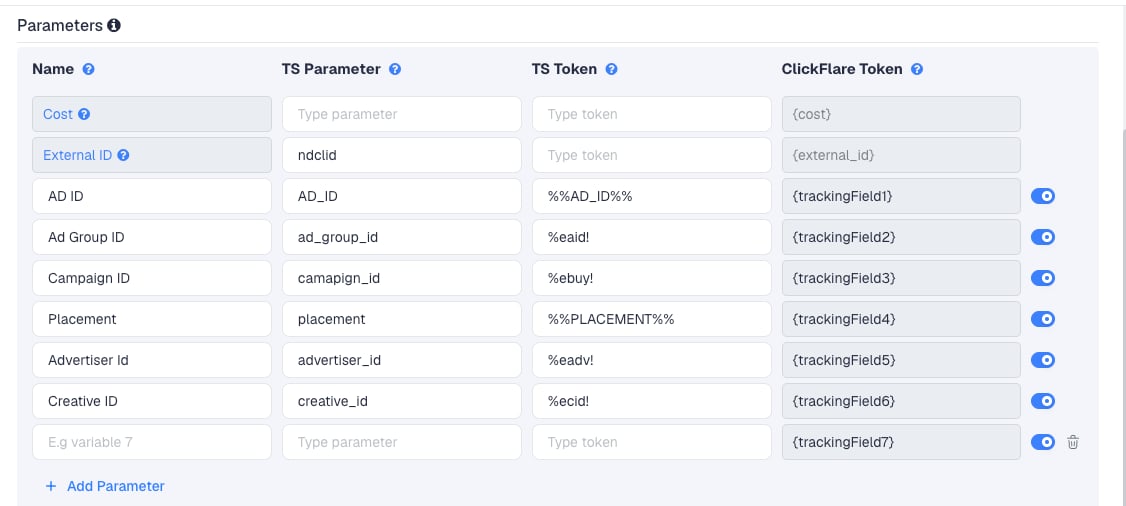
The%e...! tokens are Google Campaign Manager 360 macros, not Nextdoor macros. Campaign Manager 360 fills them in when the click passes through one of its click trackers: %eaid! is the ad ID, %ebuy! the campaign ID, %eadv! the advertiser ID and %ecid! the creative ID. The %%AD_ID%% and %%PLACEMENT%% tokens are not in Campaign Manager 360’s list either, and Nextdoor doesn’t publish URL macros we could confirm.
In practice:
- If your Nextdoor ads are trafficked through Campaign Manager 360, the
%e...!rows fill in. Read the “Ad Group ID” column as the CM360 ad ID. - If you run Nextdoor’s self-serve Ads Manager without Campaign Manager 360, these columns stay empty or show the raw macro text. Your Nextdoor campaign, ad group and ad breakdowns then come from Nextdoor’s own reporting.
nd_campaign=spring_promo, and edit it per campaign in Nextdoor.
To pass more data, click Add Parameter, give it a name and parameter, and enter the value or macro as the TS Token. ClickFlare assigns the next free tracking field.
Step 2 – Decide how Nextdoor learns about conversions
There is no postback to configure. In the New Traffic Source form, leave Traffic source postback URL off and click Save. You are back in the campaign editor with the Nextdoor traffic source selected. Nextdoor’s optimization still needs conversion data. You have three options.Option A – The Nextdoor Pixel on your conversion page
Use this when you own the page where the conversion happens, for example your own store or lead form.- In Nextdoor Ads Manager, go to Assets → Pixels and click Create Pixel.
- Click the three dots next to the pixel ID and choose Install code.
- In Step 1: Set up base code, copy the code snippet.
- In Step 2: Set up conversion-event, configure every conversion event you want and the URL rule that fires it, for example
purchasewhen the visitor reaches your thank-you page. Click Submit and check the Summary of Conversion Event Configuration. - Install the base code in the
<head>of every page you want to track, especially the conversion page. You can also install it through Google Tag Manager, with the Nextdoor Pixel template from the Template Gallery.
purchase, lead, sign_up, add_to_cart, initiate_checkout, page_view, search, view_content, add_to_wishlist, subscribe, and custom_conversion_1 to custom_conversion_10. Use these exact names.
Option B – The pixel on your lander only
Use this when you send traffic to an affiliate offer you don’t control. Install the Nextdoor Pixel on your lander and fire an event on the action you can see, for exampleview_content on page load, or a custom_conversion_ event when the visitor clicks through to the offer.
Nextdoor then optimizes on lander engagement, not on the sale. Your real conversions and revenue stay in ClickFlare. Judge campaigns there.
Option C – Nextdoor’s Conversions API, from your own system
Nextdoor’s Conversions API accepts conversions server to server and matches them on hashed email, hashed phone or the click ID. ClickFlare doesn’t send to it, but it stores what you need: thendclid in each visit’s External ID.
If you or your developer run a Conversions API connection, send the External ID of each converting visit as the click_id. Nextdoor asks for events within an hour of the conversion. See Nextdoor’s developer documentation for authentication and the request format.
Whichever option you use, ClickFlare remains your source of truth for revenue. Nextdoor’s conversion numbers will differ from ClickFlare’s, because they come from a different data path and Nextdoor applies its own attribution windows: 7 days after a click, 1 day after a view.
Step 3 – Finish the campaign and copy its URL
- Name the campaign.
- Set the Cost Model to CPC and enter your expected cost per click. See Cost.
- Choose Redirect or Direct tracking. If you install the Nextdoor Pixel on your lander, Direct keeps your lander’s domain as the ad’s destination. See Direct Campaign Tracking.
- Click Next and, on Destination, add your lander (optional) and your offer.
- Save, open Tracking, select your own tracking domain and copy the campaign URL.
ndclid= parameter. Because the template’s External ID row has no TS Token, the campaign URL may contain ndclid= with nothing after it. If it does, delete that part before you paste the URL into Nextdoor, so the only ndclid in the click is the one Nextdoor adds.
If you use a lander, its call-to-action must link to the ClickFlare click URL, not to the offer directly. Otherwise the visit reaches the offer without a ClickFlare click ID, and the conversion cannot be traced back to the Nextdoor click.
See Creating a Campaign in ClickFlare.
Step 4 – Create the campaign in Nextdoor
- In Nextdoor Ads Manager, create a campaign, ad group and ad as usual.
- Paste the ClickFlare campaign URL into the ad’s landing page URL field.
- If you installed the Nextdoor Pixel, select it and the conversion event to optimize on.
- Submit the ad for review.
Step 5 – Test the integration
- Click your live ad, or open the ad’s preview link if Nextdoor offers one, so the visit comes from Nextdoor.
- In ClickFlare, open the campaign’s report and check that the visit has an External ID. That is the
ndclidNextdoor added. - If the External ID is empty, look at the landing URL your browser shows after the click. If it has no
ndclid, Nextdoor didn’t add one for this ad. If it has one, check the External ID row and the campaign URL for a duplicatendclid=. - Complete the offer the way a real visitor would and check that the conversion appears in ClickFlare.
- If you use the Nextdoor Pixel, open your browser’s developer tools (F12) on the conversion page and check that the base pixel and your conversion event fire.
Cost
The template doesn’t pass cost. Its Cost row is empty, and ClickFlare has no cost integration for Nextdoor. Set the campaign’s Cost Model to CPC and enter your expected cost per click. If you buy on CPM, enter your CPM bid divided by 1,000. If you buy toward a cost per conversion goal, CPA with your target is an alternative.Don’t use Not Tracked with this template. It records cost only when the URL or a cost integration provides it, and neither does here, so your cost would show as zero.
Troubleshooting
The External ID is empty
The External ID is empty
- The click didn’t come from Nextdoor, for example a direct visit to the campaign URL.
- Nextdoor didn’t add
ndclidto this click. Check the landing URL after a real ad click. - The campaign URL in Nextdoor contains an empty
ndclid=as well as Nextdoor’s own. Delete the empty one. - The External ID row was removed or renamed. Its TS Parameter must be
ndclid.
Nextdoor shows no conversions
Nextdoor shows no conversions
Expected unless you set up the Nextdoor Pixel or the Conversions API. ClickFlare sends nothing to Nextdoor. If you installed the pixel, check that the base code is on the conversion page and that the event’s URL rule matches the page.
Columns show %eaid! or other raw macros
Columns show %eaid! or other raw macros
Those are Campaign Manager 360 macros. They are only filled in when the click passes through a Campaign Manager 360 click tracker. Remove the rows or replace them with fixed values. See Traffic Source Tokens Arriving Empty.
Cost is zero in ClickFlare
Cost is zero in ClickFlare
The Cost Model is Not Tracked. The template passes no cost, so switch to CPC, or upload costs.
ClickFlare and Nextdoor conversion counts don't match
ClickFlare and Nextdoor conversion counts don't match
Expected. ClickFlare counts conversions posted by your affiliate network. Nextdoor counts what its pixel or Conversions API received, within its own attribution windows. Optimize on ClickFlare’s numbers.
FREQUENTLY ASKED QUESTIONS
Q1: Why is there no postback in the Nextdoor template?A1: Nextdoor doesn’t take conversions by postback URL. It takes them from its pixel or through its Conversions API, which needs an authenticated server request. ClickFlare’s traffic source postback can’t make that request.
Q2: Does ClickFlare integrate with the Nextdoor Conversions API?A2: No. ClickFlare stores Nextdoor’s click ID as the External ID, so you can send it to the Conversions API from your own system.
Q3: Can I use the same Nextdoor traffic source for all my Nextdoor campaigns?A3: Yes. With no postback, there is nothing campaign-specific on the traffic source unless you add fixed-value parameters per campaign.
Q4: Should I use Redirect or Direct tracking?A4: Both work for capturing the click. Direct is the better fit if the Nextdoor Pixel sits on your lander, because the visitor lands on your domain first. See Direct Campaign Tracking.
Q5: Can I fill the ad group and campaign columns without Campaign Manager 360?A5: Not with macros we could confirm. Use fixed values per campaign, for example
nd_campaign=spring_promo, and check Nextdoor Ads Manager for any URL parameters your account supports.
Related
Direct campaign tracking
Track without a redirect, with your lander as the destination.
Manual cost upload
Correct your Nextdoor spend in ClickFlare.
Cost models
How CPC, CPA and RevShare costs are calculated.
Conversions not showing
The general checklist when postbacks don’t arrive.