

Step 1: Create a CAPI Integration with Webhook
Reference: Custom Webhook Integration-
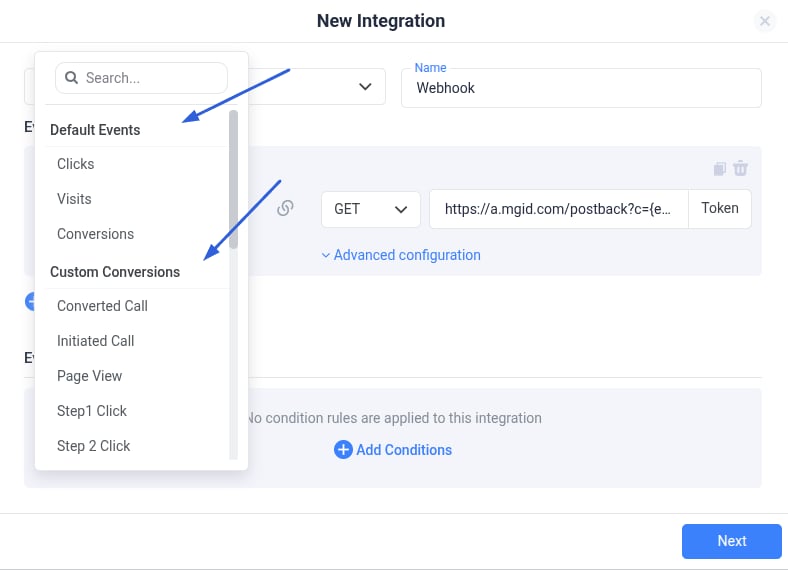
- Go to Integrations > CAPI Integrations > Webhook.
- Specify Clicks (or the event you want to send selectively) as the event to be reported.
- Configure the postback URL for your traffic source (e.g., MGID), using the proper data replacements.
Only configure the event(s) you want to send selectively here.
Step 2: Assign the Integration to Specific Campaigns
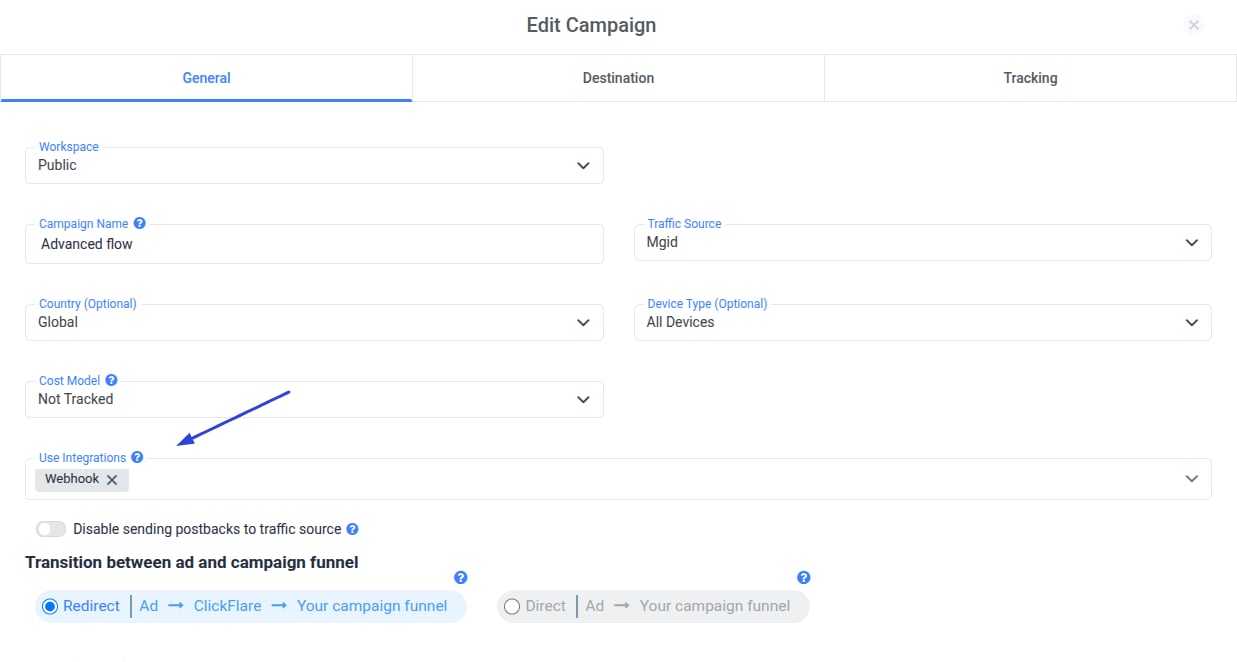
- Once the Webhook CAPI integration is created, go to the campaign settings.
- Select the CAPI integration only for the campaigns where you want the specific event (e.g., clicks) reported.
Step 3: Configure Traffic Source Events Normally
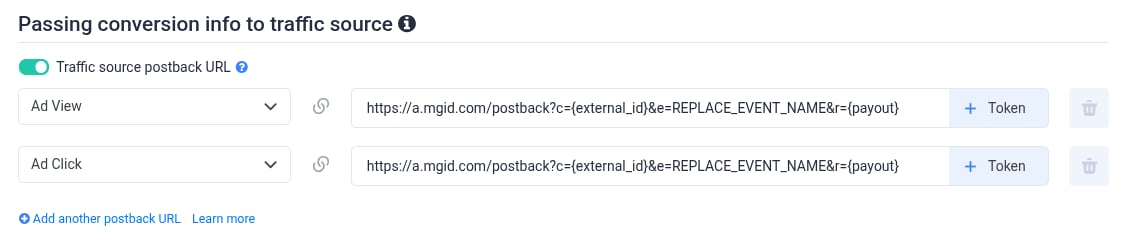
- At the traffic source level, configure the events you want to report to your traffic source, excluding the selectively reported event (e.g., clicks).
- This way, all other events will continue to be sent via the standard postback for all campaigns that use the same Traffic Source Template.
Result
- The specific event (clicks in this example) is sent only for the selected campaigns through the Webhook CAPI integration.
- All other events are reported normally to all campaigns through the standard setup.