

Creating the campaign
From anywhere inside ClickFlare, open the Campaigns page from the left-hand menu.- From anywhere inside ClickFlare, open the Campaigns page from the left-hand menu.
- Click + New to create a new campaign.
-
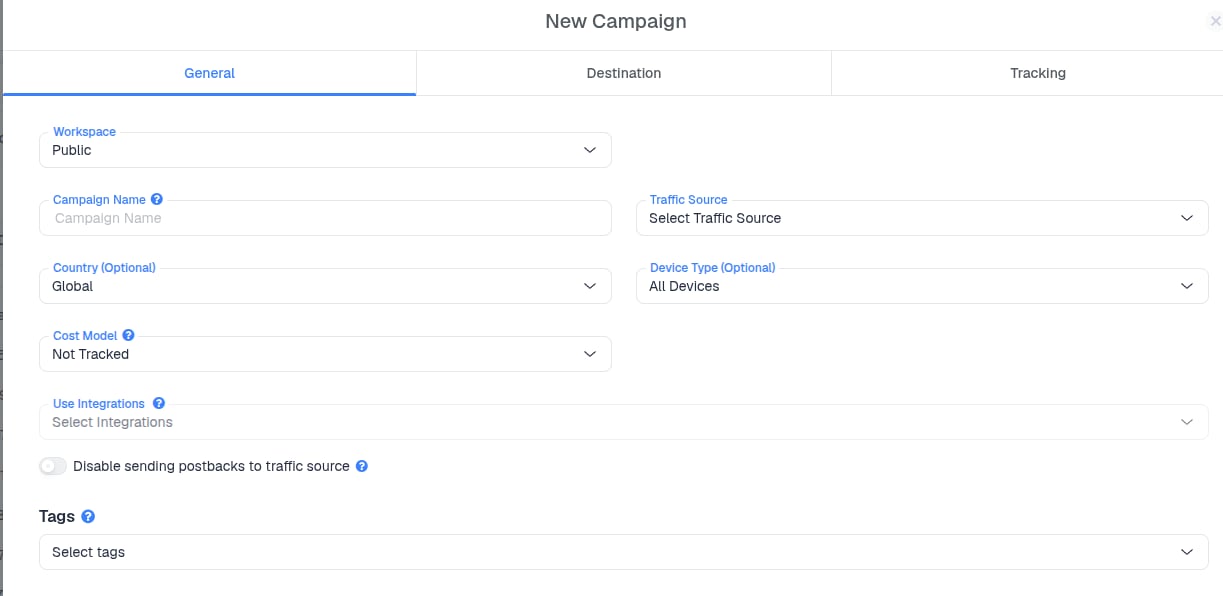
Fill in the basic campaign details:
- Campaign Name
- Traffic Source
- Cost Model
- CAPI Integrations
- Target country or GEO (e.g., US, CA, UK)
- Target device type (e.g., Mobile, Desktop, Tablet)
- Tags to group elements by Vertical or niche
- Notes to save useful information about the campaign
Choose the tracking method
Next, select your campaign’s tracking method.-
Redirect Tracking is a classic tracking method, in which a visitor is redirected through ClickFlare’s servers, by applying path-altering options, such as rule-based paths, weights, A/B testing, or AI.
Redirect Tracking sends visitors through ClickFlare before they reach the destination. This enables features such as:
- Rule-based paths
- Weighted traffic distribution
- A/B testing
- AI optimization

-
Direct Tracking
Direct Tracking sends visitors directly to the destination without passing through a ClickFlare redirect.

Configure the destination
- Open the Destination tab
- Select New Flow, then choose one of the available Redirect Modes.
- Click Add Path to create your first path (the same process applies when creating Conditional Paths).
- Select Landers & Offers
-
Next, choose:
- The landing page(s) visitors should see.
- The offer(s) visitors should be redirected to after the landing page.
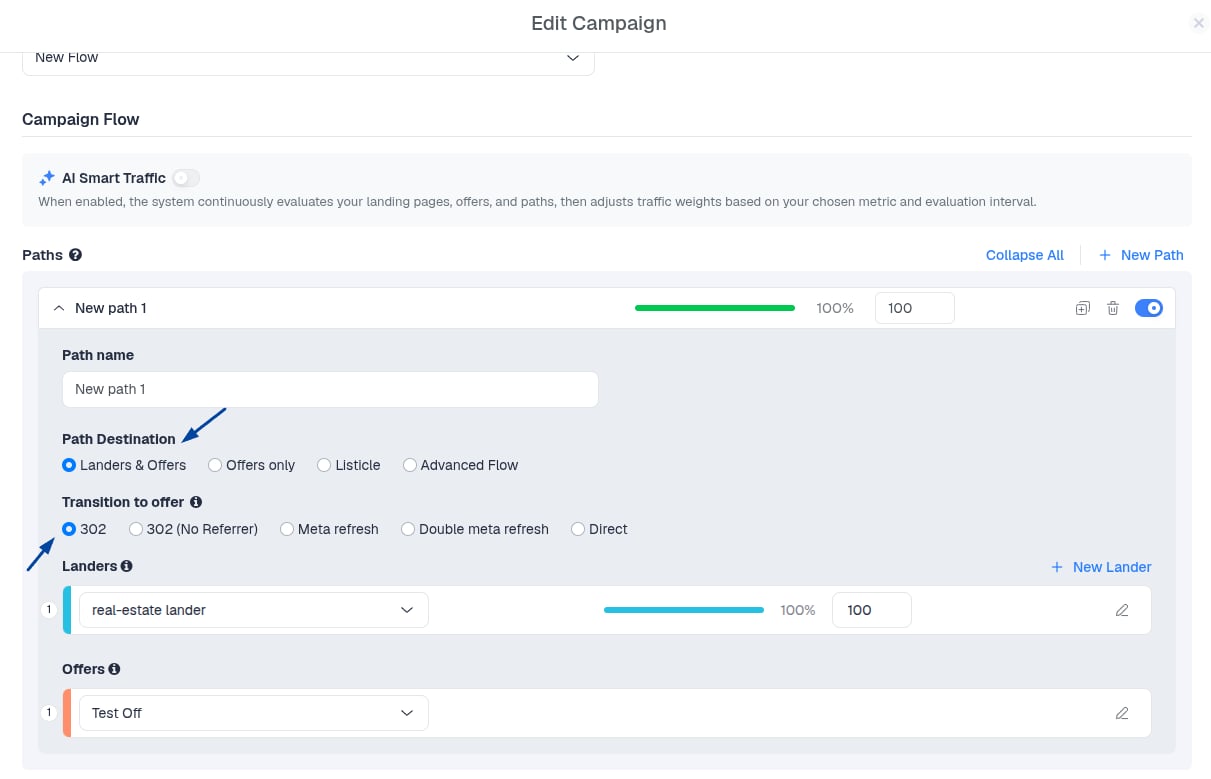
Traffic is distributed according to each element’s Weight. The weight determines the percentage of traffic each lander or offer receives, with the total distribution always adding up to 100%.
- Preview
- Edit
- Clone
- Archive
Completing the lander setup
After creating your lander and offer path in ClickFlare, you need to update your landing page so that ClickFlare can handle the transition from the lander to the offer. Instead of linking your CTA buttons directly to the offer URL, update them to use the ClickFlare Click URL. Example: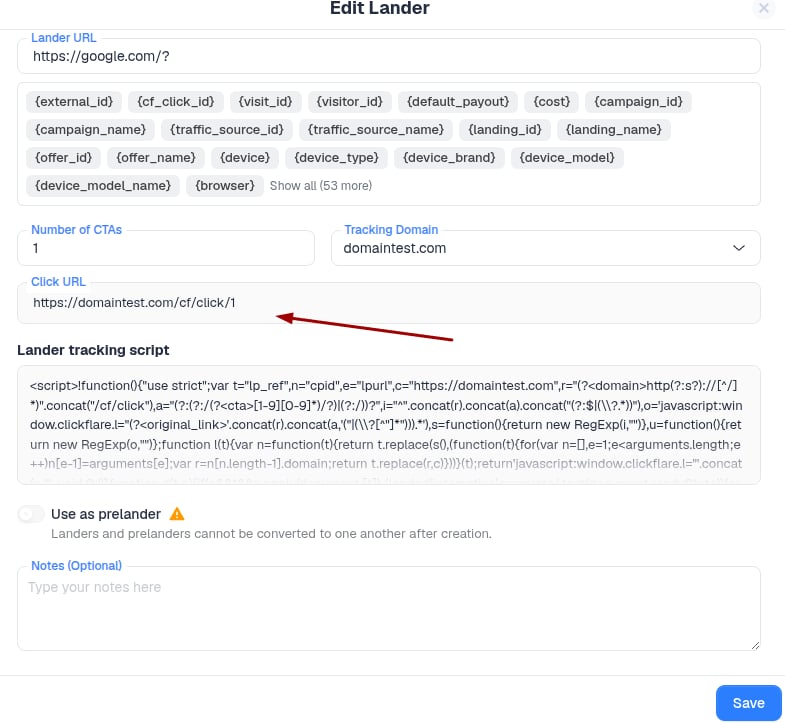
Example implementation
<a id="ip2oti" href="https://domaintest.com/cf/click/1?" class="ll-btn">Contact Us</a>
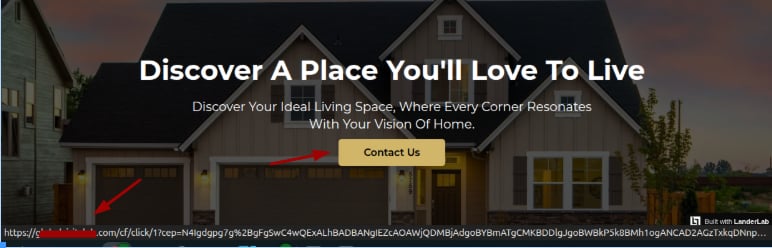
Testing your funnel
Before scaling traffic, it’s important to test your funnel to ensure everything is working correctly. You can do this by:- Clicking through the full flow from your traffic source, or by opening the campaign tracking URL in the browser
- Verifying that the redirect to the lander works correctly
- Confirming that the CTA button redirects through ClickFlare (by hovering over the CTA button to see the ClickFlare click URL, or by checking the redirect)
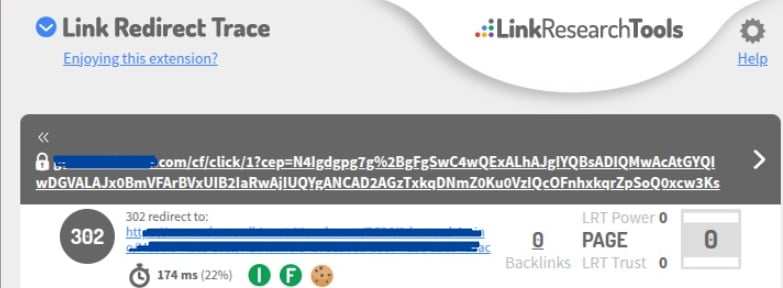
- Checking that the offer page is reached successfully
- Ensuring that visits and clicks are being properly recorded in ClickFlare logs