

Free on every plan. Ads Manager is included on every ClickFlare plan, with no limits, while we roll it out. It will become a paid feature later on, and we will announce the pricing well in advance.
Supported platforms
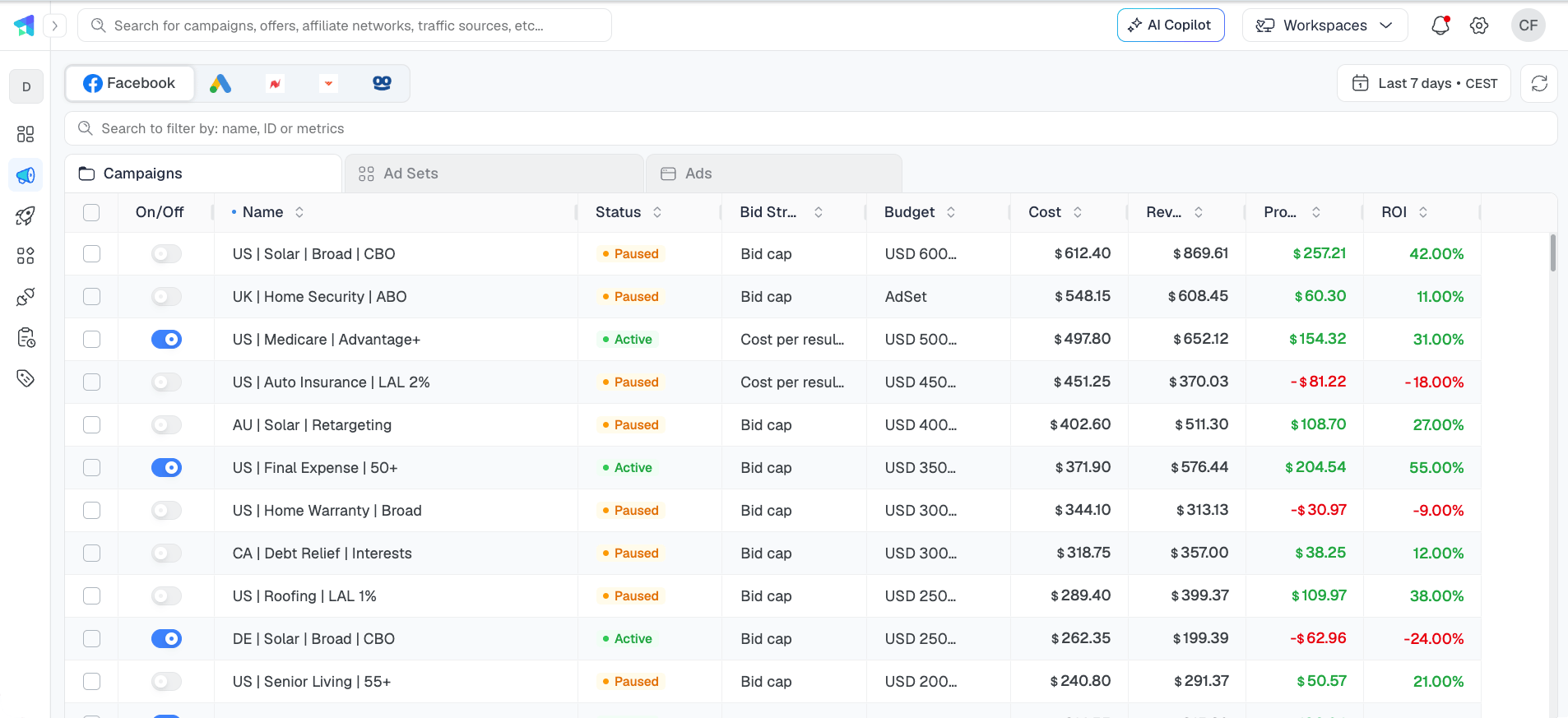
Each platform has its own tab at the top of Ads Manager.
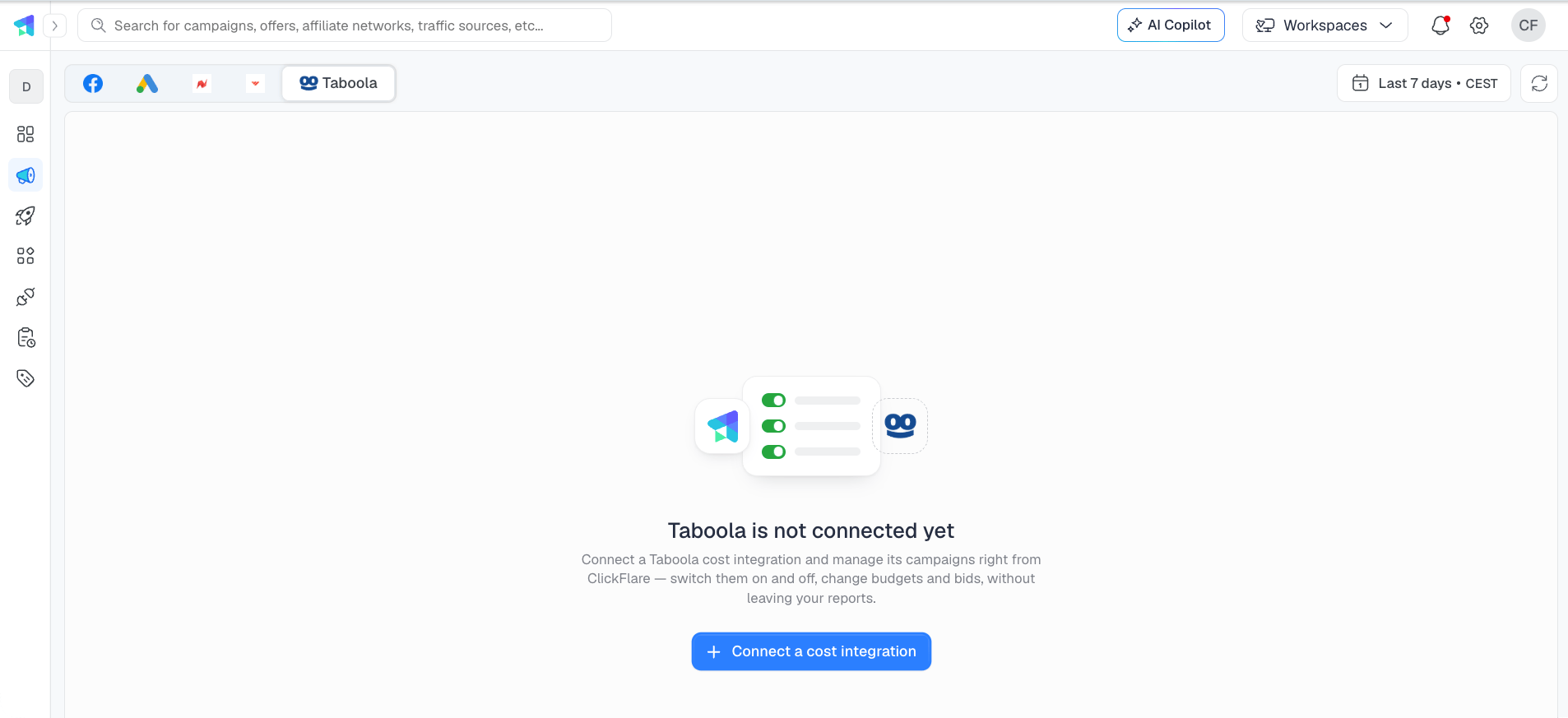
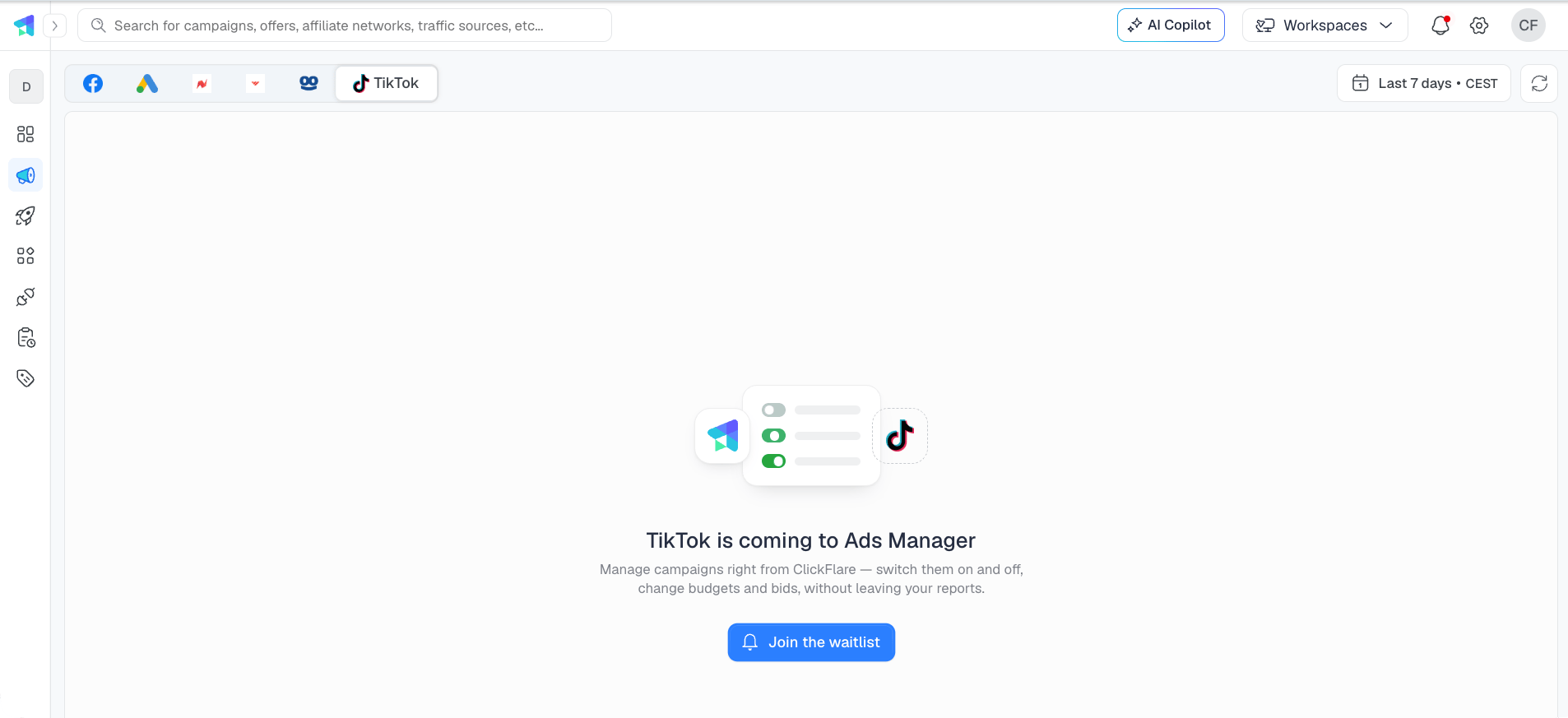
The tab bar shows every platform you have connected a cost integration for at any point, so it is different for each account and only lists the platforms you work with. To add a platform to the bar, set up its cost integration. A tab can show one of two screens instead of your campaigns:
- ”… is not connected yet”: the platform is supported, but your account has no active cost integration for it. Click Connect a cost integration to set one up.
- ”… is coming to Ads Manager”: the platform is not supported yet. Click Join the waitlist. The platforms with the most requests are built first, so join the waitlist for the ones you run.
Before you start
Ads Manager uses the cost integrations you already have. There is nothing new to install.Seeing your data
Needs a working cost integration
Making changes
Needs one reconnect
Seeing your data
If a campaign shows cost in ClickFlare, its platform connection works, and the campaign shows up in Ads Manager. If it shows no cost, set up or fix the cost integration for that platform first:- Facebook (Meta) cost integration
- Google Ads cost integration
- NewsBreak cost integration
- Whop cost integration
- Taboola cost integration
Making changes
Viewing campaigns only needs read access, which your cost integration already has. Making changes, such as pausing a campaign or editing a budget, needs write access, a permission the original connection did not ask for. So the first time you make a change on a platform, ClickFlare asks you to reconnect that integration and approve the new permissions. You do this once per integration. Reconnecting does not change your tracking or your cost data.The Ads Manager view
Ads Manager follows the structure of each platform. On Meta, for example, the tabs are Campaigns, Ad Sets and Ads, just like in Meta Ads Manager. At the top of the view you have:- The platform tabs. Switch between your platforms.
- The date range and timezone. Choose the period the metrics cover.
- Refresh. Reload the latest data from the platform and from ClickFlare.
- Search. Filter the list by name, ID or metric.
Choosing your columns
Click Default View at the bottom left, then Column Settings. Columns are split into Attributes (such as status, bid strategy, budget and the Enabled on/off switch) and Metrics (such as cost, revenue, profit and ROI). Tick the ones you want, drag them into order, and click Apply. You can also add a Custom Metric, or Save as preset to keep a layout you use often. Each level (campaigns, ad sets, ads) has its own columns.Where the numbers come from
Because revenue and conversions come from ClickFlare’s own tracking, they do not depend on the platform’s pixel. This is the main difference from the platform’s own ads manager.
Going from campaigns down to ads
1
Select one or more campaigns
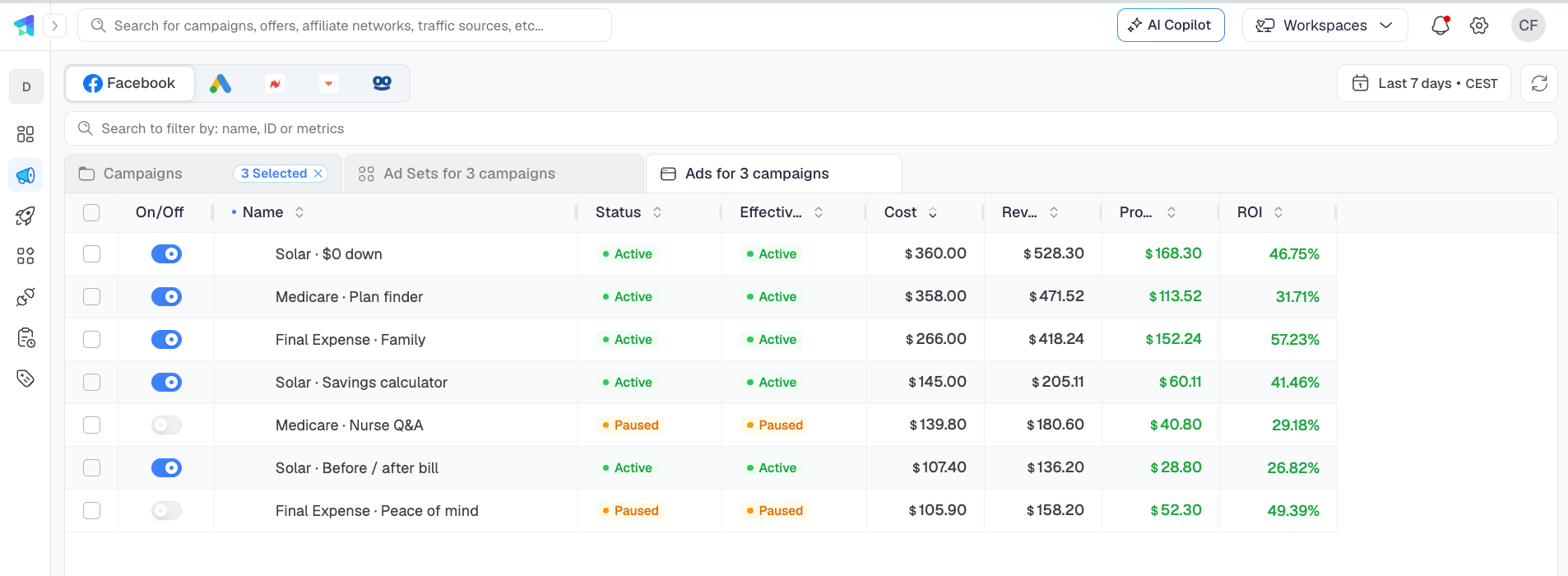
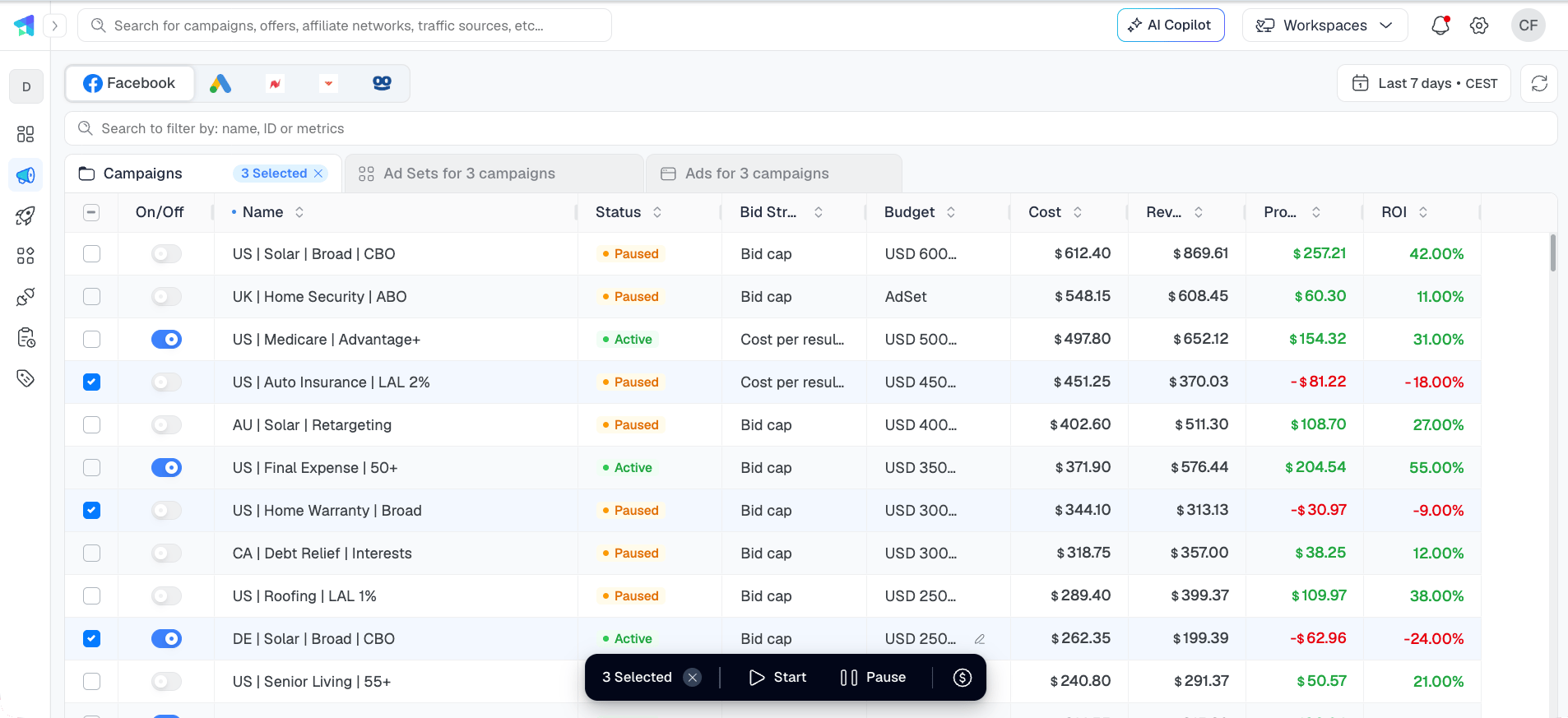
Tick the checkbox next to the campaigns you want to look into. The Campaigns tab shows how many are selected, for example 3 Selected.
2
Open the next level
Click the Ad Sets (or Ad Groups) tab. It now reads, for example, Ad Sets for 3 campaigns and shows only the ad sets of the campaigns you selected.
3
Open the ads
Click the Ads tab to see the ads behind your selection, each with its own on/off switch, status and metrics.
Pausing and resuming
The switch in the On/Off column pauses or resumes an item on the ad platform. The Status column updates to show the new state. To pause several at once:1
Select them
Tick the checkboxes of the campaigns, ad sets or ads you want to pause. A bar appears at the bottom with the number selected.
2
Pause them
Click Pause in the bar and confirm. If your selection includes paused items, the bar also shows Start, which resumes them. The same bar holds Change Budget and, where the platform allows it, Change Bid.
Changing budgets
You can change one budget in the table or many at once.One budget, in the table
Click the budget cell, type the new amount and press Enter. The change is sent to the platform straight away.Many budgets at once
1
Select the campaigns
Tick the campaigns (or ad sets) whose budgets you want to change, then click Change Budget in the bar at the bottom.
2
Choose how to change them
In the Change Budget window, pick an Operation and enter a Value: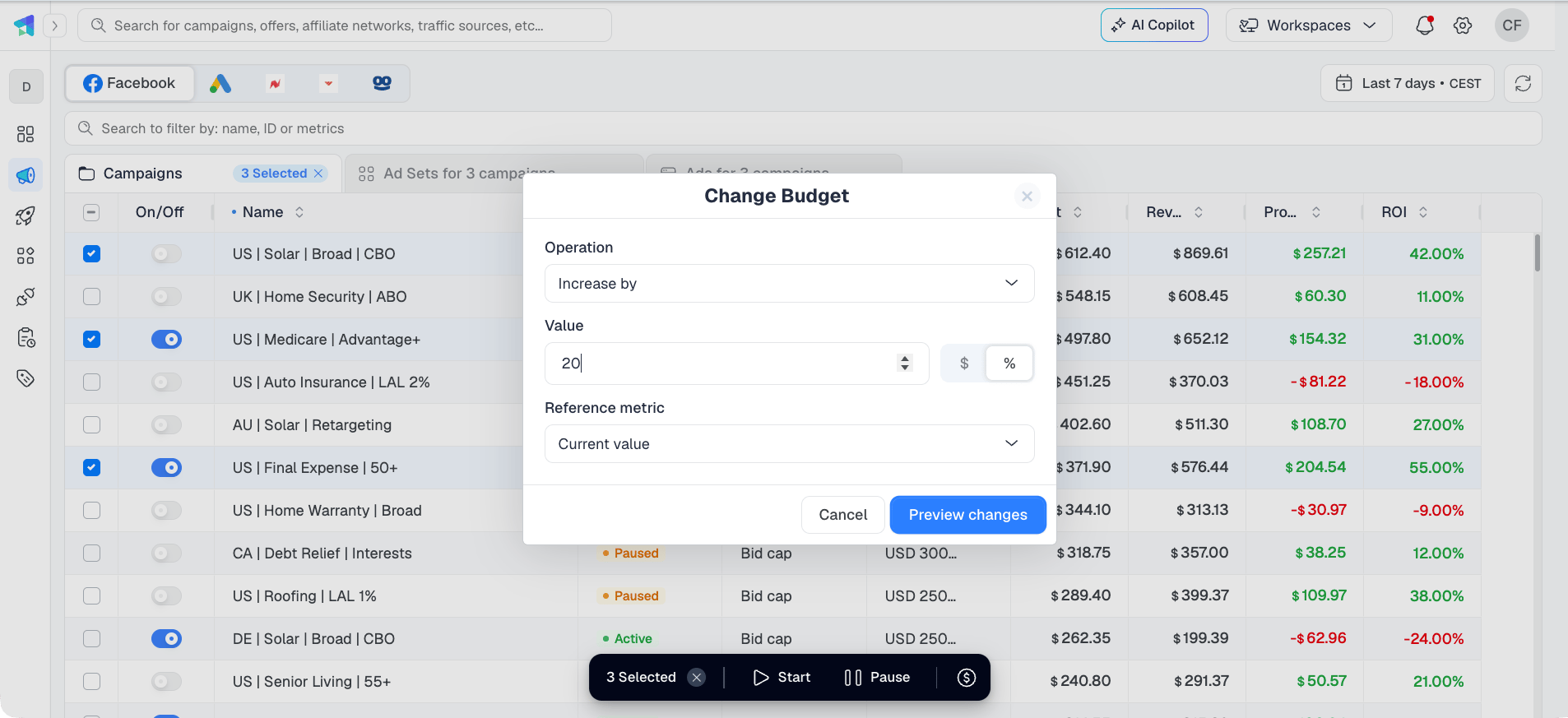
When you use %, a Reference metric field appears. Leave it on Current value to change the budget by a percentage of itself, or choose a metric such as CPA, revenue, cost, profit, EPV or EPC to base the change on that metric instead.
3
Preview the changes
Click Preview changes. Nothing is sent yet. Each affected row shows the old budget crossed out and the new one next to it, for example 600.00 → 720.00, and a bar at the bottom sums up the change, for example Increase budget by 20% of current value · 3 campaigns.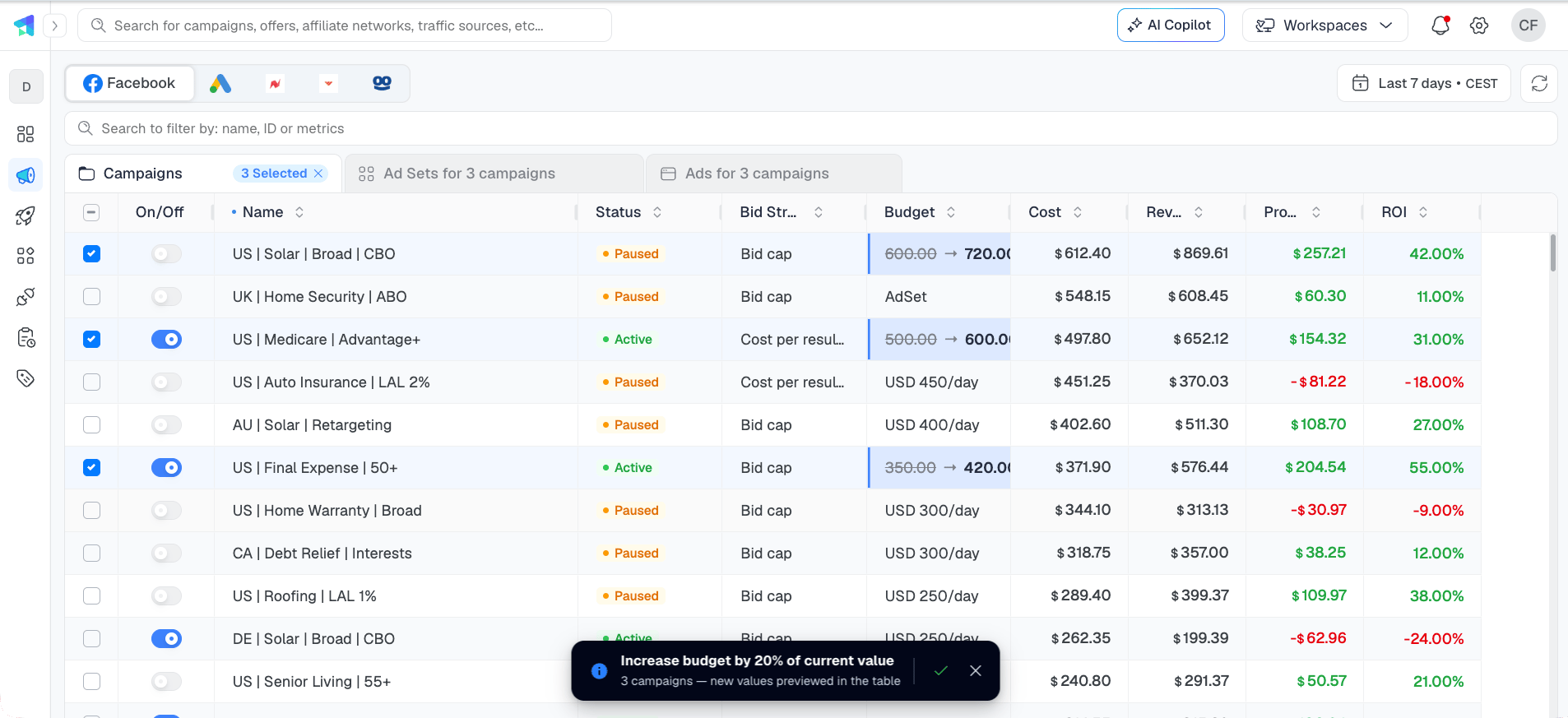
4
Apply or cancel
Click ✓ in the bar to send the changes to the platform, or ✕ to cancel and keep the current budgets.
Bids
Where the platform supports bid changes at that level, the bottom bar also shows Change Bid (a price-tag icon), for example on Google Ads campaigns. It opens a Change Bid window with the same operations, $ or % values and preview as Change Budget. Campaigns that use an automatic bid strategy, such as Taboola’s Maximize Conversions, show Auto in the Bid column.Previewing ads
On Meta, open an ad’s preview from the Ads tab to see it the way people will. Switch between Mobile feed, Desktop feed and Story at the top of the preview.Taboola: managing sites
On Taboola, every campaign has a Manage sites button in the Actions column. It opens the campaign’s site report: every site the campaign ran on, with its on/off switch, site, site ID, blocked status, site CPC, cost, revenue, profit and ROI. The header shows the campaign’s status, bid strategy and date range.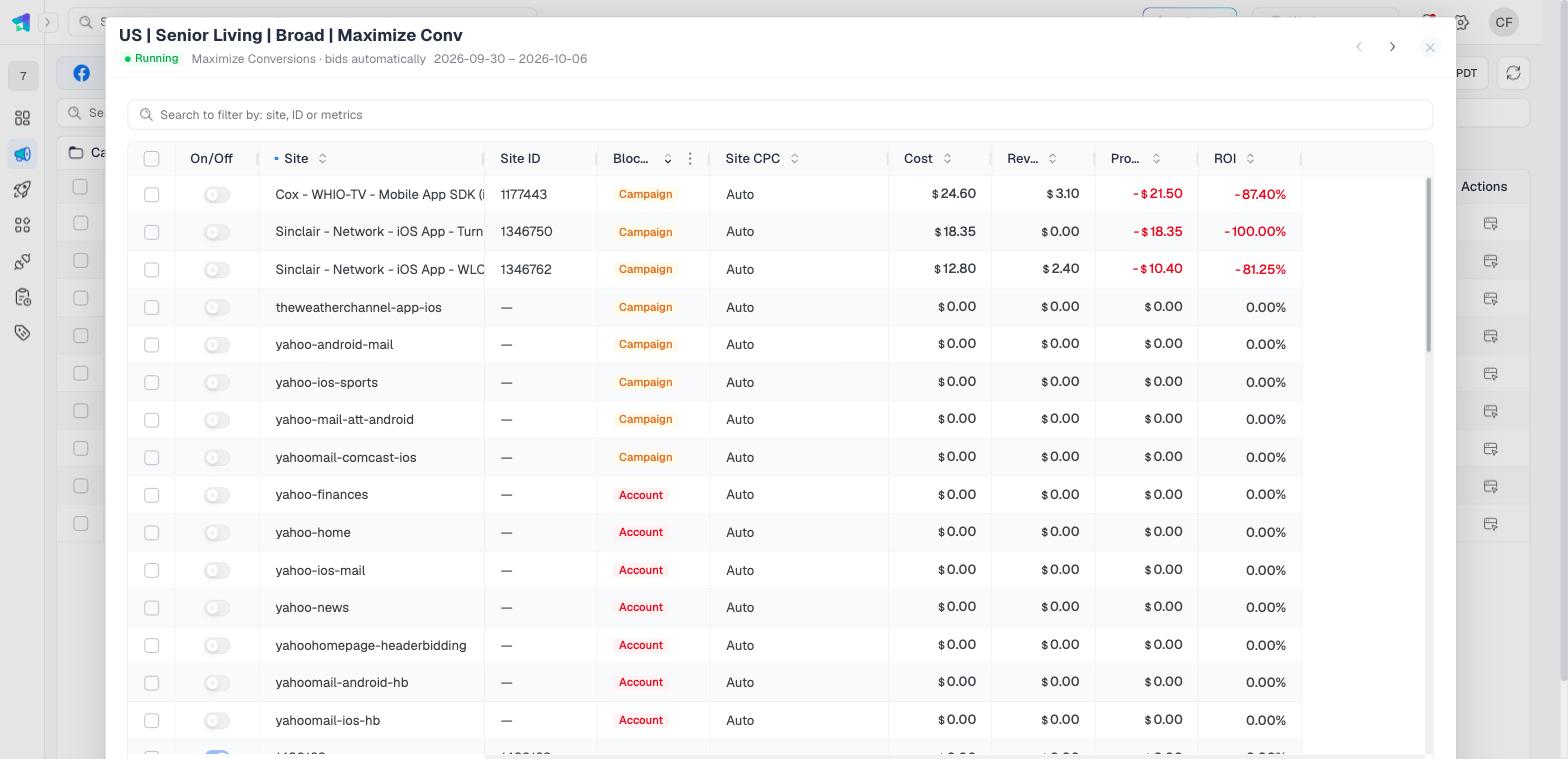
Sort by Cost or ROI to find the sites that spend without returning, and by Blocked to review what is already excluded. Use the arrows at the top of the site report to move to the previous or next campaign without closing it.
Frequently asked questions
Why is a campaign missing from Ads Manager?
Why is a campaign missing from Ads Manager?
Ads Manager shows the campaigns that ClickFlare pulls cost for. Check that the campaign shows cost in your ClickFlare reports. If it does not, the cost integration is missing, not assigned to the traffic source, or not syncing. See Cost not pulling.
Why did my change fail?
Why did my change fail?
Most often the integration has not been reconnected yet, so ClickFlare can read the platform but not write to it. Reconnect the integration and approve the new permissions, then try again. A change can also fail when the platform itself rejects it, for example a budget below the platform’s minimum.
Do I need to reconnect every platform?
Do I need to reconnect every platform?
Yes, once per integration, the first time you make a change on it. Viewing works without reconnecting.
Does reconnecting affect my tracking or cost data?
Does reconnecting affect my tracking or cost data?
No. It only adds the permission to make changes. Your tracking, cost sync and reports stay as they are.
Is anything sent to the platform when I preview a budget change?
Is anything sent to the platform when I preview a budget change?
No. Preview changes only shows the new values in the table. Nothing changes on the platform until you click ✓.
Why don't my numbers match the platform's ads manager?
Why don't my numbers match the platform's ads manager?
Revenue, conversions and profit come from ClickFlare’s tracking, not from the platform’s pixel, so they can differ. For cost, check that the date range and timezone match the ones you use on the platform.
Why don't I see a platform's tab?
Why don't I see a platform's tab?
The tab bar only shows platforms you have connected a cost integration for. Set up the cost integration for that platform, and its tab appears in Ads Manager.
Can I ask for a platform that is not supported yet?
Can I ask for a platform that is not supported yet?
Yes. Open the platform’s tab in Ads Manager and click Join the waitlist. The platforms with the most requests are built first.