

Tip: Once a Flow is created, it can be reused across multiple campaigns, saving time and ensuring consistency.
Creating a New Flow
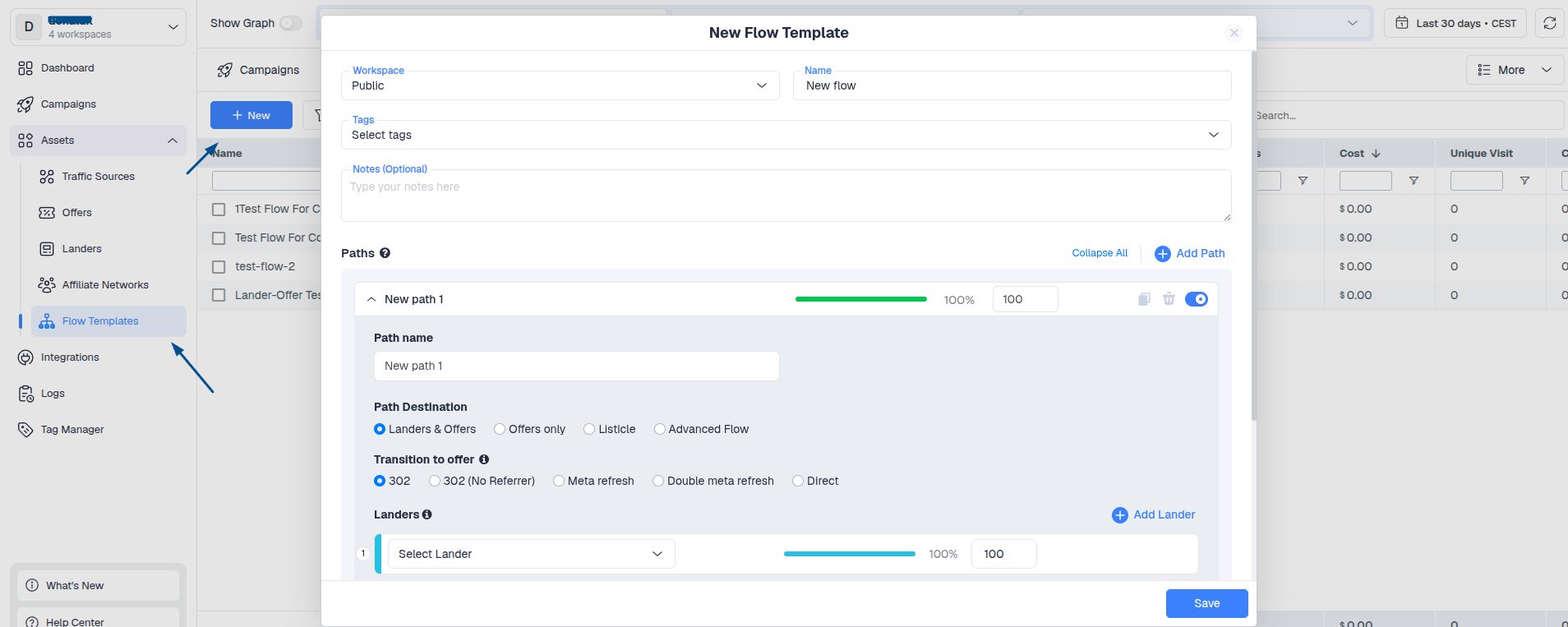
- In your ClickFlare account, navigate to Flows from the left sideBar menu.
- Click + New Flow.
- Enter a Flow Name that clearly identifies its purpose.
- Select the desired Default Transition for the paths in your Flow.
-
Add either a:
- Default Path – used for all traffic unless a condition is met.
- Conditional Path – used to redirect visitors who match specific rules.
Adding a Default Path
A Default Path is required for every Flow. Any visitor who does not meet the criteria of a conditional path will be directed here.- Click Add Default Path.
- Select the destination type (for example, Lander & Offer or Offer Only).
- Choose the landing page and/or offer you want to use.
- Save your changes.
Adding a Conditional Path
A Conditional Path allows you to redirect visitors based on rules such as:- Country
- Device type
- Operating system
- Browser
- ISP
- Custom tracking fields
- And many other available conditions
- Click Add Conditional Path.
- Select Add Condition.
- Configure the conditions you want to use.
- Click Apply.
- Add the destination path by selecting the appropriate lander and/or offer.
- Save your changes.
Save Your Flow
Once you’ve finished configuring your paths, click Save. Your new Flow will now appear in the Flows list, where you can:- Edit
- Clone
- Archive