

- Faster Page Loads: No server-side redirect means faster load times and a smoother user experience.
- Compliant with All Traffic Sources: Compatible with platforms that restrict redirects (e.g., Google Ads).
- Supports Organic Traffic Tracking: Can capture visits from SEO, social, and other non-paid traffic sources.
- No Path Control: You cannot use path features like rotation, rule-based routing, A/B tests, or AI optimization.
- No Referrer Masking: Direct tracking cannot hide or modify referrer data.
- Requires Code Access: You must be able to edit the HTML of the landing page or offer, which isn’t always possible for third-party offers.
1. How Direct Tracking Works
Direct tracking begins when a visitor clicks on an ad, activating the destination URL set in the campaign setup. The process unfolds in the following steps:-
:First Transition (Ad → Lander or Offer)
- The user clicks your ad and lands directly on your landing page or offer page.
- A ClickFlare tracking script embedded in the page fires and sends a visit request to ClickFlare.
- ClickFlare logs the visit and generates a click ID.
- The visit data is stored in the browser using cookies and/or local storage.
-
Optional Second Transition (Lander → Offer)
- When a user clicks a CTA on your landing page, the script captures the action.
- The script dynamically replaces the CTA link with the final offer URL and appends tracking info.
- A second request is sent to ClickFlare to record the click before redirecting to the offer.
2. Setting Up a Direct Tracking Campaign in ClickFlare
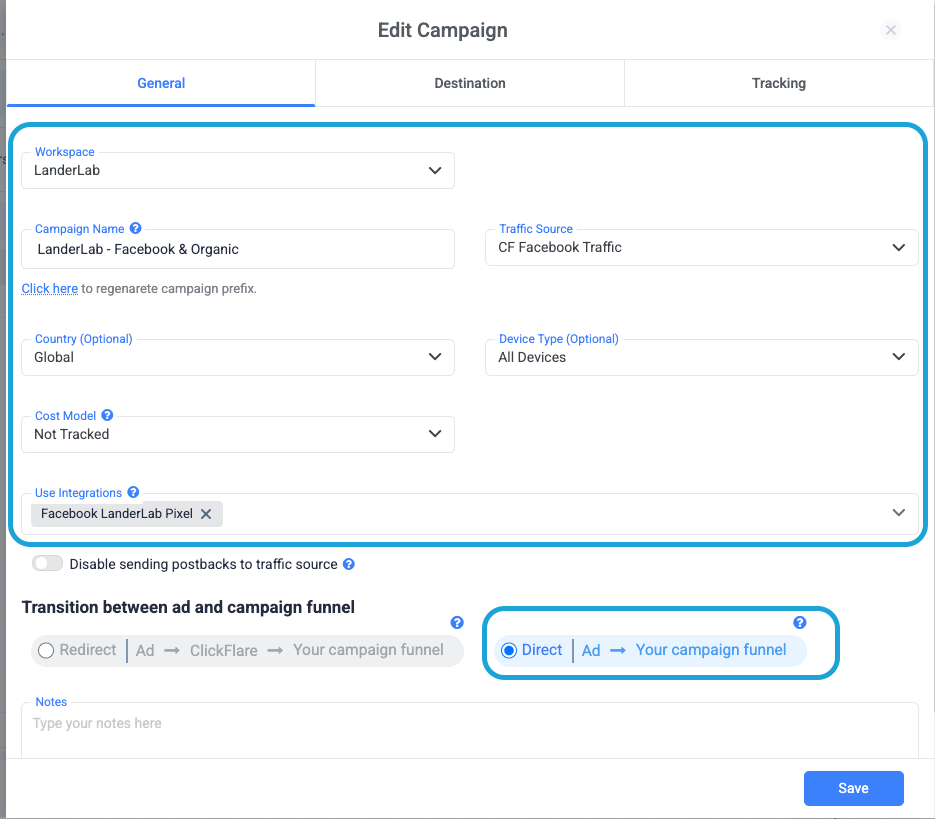
To set up a direct tracking campaign, follow these steps: Step 1: Create a Campaign- Go to Campaigns > + New in ClickFlare.
- Fill in the campaign name and general info.
-
For the first transition, select Direct Tracking.
-
For the second transition, you can choose either direct or a redirect mode, depending on your setup.
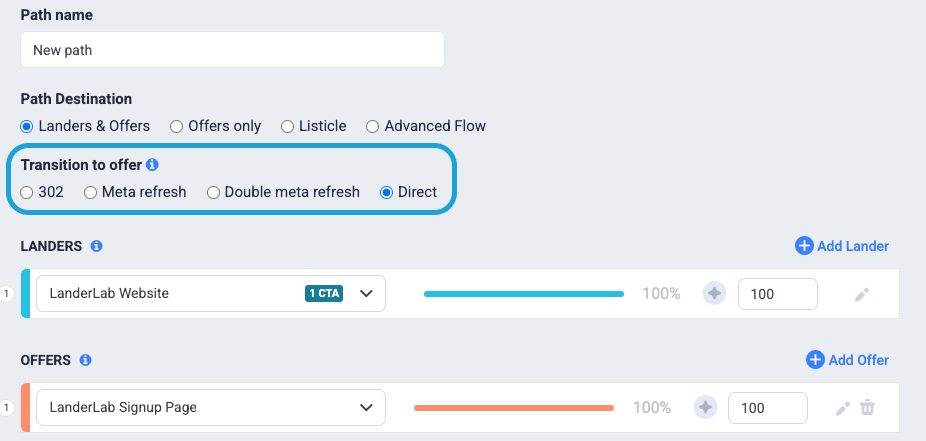
- If your campaign includes a landing page, select it or create a new one under the Lander section.
-
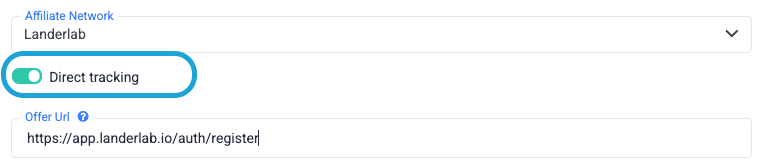
Add an offer by selecting or creating a new one under the Offers section. Make sure to enable the “Direct Tracking” switch in the offer settings, as direct tracking will not work if this is turned off.
- Copy the generated tracking scripts and URLs for both the landing page and the offer.
- For Landing Pages: Paste the landing page tracking script at the bottom of the <BODY> section in the HTML of your landing page. This script will capture the visit data when the page loads.
- For Offers: If you’re using an offer-only campaign, paste the offer tracking script into the offer page’s HTML.
✅ Best Practices
- Always test your tracking setup to ensure data is being recorded correctly.
- Use your own domain to improve ad approval rates.
- Keep your scripts updated in case of future platform improvements.
FREQUENTLY ASKED QUESTIONS Got questions? Find the answers below:
Q1: Is direct tracking compatible with all traffic sources?A1: Yes, it works across all platforms, including Google Ads, which typically block redirect tracking.
Q2: Do I need to modify my landing page to use direct tracking?A2: Yes, the ClickFlare tracking script must be added to your page’s HTML for tracking to function.
Q3: Can I use direct tracking with an offer-only campaign?A3: Yes, as long as you can place the ClickFlare script on the offer page.
Q4: Does direct tracking affect page load speed?A4: No. In fact, it helps speed up page loads since there are no intermediary redirects.
Q5: Can I use direct tracking and redirect tracking in the same campaign?A5: Yes, you can mix both methods across different campaigns based on your needs and traffic source restrictions.
Related Resources
- Tracking Methods in ClickFlare: Redirect vs. Direct Tracking
- Understanding Redirect Tracking in ClickFlare: Benefits, Setup, and Best Practices
- How Click and Conversion Data is Transferred in ClickFlare
- Passing Information from a Traffic Source to ClickFlare
- Passing Information from ClickFlare to an Affiliate Network
- Tracking Methods in ClickFlare: Redirect vs. Direct Tracking