

The following features are exclusively accessible by the Account Owner:
- Billing and Payment area.
- Inviting other Admins.
- Security Area.
- Voluum importer.
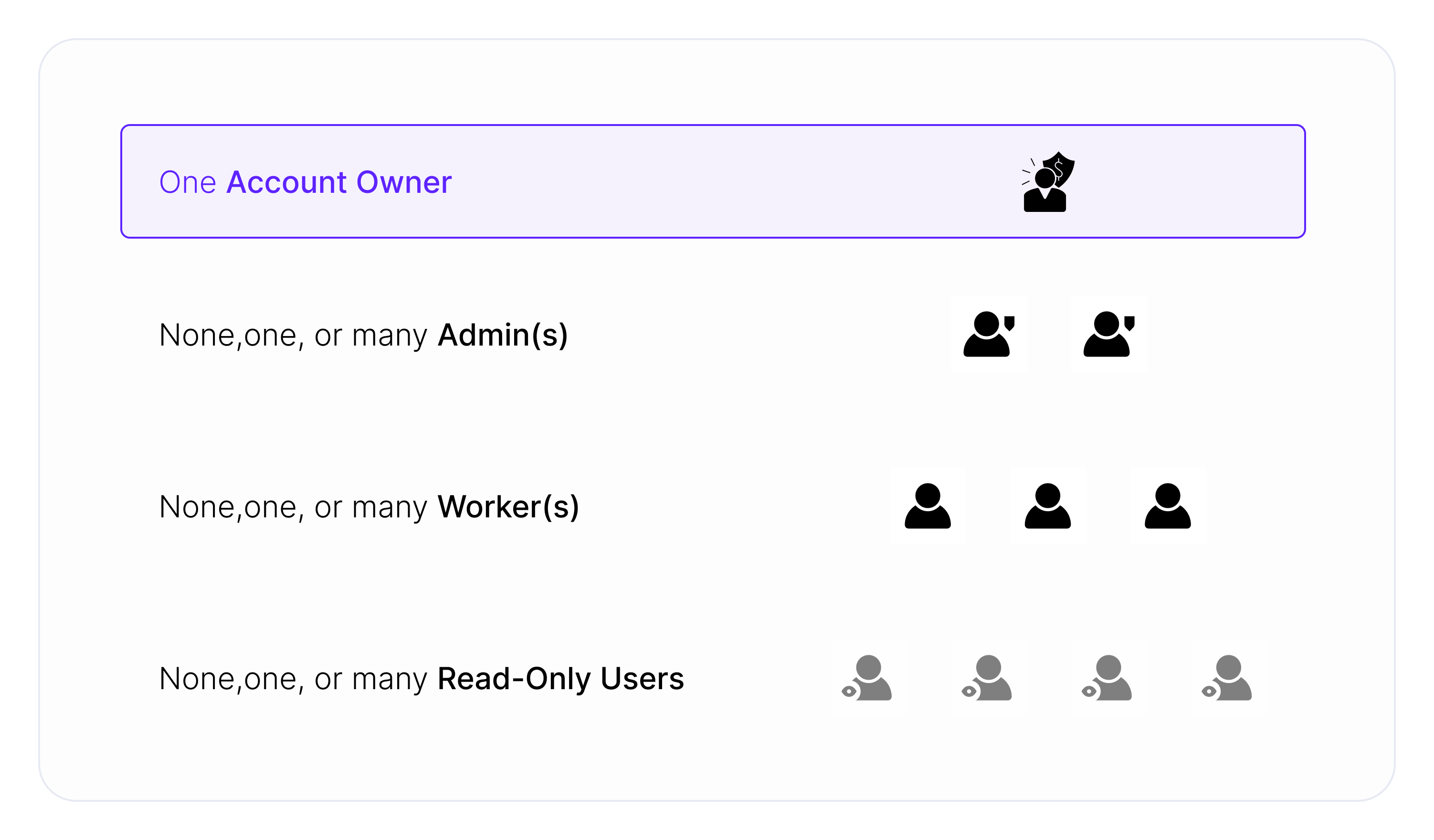
- Multi-User: Inviting and changing role assignments for your users.
- Workspaces: Creating and changing workspace assignments for your users.
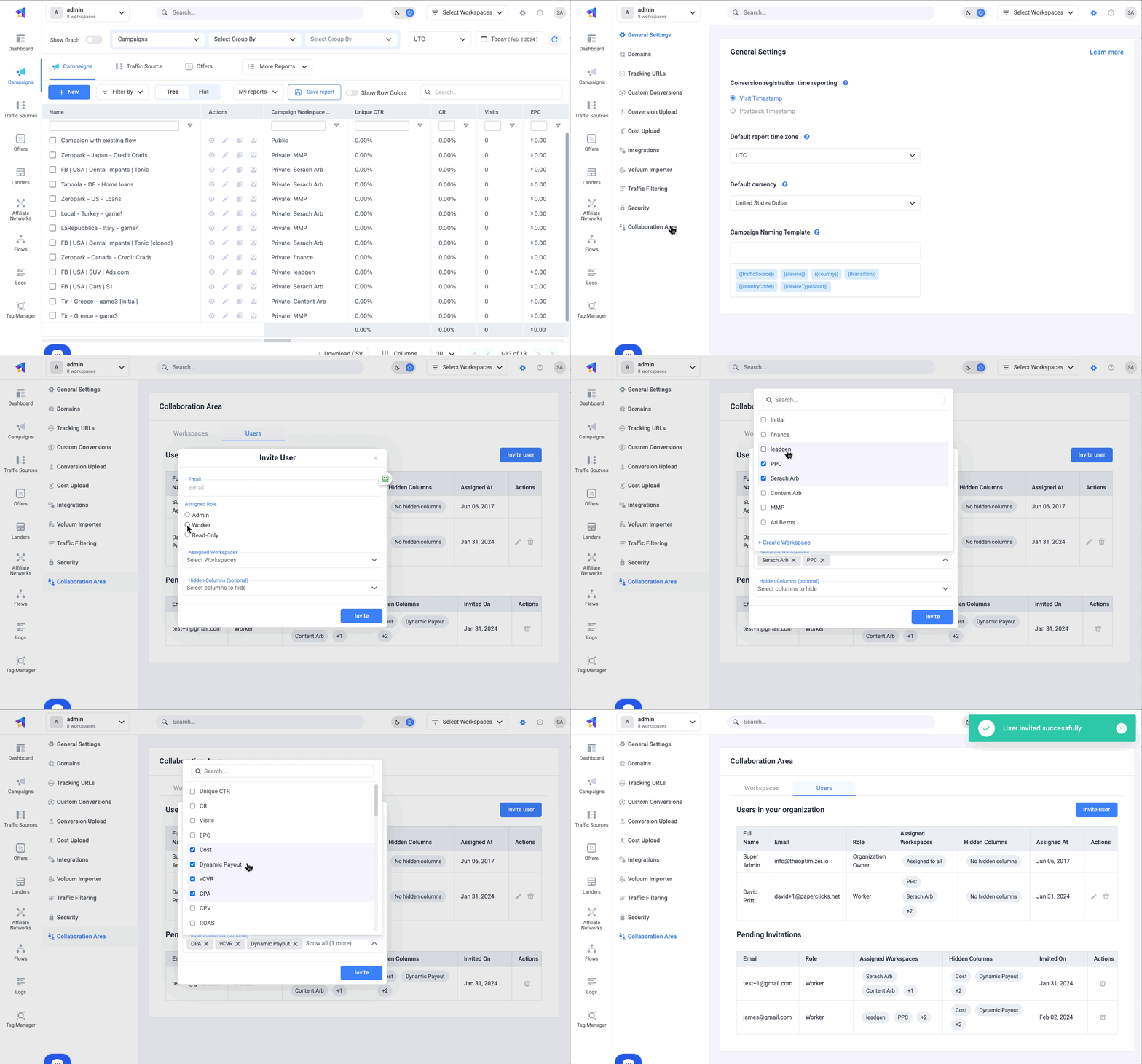
- Sign in to ClickFlare.
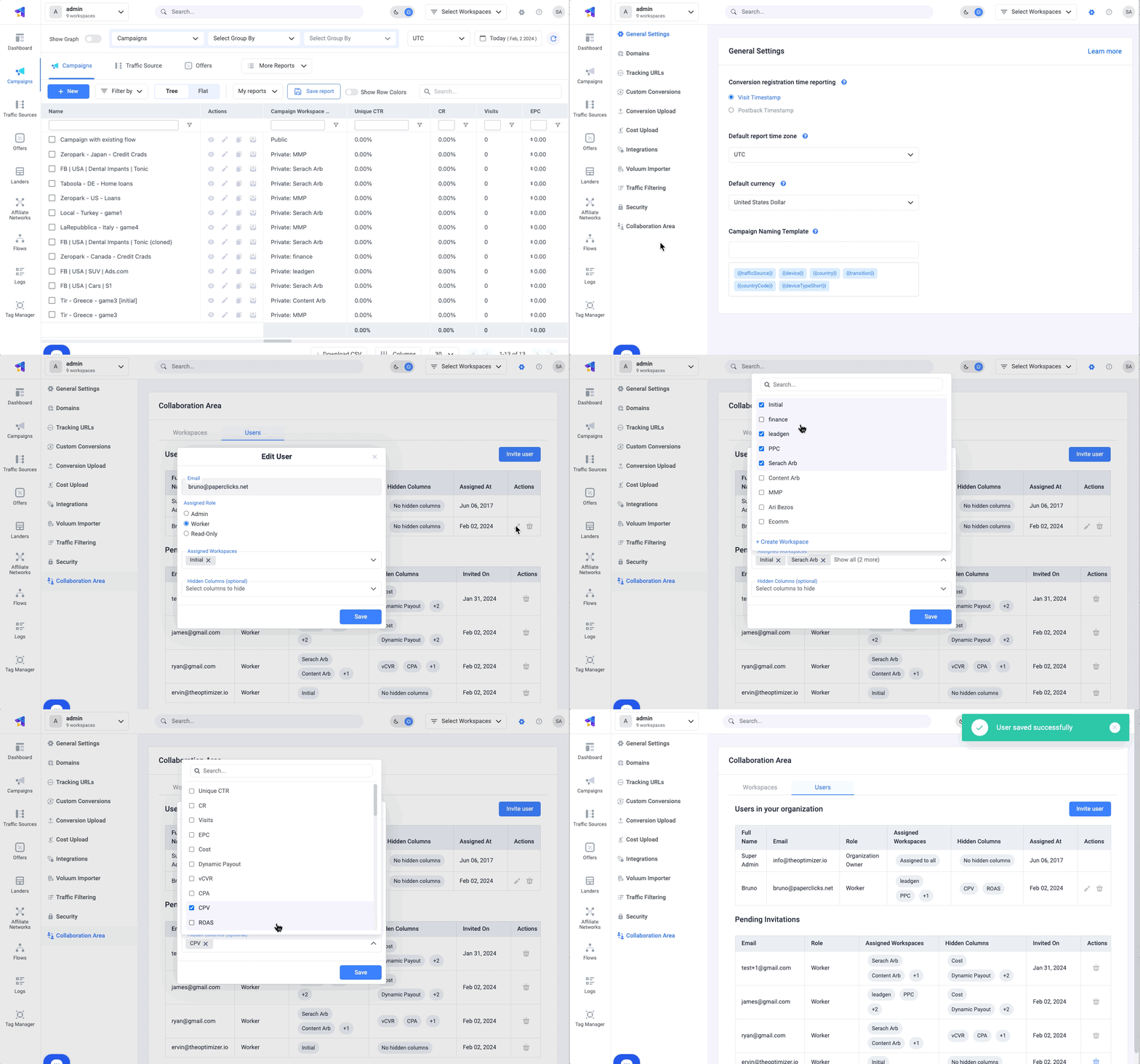
- Click the settings icon to access the Settings view.
- Navigate to the Collaboration area tab.
- In the Collaboration area view, go to the Multi-User tab.
- Click the Invite user button to open the Invite user form.
- Provide the user’s email address and select their role.
- Choose one or more Private Workspaces for Workers or Read-only users.
- Optionally hide certain columns.
- Click the Invite button.
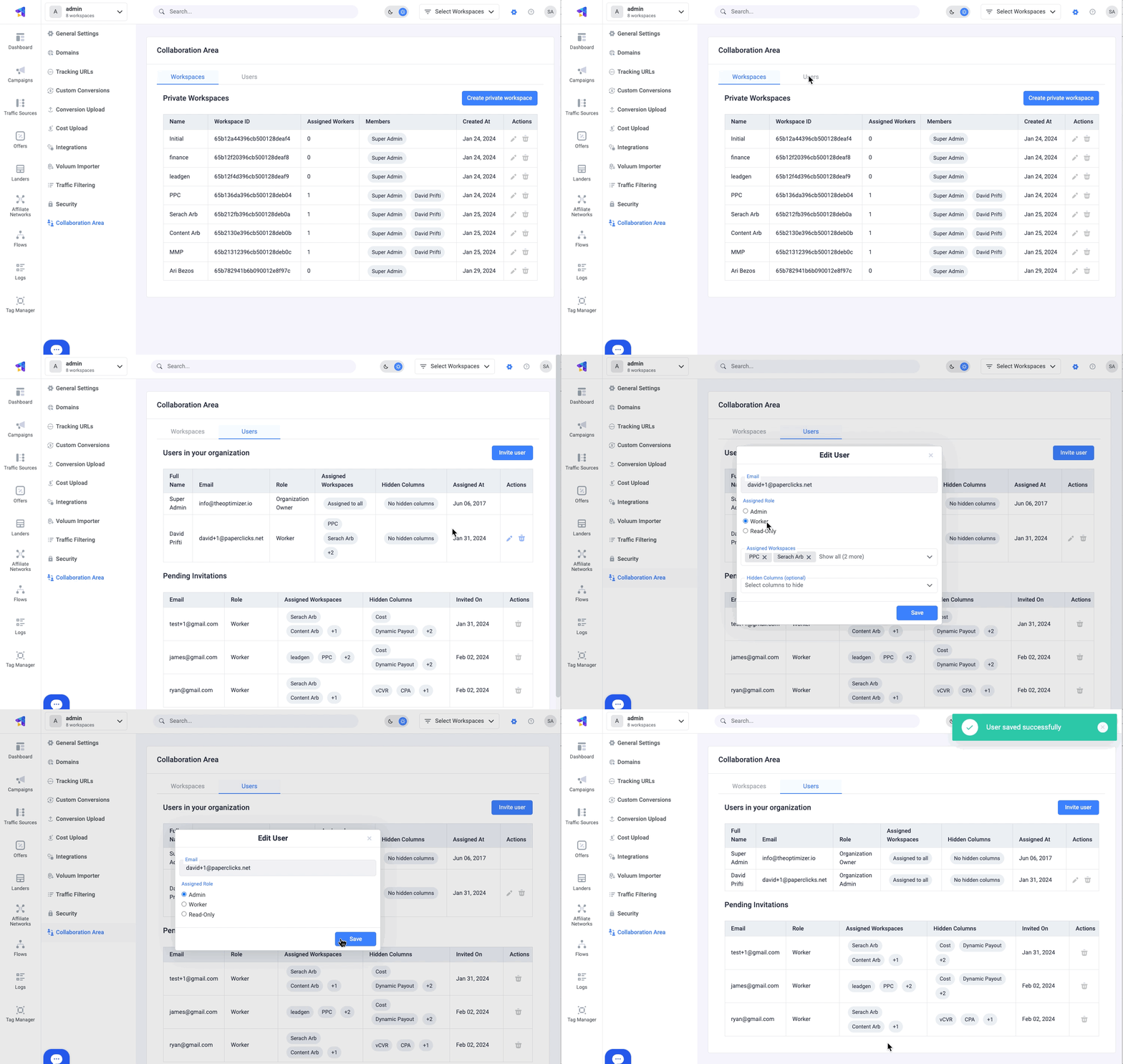
- In the Multi-User tab, click the edit icon to enter edit mode.
- To change a user’s role, select the appropriate role from the Role drop-down menu.
- Adjust user’s Workspace assignments.
- Click the accept icon to save changes.
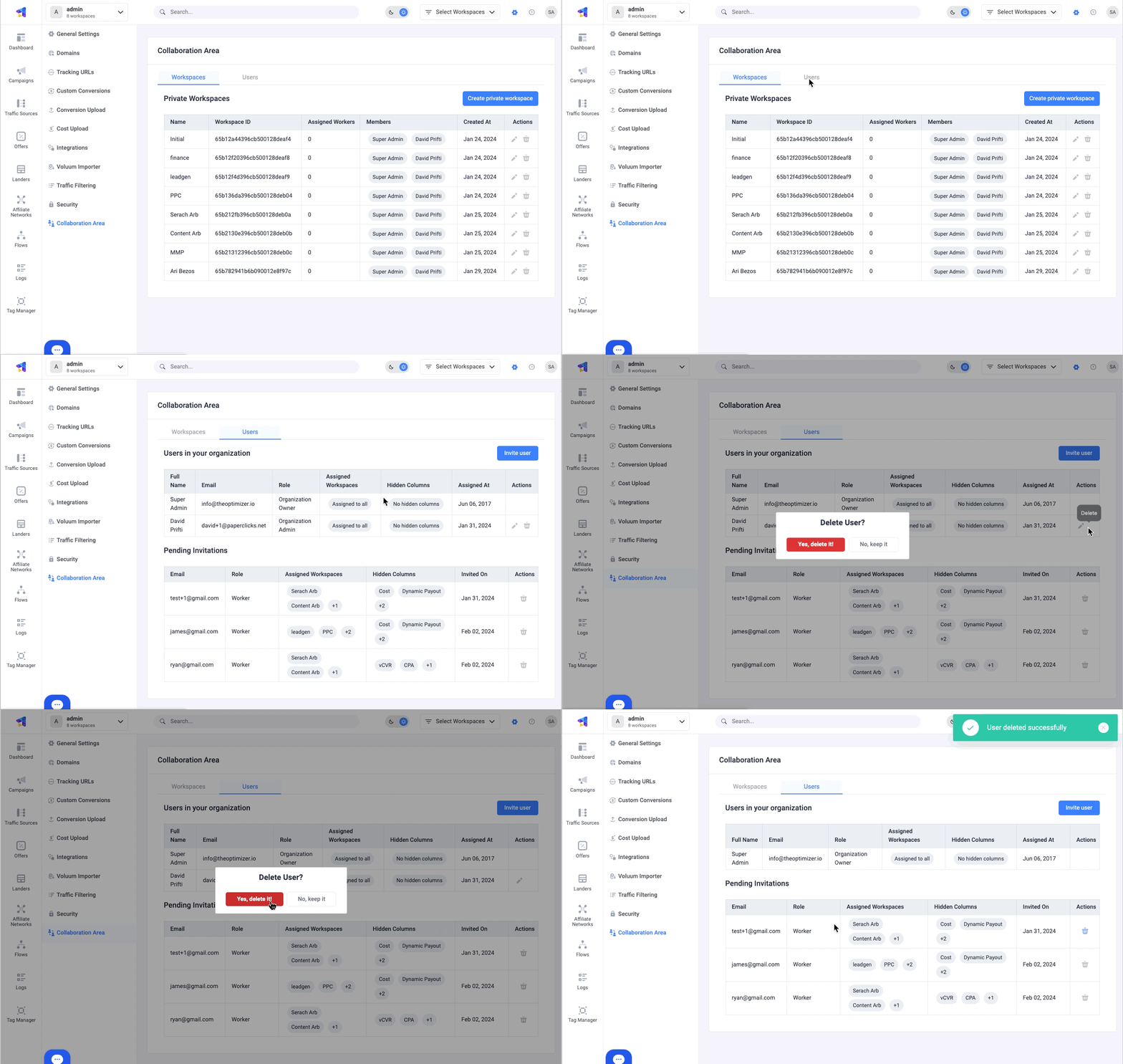
- In the Multi-User tab, click the delete icon next to the user you want to remove.
- Confirm the removal by clicking the Yes, remove button in the dialog box.
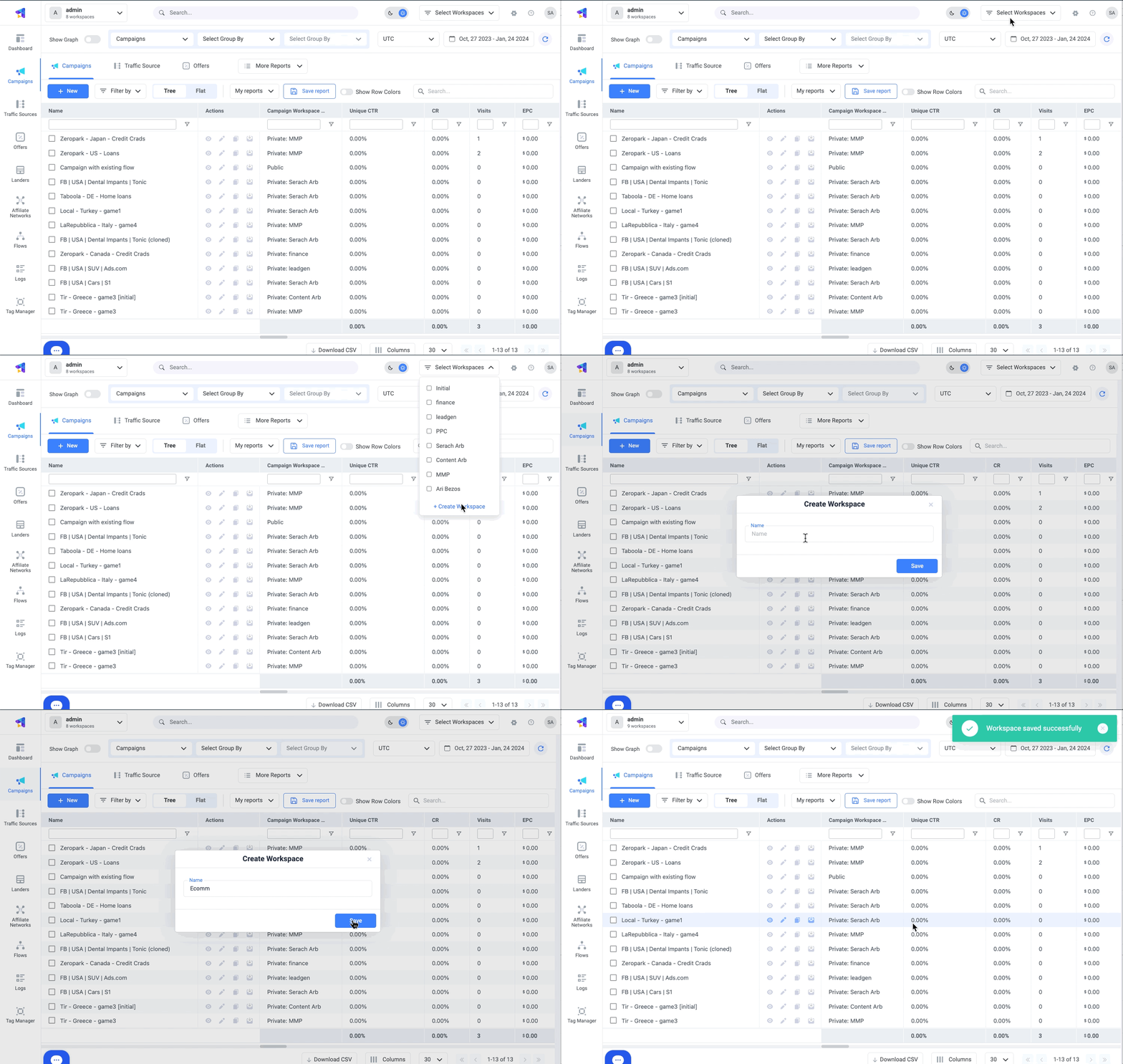
- In the Collaboration Area view, go to the Workspaces tab.
- Click the Add private workspace button.
- Provide the name of the Workspace.
- Select Workers or Read-only users.
- Choose domains assigned to this Workspace.
- Click the Save button.
- In the Workspaces tab, click the edit icon next to the Workspace name.
- Modify the Workspace’s name.
- Change worker assignments.
- Click the Save button.
Can I Add Another Public Workspace in ClickFlare Collaboration Area?Unfortunately, it’s not an option. ClickFlare automatically creates a default Public Workspace for each account, and only one can exist. This workspace holds all publicly shared elements, making it impossible to add another Public Workspace.
Why Can’t I See the Invite User Button in ClickFlare’s Multi-User Tab?Not seeing the Invite User button in ClickFlare’s Multi-User tab? It’s likely because you’ve run out of available invitations. The number of invitations you have depends on your pricing plan, and you can check your available invitations count above the List of Users table.
Is Deleting a Workspace Possible in ClickFlare?Generally, the answer is no. However, you can un-assign users from the Workspace and move campaign elements to another Workspace. Refer to the Moving Campaign Elements Between Workspaces article for detailed instructions on moving elements.
What Happens to Invited Users if I Downgrade My ClickFlare Pricing Plan?Keep in mind that each plan has a limit on the number of invited users. If you exceed this limit, any pending invitations and the most recently added users will be removed at the start of the new billing cycle. For manual removal, you have until the end of the current billing cycle to adjust your user count.