

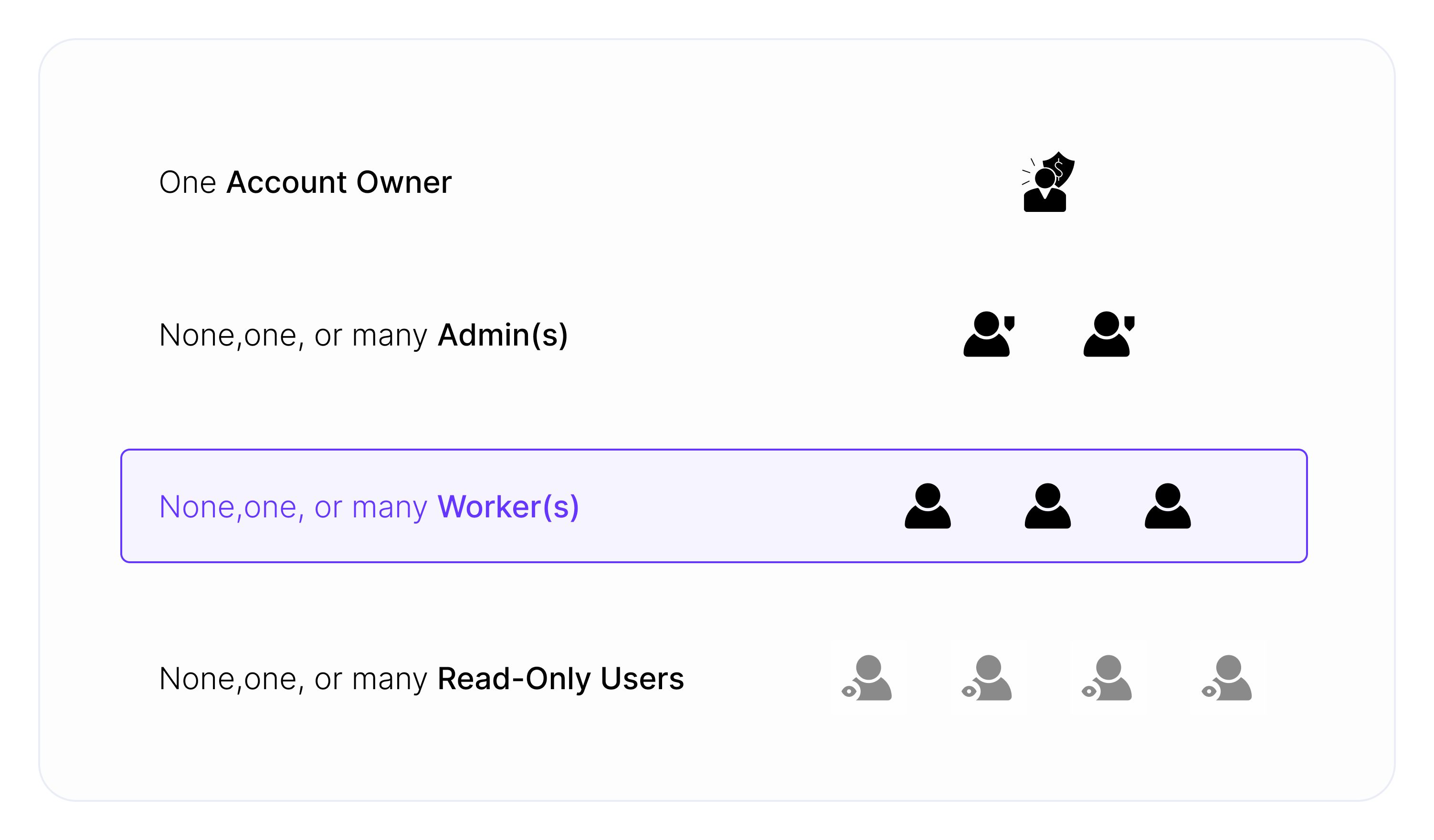
Navigating Settings
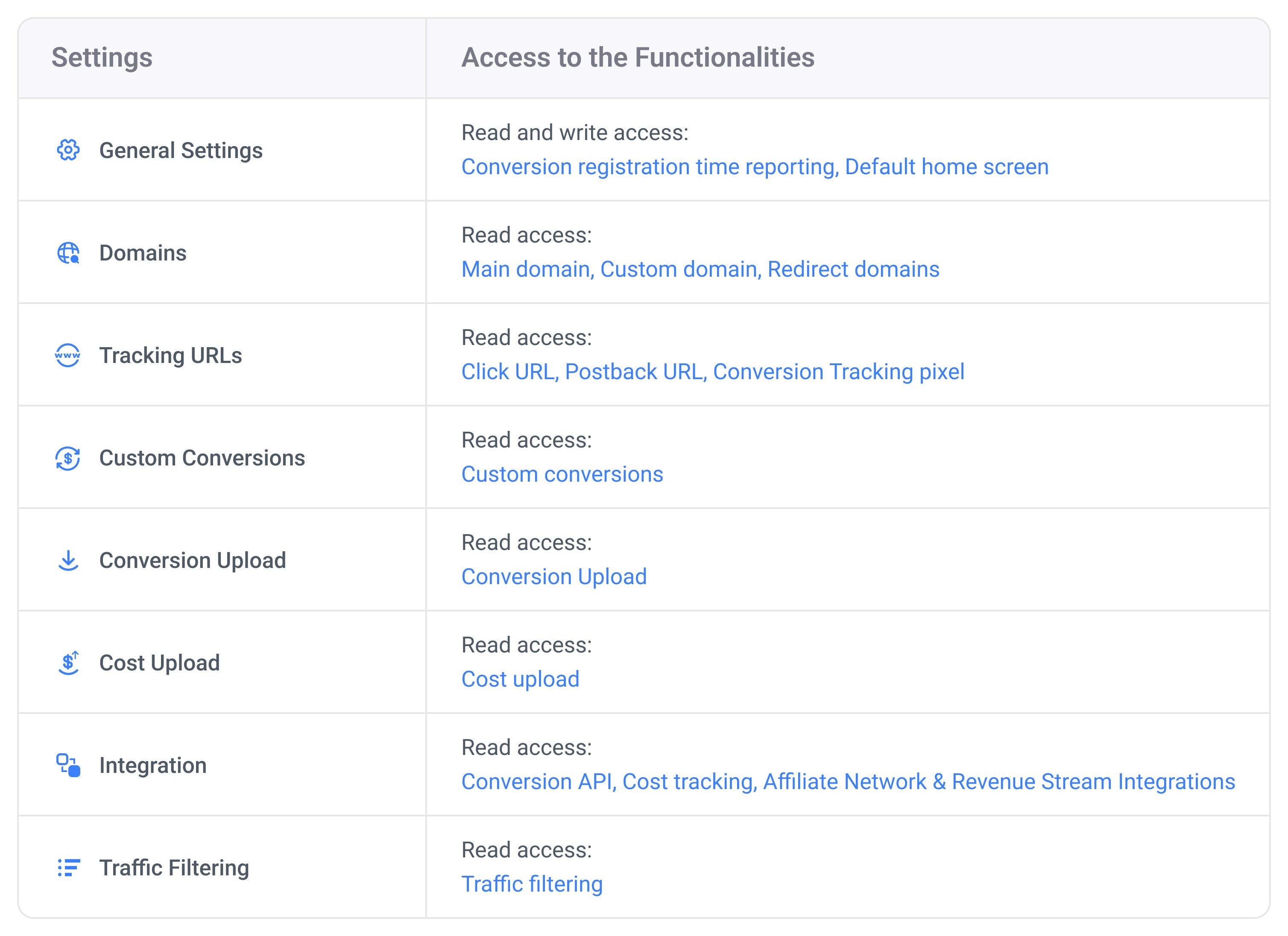
Your access extends to specific functionalities within the Settings view, ensuring a balanced approach to account management.
The image below shows your level of access to the Settings view.
- Sign in to ClickFlare.
- Go to the Offers tab.
- Click the New offer button.
- Select the appropriate Workspace from the drop-down menu.
- Fill in the required information and click Save.
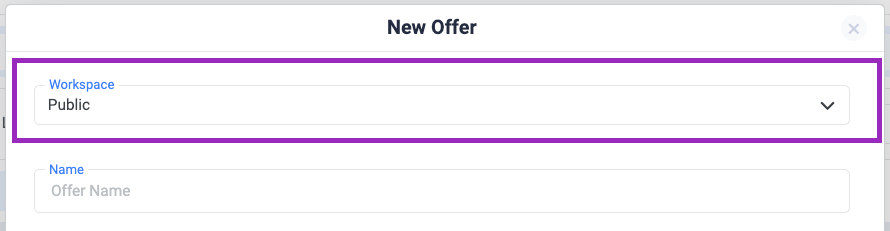
Note: Offers created are visible to the Account Owner, Admins, and Workers assigned to the selected Workspace.
I attempted to modify a visible flow, but my changes couldn’t be saved. What’s the reason behind this?If you’re trying to edit a public element, it’s in read-only mode. This means you can use it in the campaign funnel, but any changes won’t be saved. To update a public element, reach out to your Account Owner or an Admin.
Is it possible to assign a campaign element to multiple Workspaces?Currently, you can’t assign a campaign element to more than one Workspace.
I created an offer, but it’s not appearing when I try to create a campaign. Shouldn’t I be able to use the campaign elements I’ve created?If you’re part of more than one Private Workspace, ensure that the offer you want to use is assigned to the same Workspace as the campaign you’re creating.