

- An active ClickFlare Account
- An active Facebook Ads Account
- Facebook Login Credentials
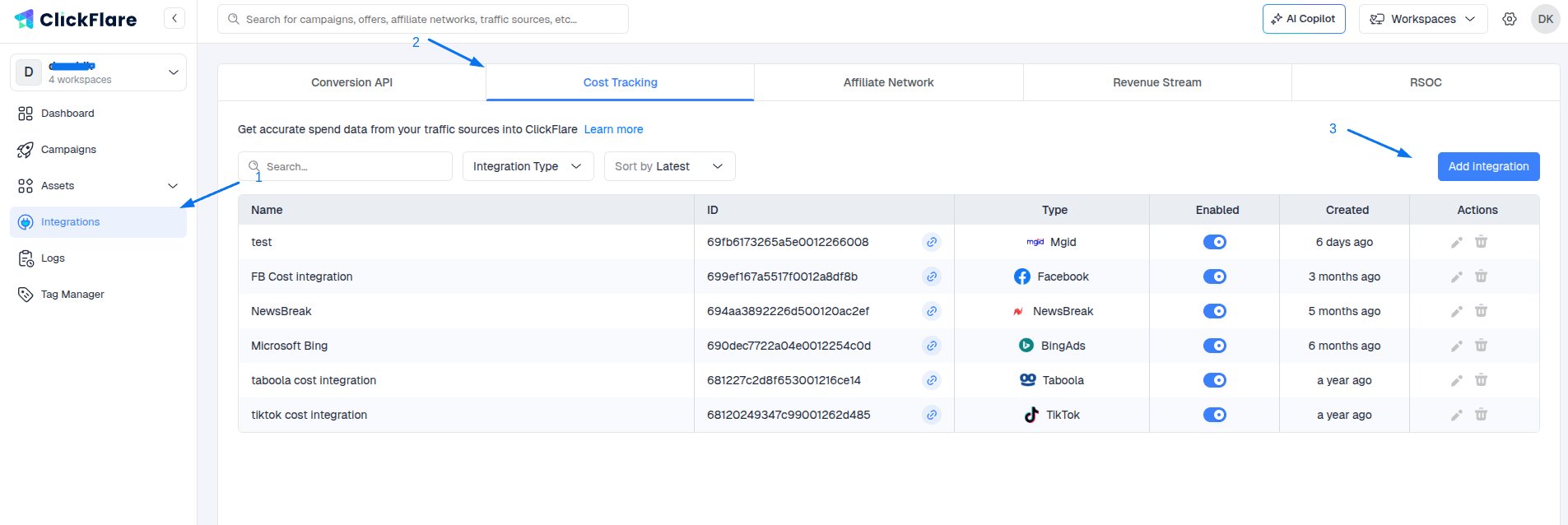
- Click the Left Sidebar
- Move to the Integrations Menu on the left side of the screen.
-
In the Cost Integrations section, click on Add Integration.
-
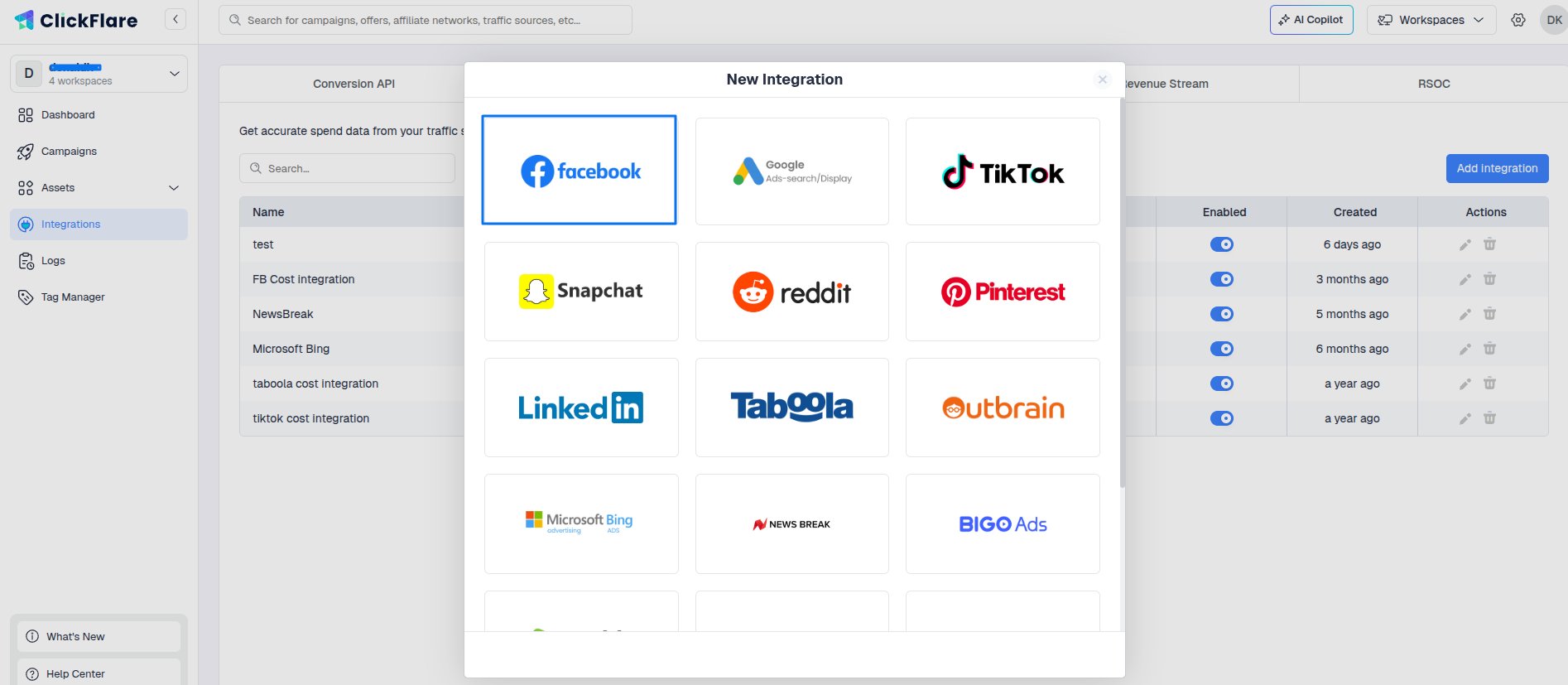
Select Facebook from the options.
-
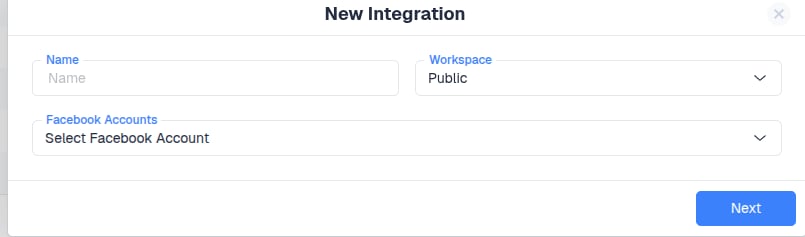
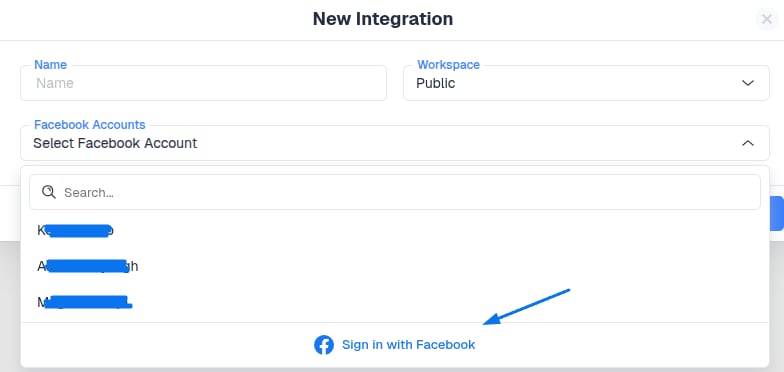
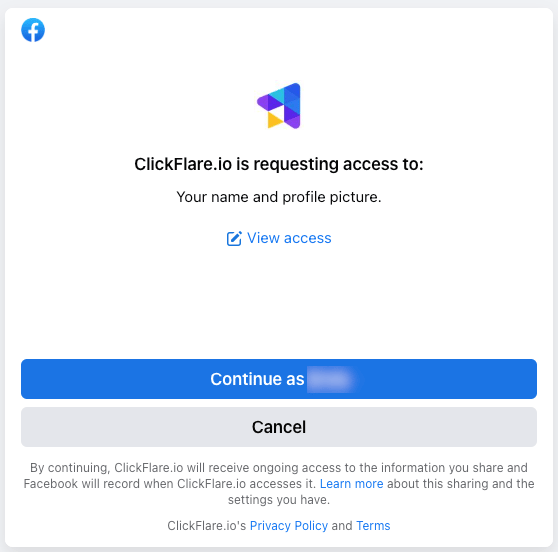
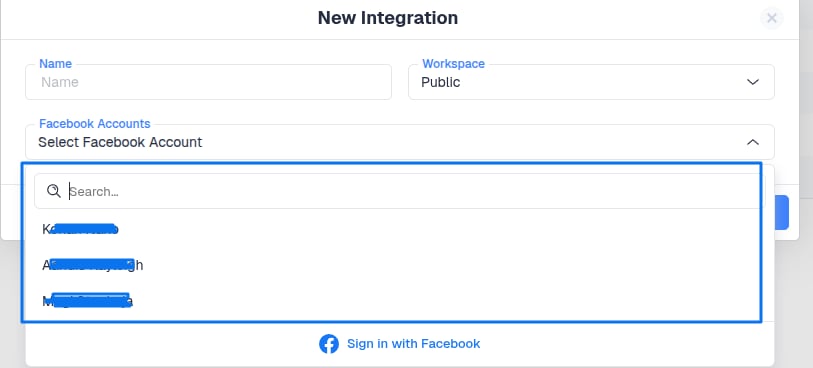
From the dropdown menu, select the Facebook Ads account you want to connect.
-
Choose the Ad Account(s) from which you want costs to be pulled, then click Save.
 Note: You only need to create one integration per Business Account. In one integration, you can select multiple ad accounts. ClickFlare will then automatically know to which campaigns to associate costs.
 -
Optional Step - Specify the traffic source configurations you want to assign this cost integration to.
 Once done, click on Save.Important note: Make sure that the traffic source configurations you select in this step belong to the traffic source you created the integration for.
 -
Lastly, go to the traffic source configuration settings and add the previously created cost integration under the cost integration settings.
 Important Note: When adding a Traffic Source, remember to select the new integration you just added. Failing to do so will result in costs not being pulled.