

What you’ll need for the integration
ClickFlare account
An active account
Whop Ads business
A business running ads
Whop API key
Created in Whop
One key per business. Whop generates API keys per business, and the same key powers both the Whop Conversion API and the Whop cost integration. If you run several Whop businesses, create a key in each and register each business in ClickFlare separately.
How the Whop cost integration works
ClickFlare connects to Whop’s API with your key and retrieves the spend of the Whop Ads campaigns in that business, at all three levels:- Campaign level
- Ad group level
- Ad level
Where to find your Whop API key
1
Open the right business
Log in to Whop and select the business you run ads from in the business switcher at the top left. The key belongs to the business that is open.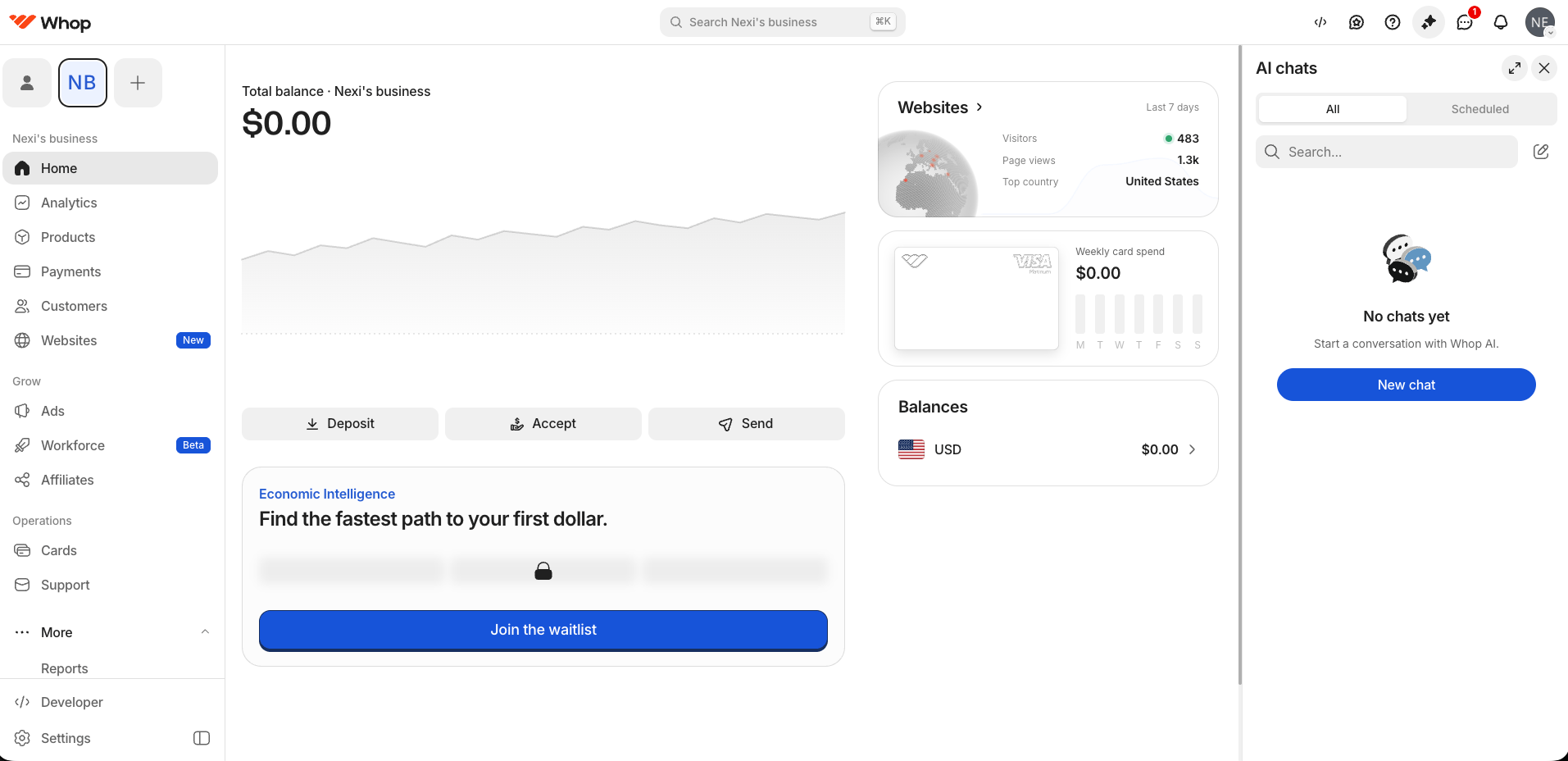
2
Go to Developer
Click Developer at the bottom of the left sidebar. The Company API keys section lists the keys for this business.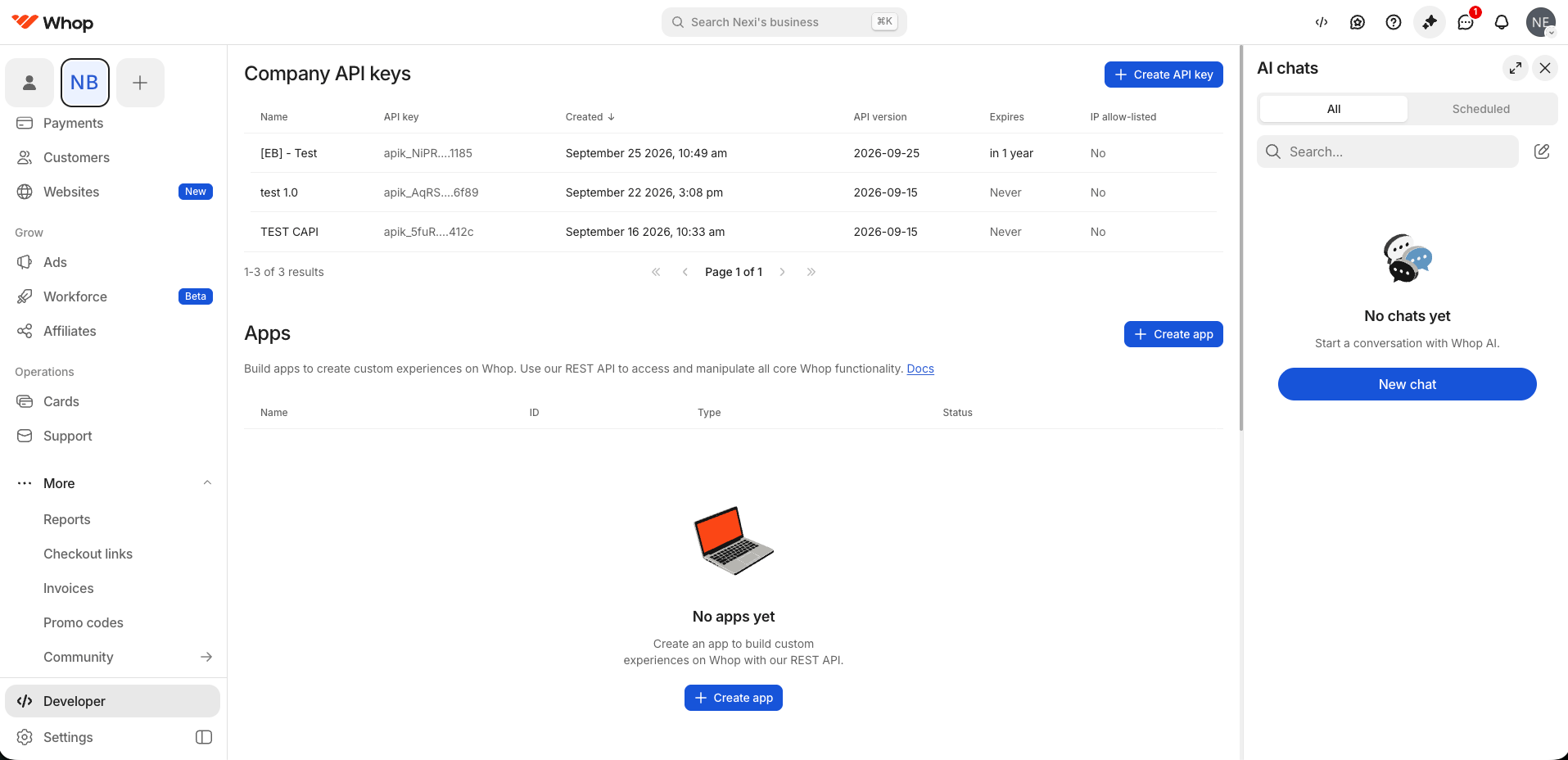
3
Create the key
Click Create API key and fill in the form: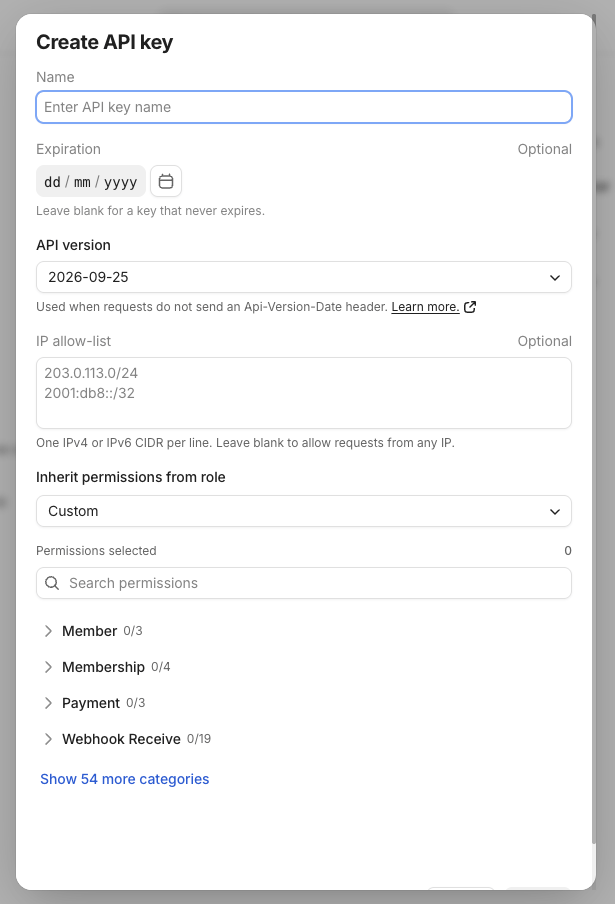
4
Choose the permissions
Open Inherit permissions from role and choose Custom.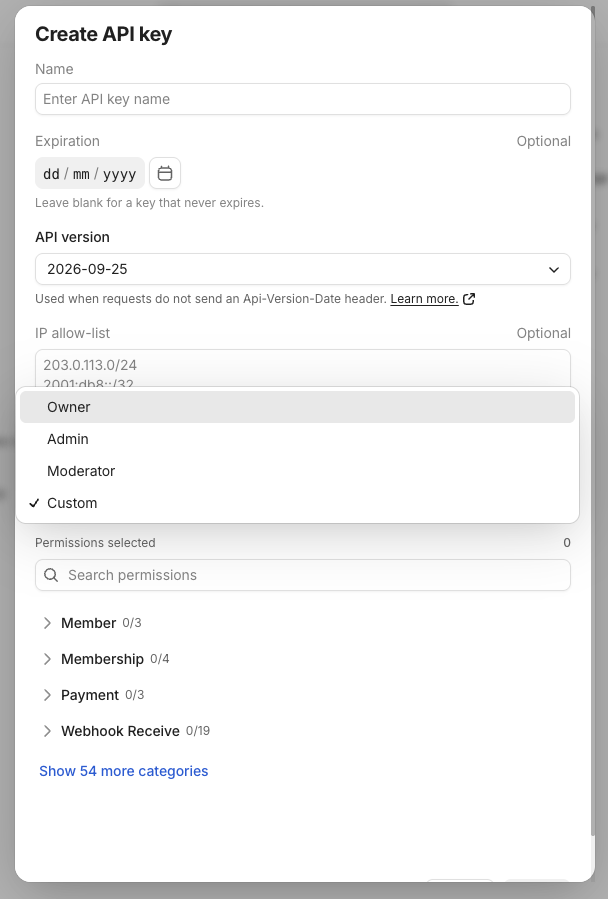
Select all three even if you only set up one integration today. The same key then works for both.
5
Copy the key
Save the key and copy it straight away. Afterwards the list shows only a masked version such as
apik_NiPR…1185.Setting up the Whop cost integration
1
Open the Cost Tracking integrations
In ClickFlare, go to Integrations in the left-side menu and open the Cost Tracking tab. Click Add integration.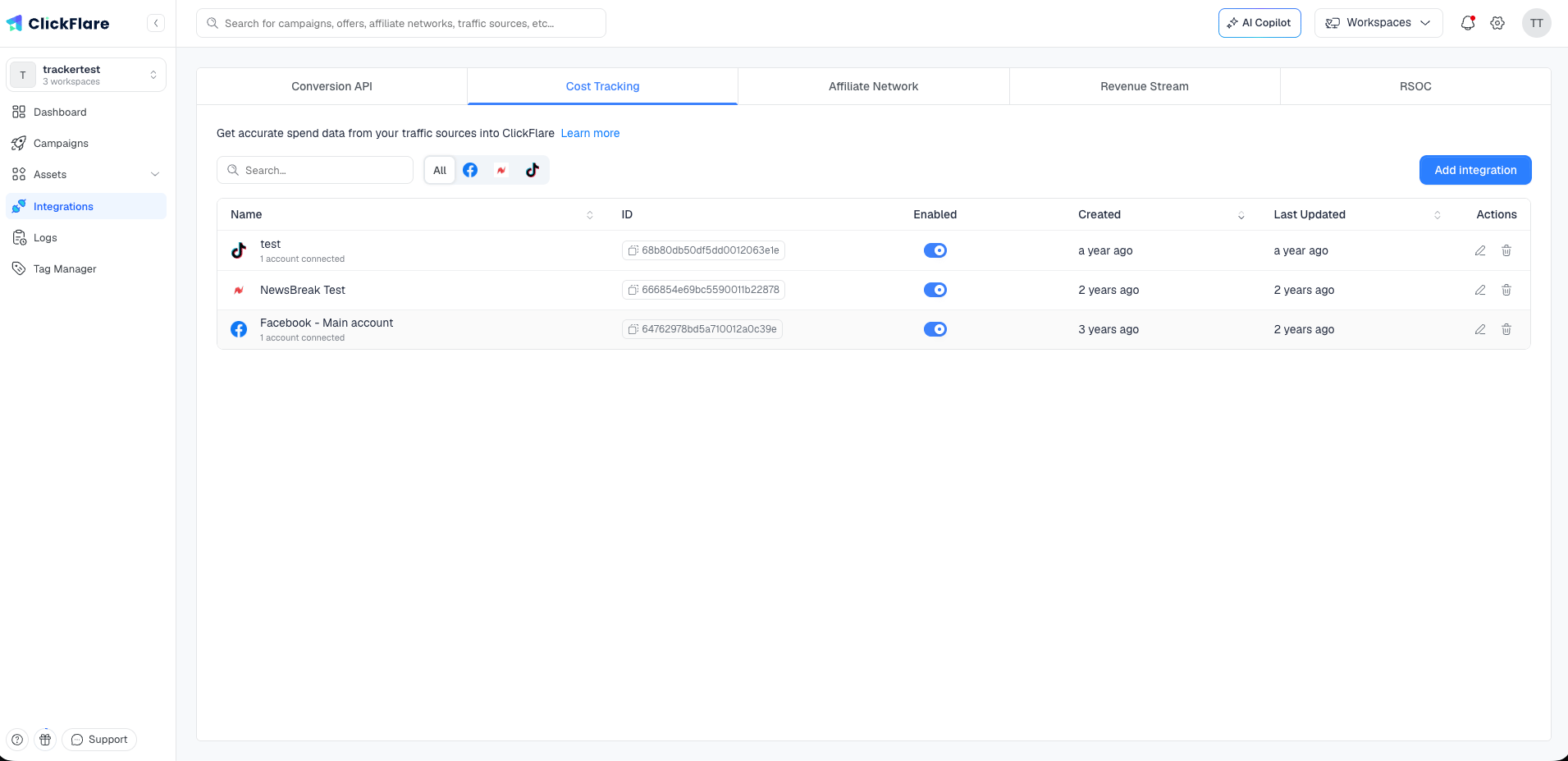
2
Select Whop
Select Whop from the list of available integrations.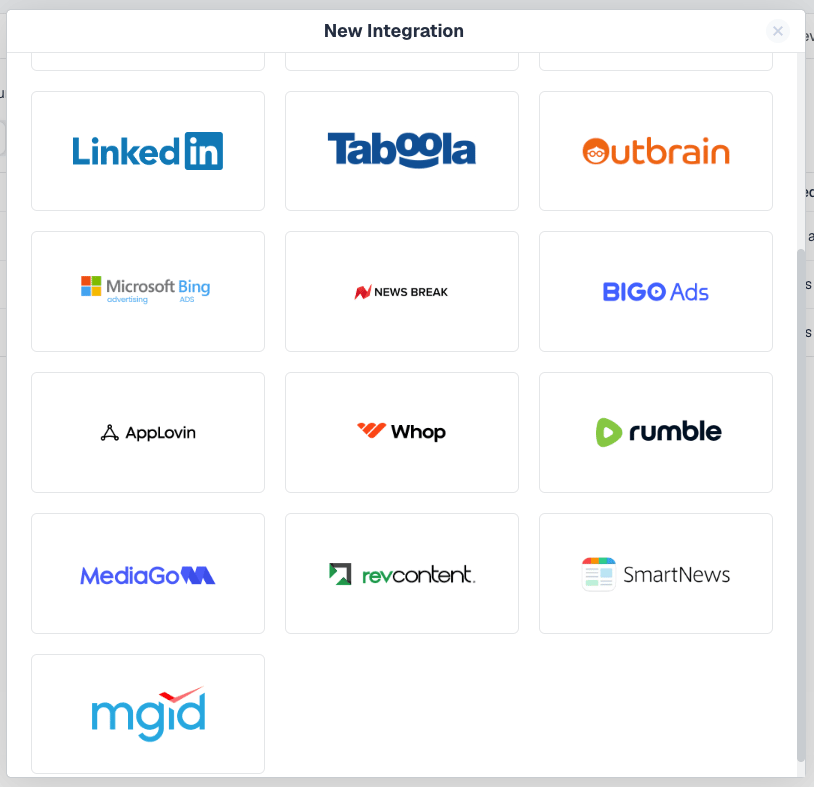
3
Enter the details
Fill in the form: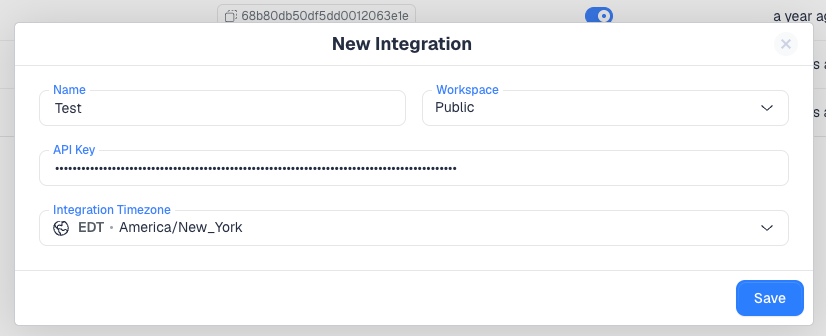
- Name — a recognisable name, for example the Whop business name.
- Workspace — Public to use it across your account, or a specific workspace. See Managing cost and CAPI integrations in workspaces.
- API Key — the Whop company API key.
- Integration Timezone — set it to your Whop timezone.
4
Optionally, assign traffic sources
ClickFlare asks which Traffic Sources should use this integration. Select your Whop traffic source configurations here, or skip the step and assign the integration later from the traffic source settings.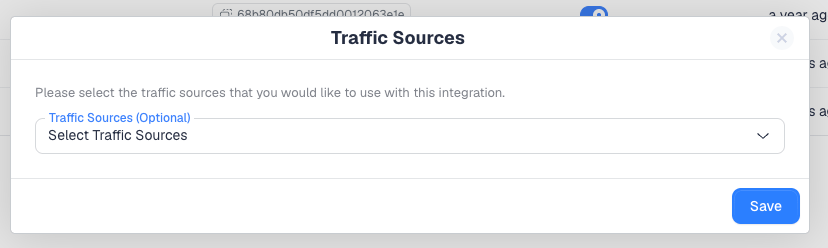
5
Add the integration to your traffic source
If you skipped the previous step, open your Whop traffic source and select the new integration under Cost Integration.
If the integration is not assigned to the traffic source, ClickFlare does not pull cost for its campaigns, even though the integration itself is saved and enabled.
Verify cost data sync
After you save, ClickFlare starts syncing cost from Whop automatically.- Open an active Whop campaign in your ClickFlare reports.
- Look at the Cost column.
- Compare it with the spend in Whop’s ads reporting for the same day, allowing for the sync delay.
Sync frequency. How often cost updates depends on your ClickFlare plan and whether you have a faster cost-update add-on. It ranges from every 60 minutes down to every 5 minutes. See Cost updates.
How cost matching works
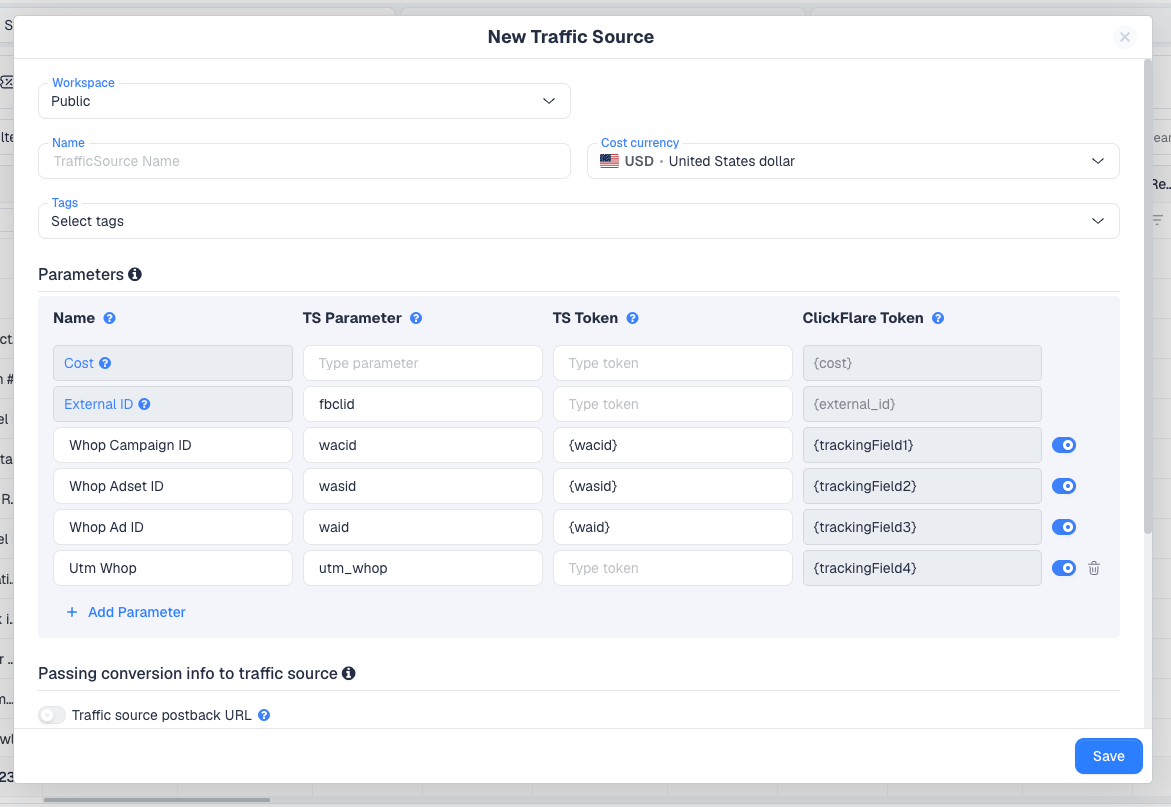
Whop adds its own IDs to the URL a visitor lands on after clicking a Whop ad:wacid for the campaign, wasid for the ad group and waid for the ad. ClickFlare captures them through the Whop traffic source template and uses them to line up the spend it pulls with the right campaigns, ad groups and ads.
When you create the traffic source from the template, these parameters are already in place:
Frequently asked questions
Is it the same API key as the Conversion API?
Is it the same API key as the Conversion API?
Yes. One company API key per Whop business covers both, as long as it has all three permissions:
company:basic:read, event:create and ad_campaign:basic:read.Can I track several Whop businesses?
Can I track several Whop businesses?
Yes. Create a key in each business and add one cost integration per key. Assign each integration to the traffic source configurations that run that business’s ads.
Does the integration pull clicks, impressions or conversions?
Does the integration pull clicks, impressions or conversions?
It pulls spend. Clicks and conversions are tracked by ClickFlare itself, and combined with Whop’s cost for full performance reporting.
Why doesn't my cost match Whop for a given day?
Why doesn't my cost match Whop for a given day?
Almost always the Integration Timezone. It must be the same as your Whop timezone. Edit the integration and set it to match.
Troubleshooting
For the general checklist, see Cost not pulling.