- An active ClickFlare Account.
- An active AdMedia Account.
- Your AdMedia authentication details (AID and Auth)
- Under RSOC, click Add Integration.

- Choose the AdMedia template
- Give your new integration a Name.
Note: Have your AdMedia authentication info ready before proceeding to connect it with ClickFlare.
- Under Accounts, click on + Connect Account.
- Enter the account name, auth key, and click on Save.
- Move on to choosing the custom conversion you want to attribute the conversion event to. To learn how to add a custom conversion in ClickFlare, follow our article here.
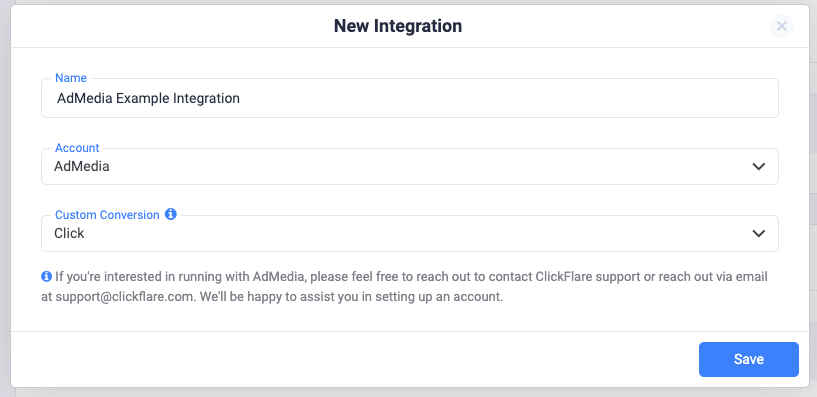
Note: In order for the integration to work, you have to send the {cf_click_id} to the “click_id” parameter (check the offer URL example below). That’s why you’re not giving the option to choose a subid, like for other Feeds.
- Lastly, click on Save. You’ll see the new integration appear under the Revenue Stream Integrations section.
https://7metasearcher.com/rdr.php?pubid=publisher_ID&q=KEYWORD&channel=CHANNEL_ID&click_id=cf_click_id
Important Note: It’s crucial to append “&click_id={cf_click_id}” to your offer URL. If you fail to do so, your postbacks will not fire, and ClickFlare will not pull any revenue from AdMedia
Important Note: Make sure to pass the channel information under param10. If you fail to do so, ClickFlare will not be able to pull the revenue.
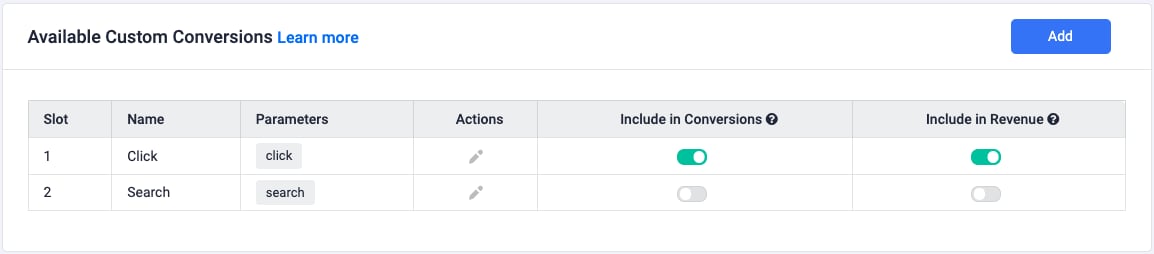
Note: using the above postbacks assumes that you have already added the custom conversions for the events “search” and “click”. If you haven’t, you should add the event as shown in the image below: