

- An active Ads Account
- An active ClickFlare Account
- Your Ads login credentials and Secret Key
- Logging in into your Ads Account.
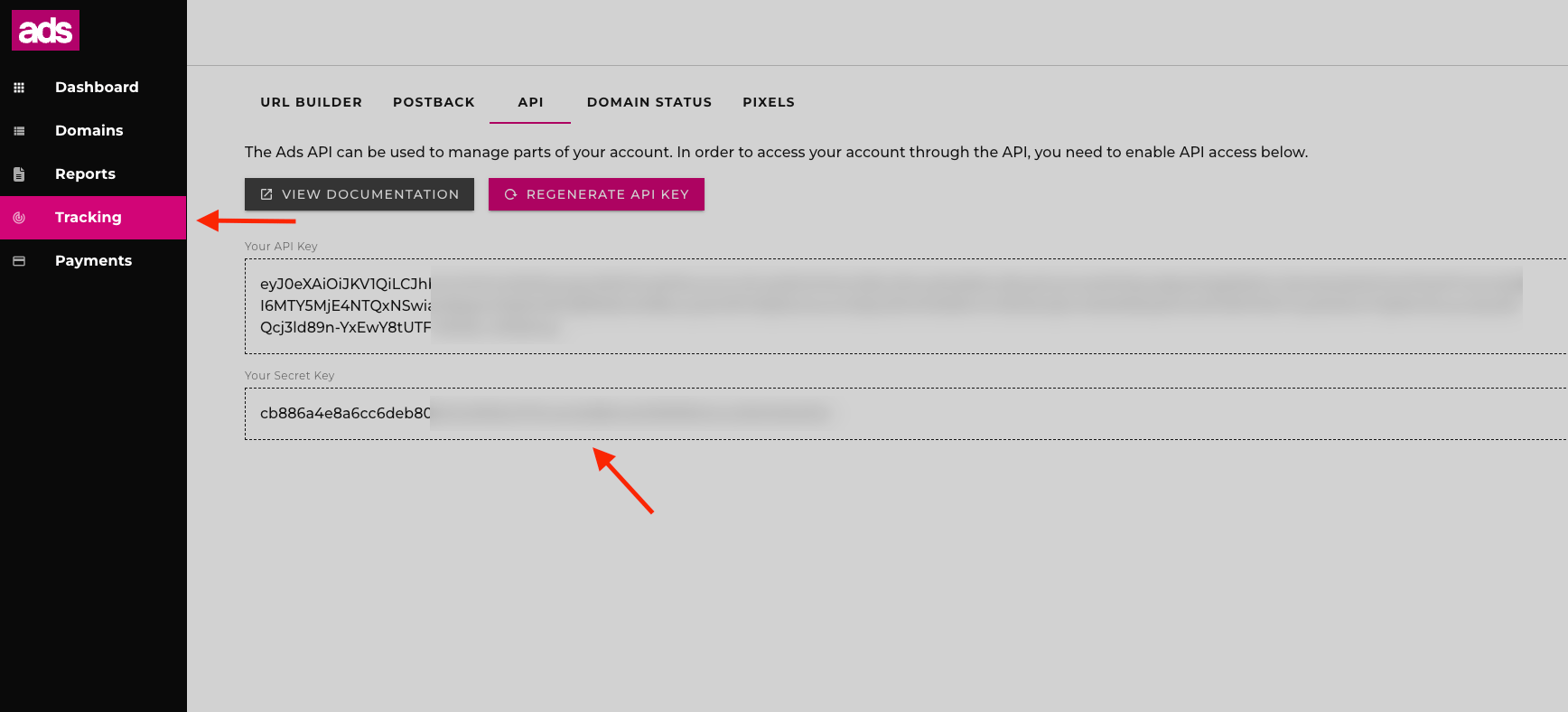
- Go to the Tracking section, which you can access from the left-side menu (icon at the top left).
- Click on the API Tab.
- Copy the Secret Key and be ready to use it during the integration in ClickFlare.
- Under Revenue Stream Integrations, click Add Integration.
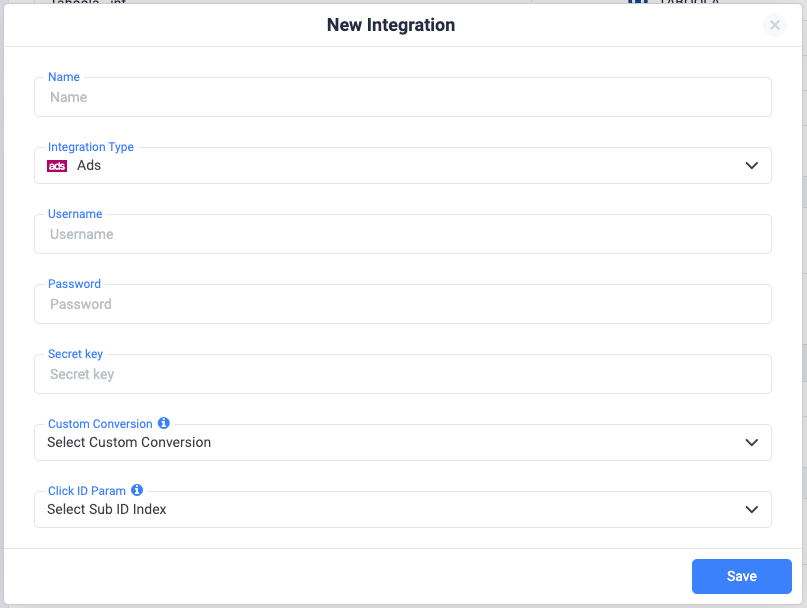
- Give your new integration a name.
Note: Have your integrations’ connection info ready before proceeding to connect it with ClickFlare.
- Proceed to selecting Ads from the list of integration types.
- Enter your Username, Password, and Secret key.
- Move on to choosing the custom conversion, you want to attribute the conversion event to. To learn how to add a custom conversion in ClickFlare, follow our article here.
- Next, select the Sub ID from which ClickFlare should request the click ID parameter.
Note: You can choose any of the available sub-IDs. Once you’ve selected a sub-ID, remember to consistently use it when passing the click ID while creating offers for this feed.
- Lastly, click on Save. You’ll see the new integration appear under the Revenue Stream Integrations section.