

- An active CodeFuel Account.
- An active ClickFlare Account.
- Your CodeFuel Client ID and Client Secret.
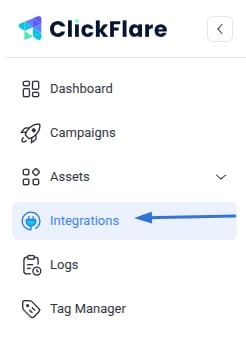
- Under Revenue Stream, click Add Integration.

- Choose the CodeFuel template
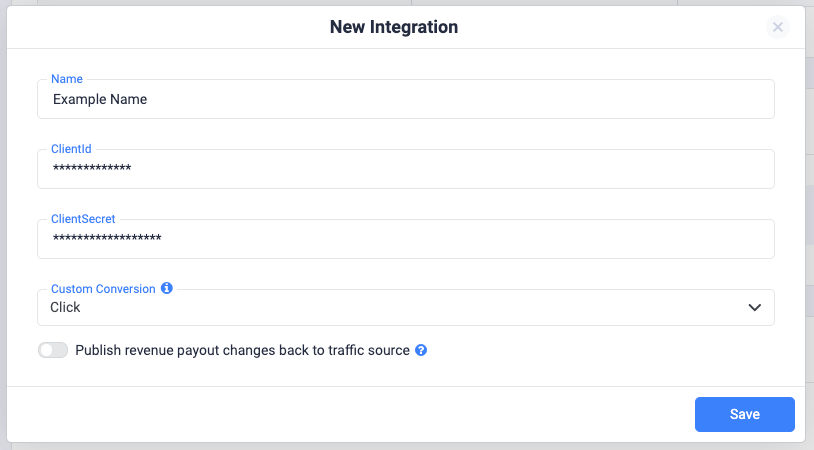
- Give your new integration a Name.
Note: Have your integrations’ connection info ready before proceeding to connect it with ClickFlare.
- Enter your Client ID and your Client Secret.
- Move on to choosing the custom conversion you want to attribute the conversion event to.
Note: In order for the integration to work, you have to send the {cf_click_id} to the “gclid” parameter (check offer URL example below). That’s why you’re not giving the option to choose a subid, like for other Feeds.
- Lastly, click on Save. You’ll see the new integration appear under the Revenue Stream Integrations section.
https://www.searchoverus.com/search?q=shoes&gd=AP1007384&pb=https%3A%2F%2Fwww.flarequick.com%3Fclick_id%3D%7Bcf_click_id%7D%26ct%3Dclick
*It’s advisable to encode the postback as shown above.
Postback template for CodeFuel
Alternatively, you can ask your account manager to implement it for you. In case you opt for this solution, share with them the following postback:
https://www.your_tracking_domain.com/cf/cv?click_id=subid&ct=click