

- An active ClickBank Account
- An active ClickFlare Account
- Your ClickBank Api Key
- Logging in to your ClickBank Account.
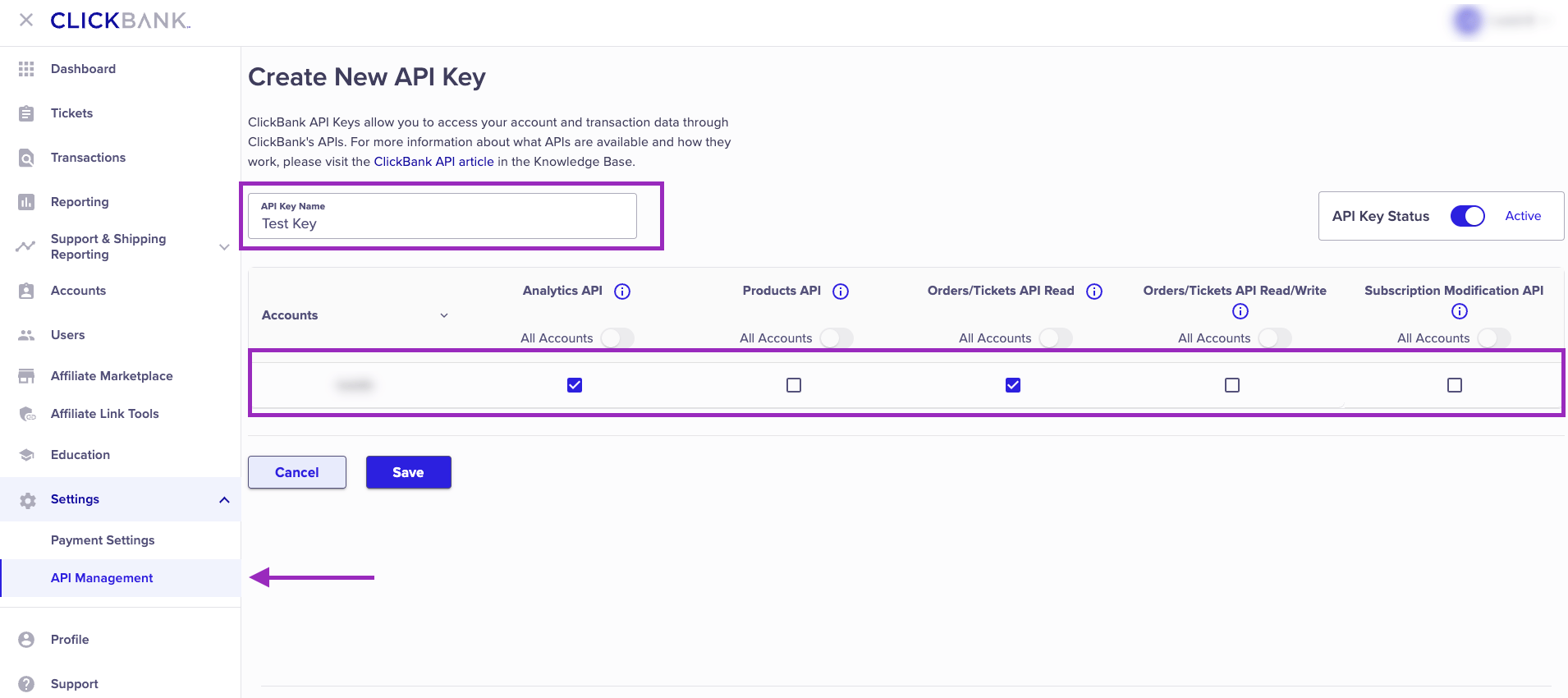
- Go to the Settings (left menu bar), and click on API Management.
- Click Create New API Key.
- Provide a name for your key, and make sure to check the Analytics API and Orders/Tickets API Read.
- Copy the key and be ready to use it during the integration in ClickFlare.
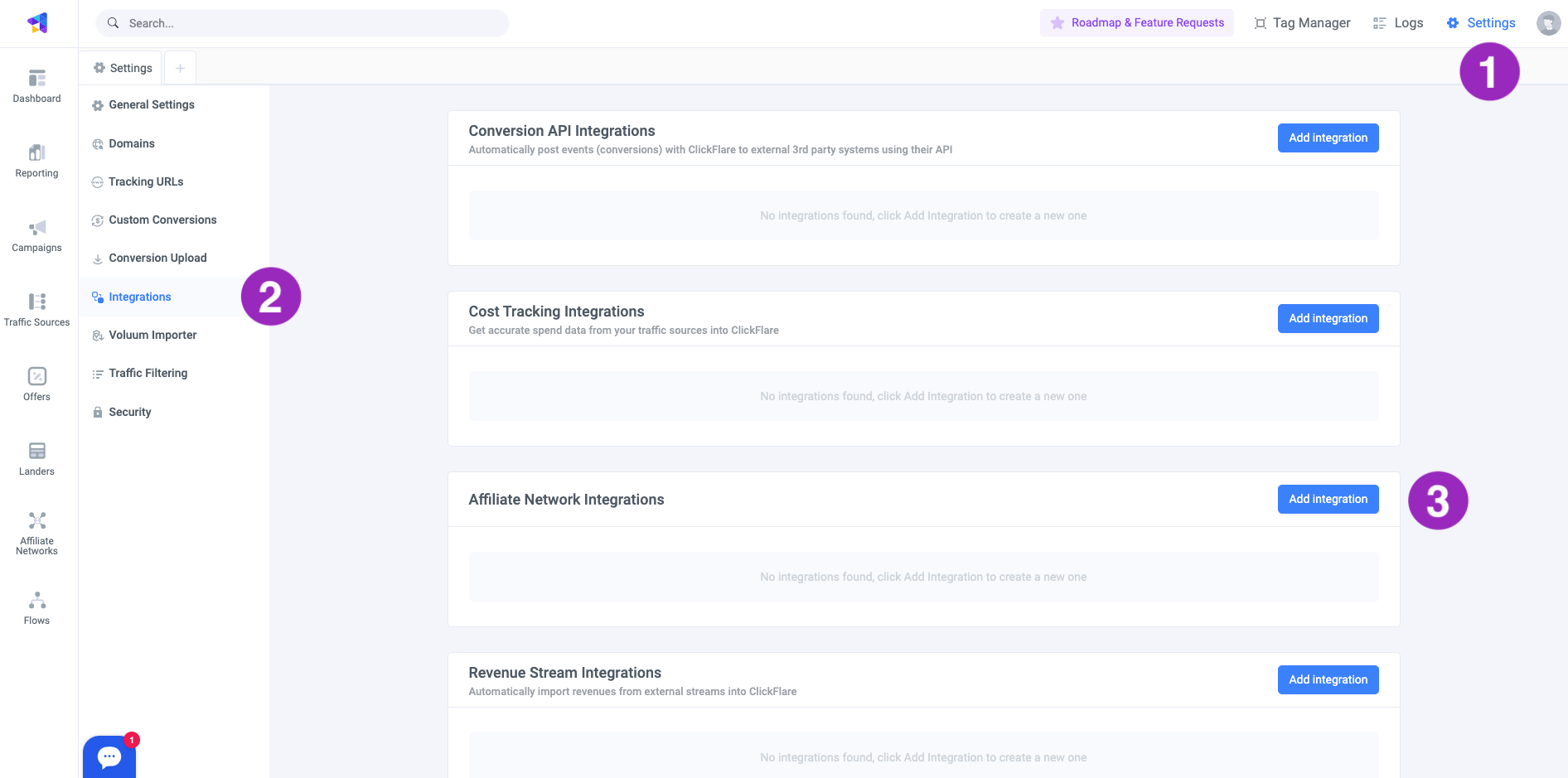
- Entering the Settings’ Menu (gear icon in the upper right corner) inside ClickFlare.
- Go to the Integrations tab.
-
In the Affiliate Network Integrations’ section, click on Add Integration.
- Give your integration a name, and select ClickBank from the Integration Type dropdown menu.
- Paste the Api Key, you copied earlier.
- Once done, click on Save.
-
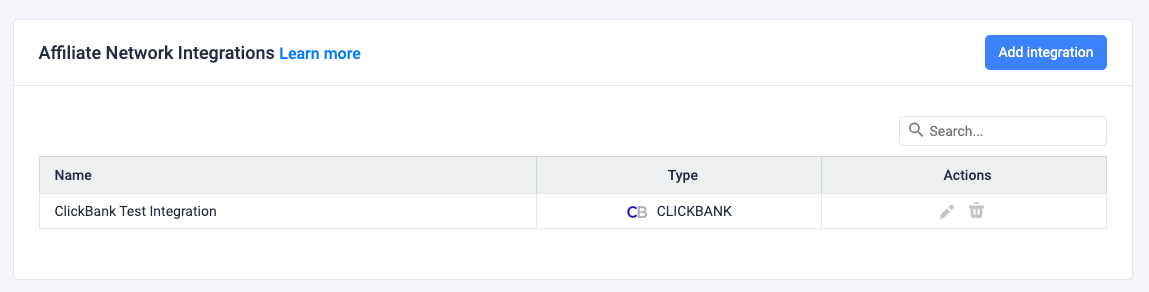
Your new Integration will now be listed on the Integrations Menu.
-
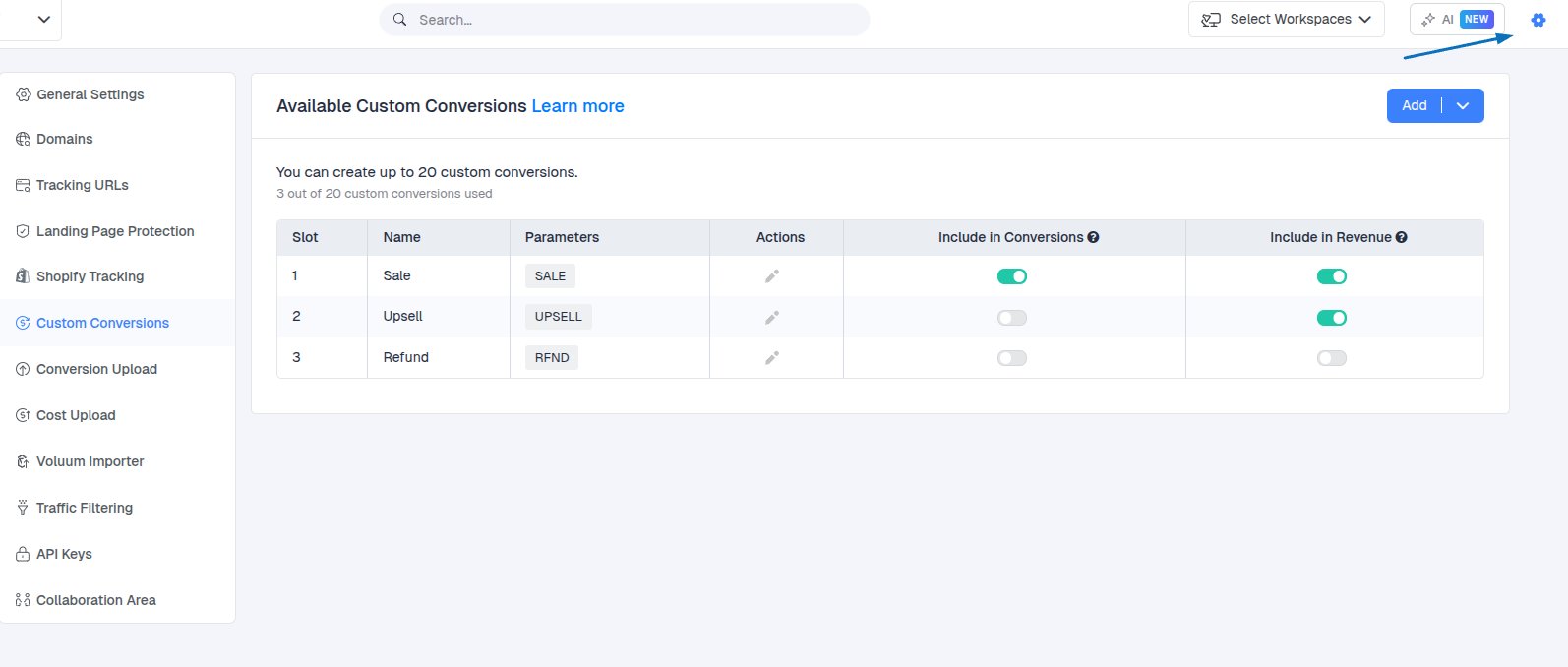
Go to custom conversions from the right-side Settings menu, and create a new custom conversion called Sale (see image).

- Finally, turn on Include in Conversions and Revenue, and click Save
Important Note: For the integration to work, you need to pass the ClickFlare click ID to ClickBank. Like for every other Affiliate Network, the click ID is passed through the Offer URL. But differently from other AN, you need to use the “{clickbank_click_id}” macro for the click ID, instead of the usual {cf_click_id}
&tid=clickbank_click_idFor more info on this, click here.SALE
RFND
CGBK
FEE
BILL
*UPSELL
* The UPSELL conversion type is distinguished by ClickFlare.
- What do I need to do in order to have these conversions in ClickFlare?
- In ClickFlare, click the settings button in the top right corner.
- Go to the Custom Conversion tab.
-
Add a custom conversion for each type. You don’t have to set up all custom conversions listed above, just the ones you want to see in ClickFlare reports.
The result should look like this:
Note: All event types you set up in custom conversions will be automatically pulled through the API Integration. You don’t need to set up any postbacks or take any additional steps on ClickBank. Once you set up the custom conversions and ClickBank integration, ClickFlare will take care of the rest.