

What you’ll need for the integration:
Ensure you have the following before proceeding:- An active ClickFlare account
- An active Everflow account
I. Create an Affiliate Network in ClickFlare and Get the Postback URL
The first step is to create an affiliate network element in ClickFlare using a template. Follow these steps:- In ClickFlare, navigate to the Affiliate Networks tab
- Click the + New button
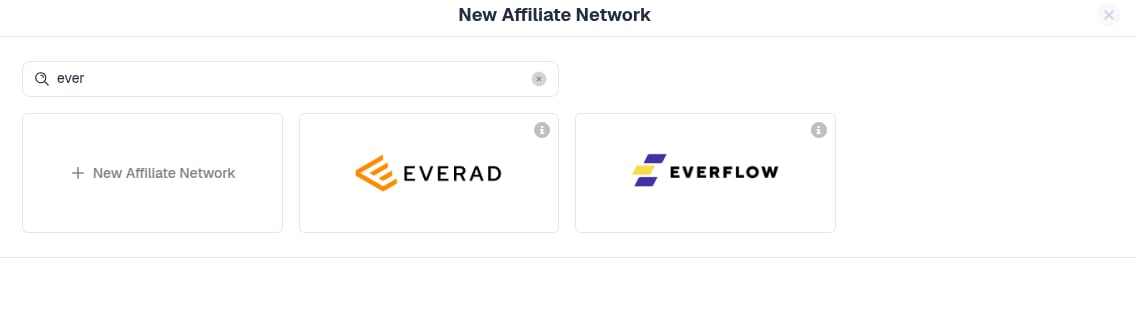
- Choose the Everflow affiliate network template
- Click the Copy button next to the postback URL to copy it to your clipboard
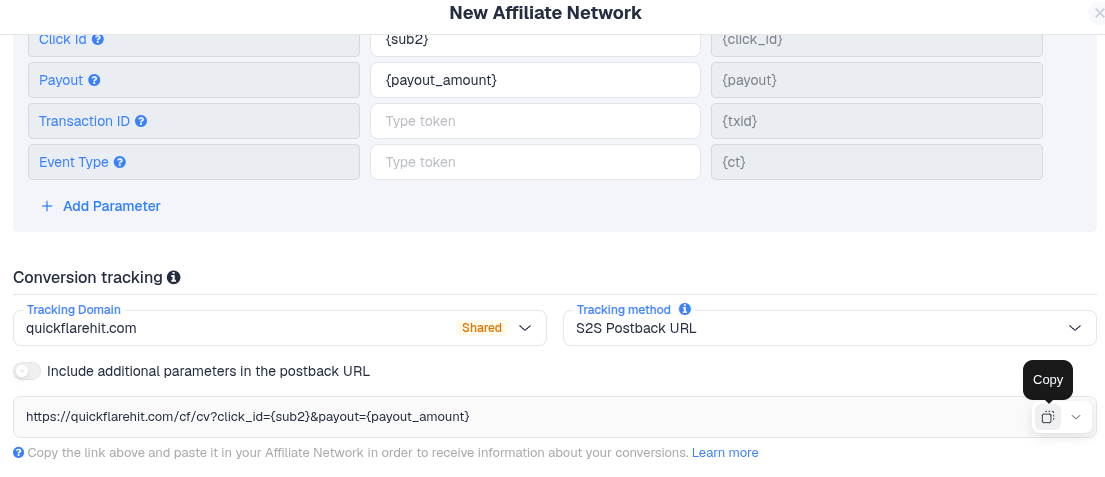
- Click the Save button
II. Submit the Postback URL to Everflow
Next, configure the postback URL inside Everflow:- Log in to Everflow
- Navigate to Postbacks
- Paste the postback URL copied from ClickFlare into the postback field
- Save the postback
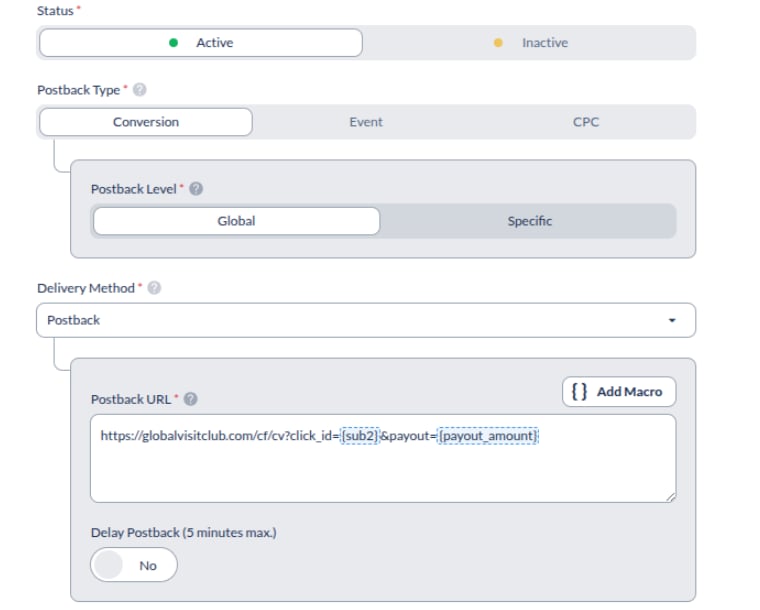
Optional: tracking different Everflow events in ClickFlare:
By appending different ct parameters to the default Everflow postback, you can track and report different event types in ClickFlare.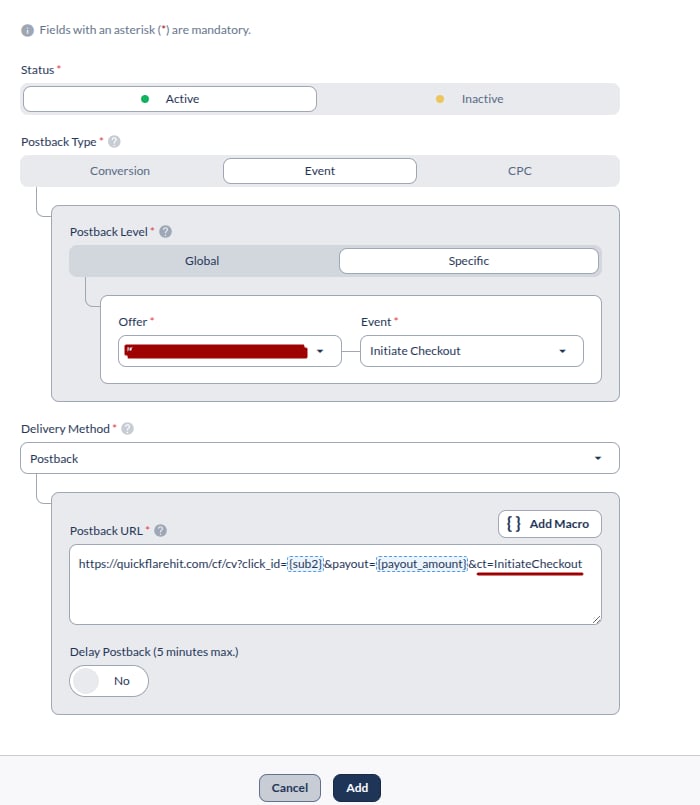
III. Get an Offer from Everflow
Now retrieve an offer from Everflow:- In Everflow, go to the Offers section
- Select the offer you want to promote
- Copy the Redirect Link from the tracking URLs provided by Everflow
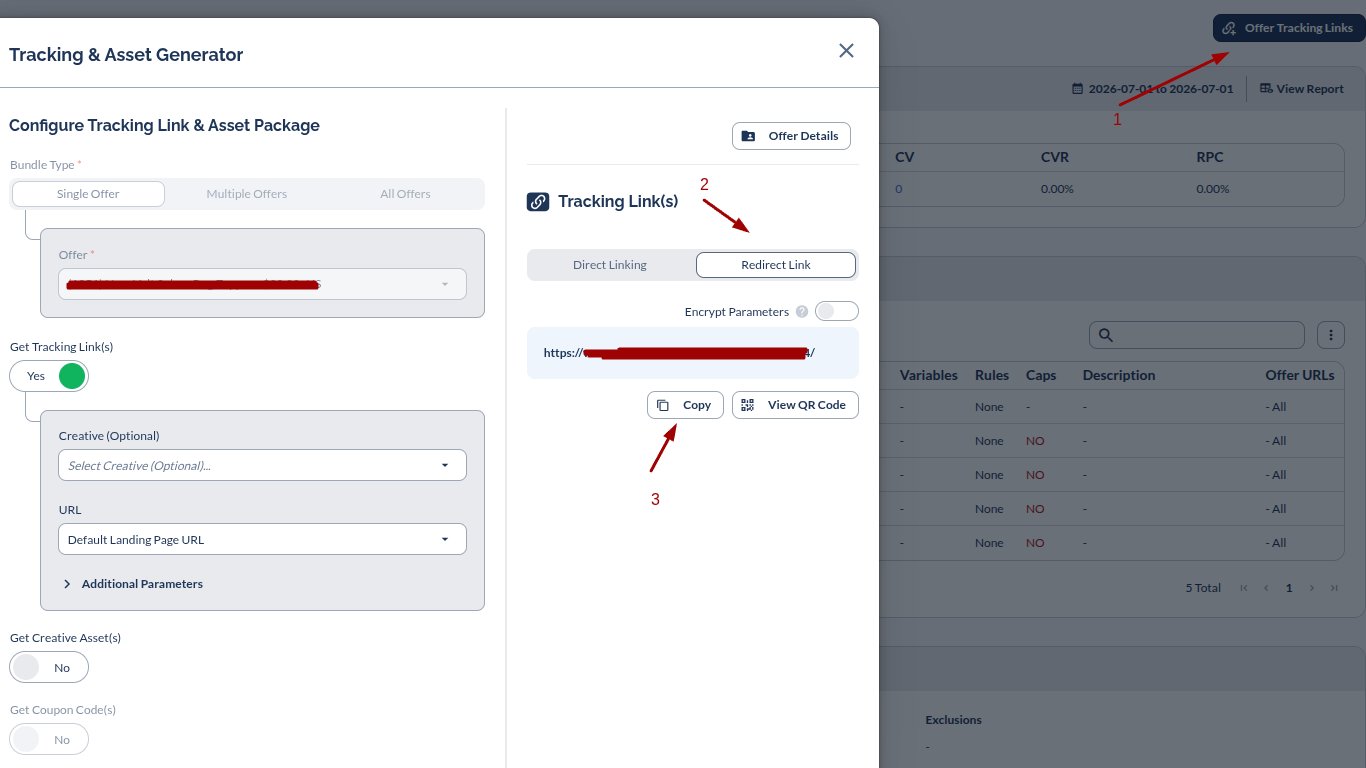
IV. Create an Offer in ClickFlare
Finally, create the offer inside ClickFlare:- In ClickFlare, go to the Offers section
- Click the + New button
- Select Everflow as the affiliate network
- Enter a name for the offer
- Paste the Everflow offer URL into the Offer URL field
- Append the ClickFlare tracking parameter at the end of the URL, after the
?sign :sub2={cf_click_id} - Click Save
This ensures the ClickFlare click ID is passed into Everflow, allowing conversions to be matched back to the original click.
- Depending on your funnel setup, you can either use the campaign with the Everflow offer directly (Guide)
- Or include an advertising page before redirecting the visitor to the offer page. (Guide)