

1. Add the Compado API Integration in ClickFlare
-
Log in to your ClickFlare account and navigate to:
Integrations → RSOC Integrations

- From the list of templates, select Compado.
- Fill in your account credentials (username + password) provided by Compado.
- Click Save.
2. Create Custom Conversions in ClickFlare
- Navigate to Settings → Custom Conversions → Add Custom Conversion
- Create a custom conversion event for ad clicks:
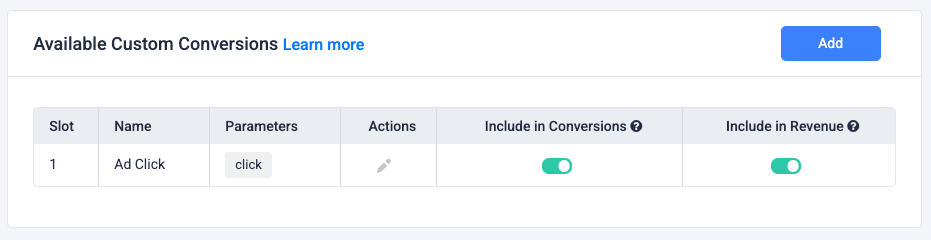
3. Add the Compado Affiliate Network (Optional)
- Go to Affiliate Networks → Add Affiliate Network
- Create the Compado template
- Assign a name and click Save
Adding the affiliate network allows you to reuse offer templates for each traffic source without manually adding parameters for every offer.
4. Add a Compado Offer
- Go to Offers → Add Offer
- Paste the Compado offer URL
- Append the ClickFlare click ID to the URL using:
srcclkid=cf_click_id
Required Parameters (Compado)
- adx_title → Ad creative title
- adx_publisher_id → Custom publisher ID
Required Parameters (ClickFlare)
- srcclkid → ClickFlare click ID ({cf_click_id})
Common Optional Parameters
- adid → Traffic source ad ID
- utm_source → Traffic source name (e.g., Facebook)
5. Add the Compado Postback
Ask your Compado representative to implement the following postback in your account:Make sure to replace
your_tracking_domain.com with your own tracking domain.6. Compado Integration Notes
- Ensure your adx_publisher_id matches the value issued by Compado; otherwise, revenue cannot be tracked at the channel level.
- Keep parameter usage consistent with Compado documentation. Do not repurpose parameters for unrelated payloads.
- Include adid when required for ad-level attribution by Compado programs.