

Begin the process by:
- Navigate to the Integrations menu on the left side of the screen.
- In the Cost Integrations section, click on Add Integration.
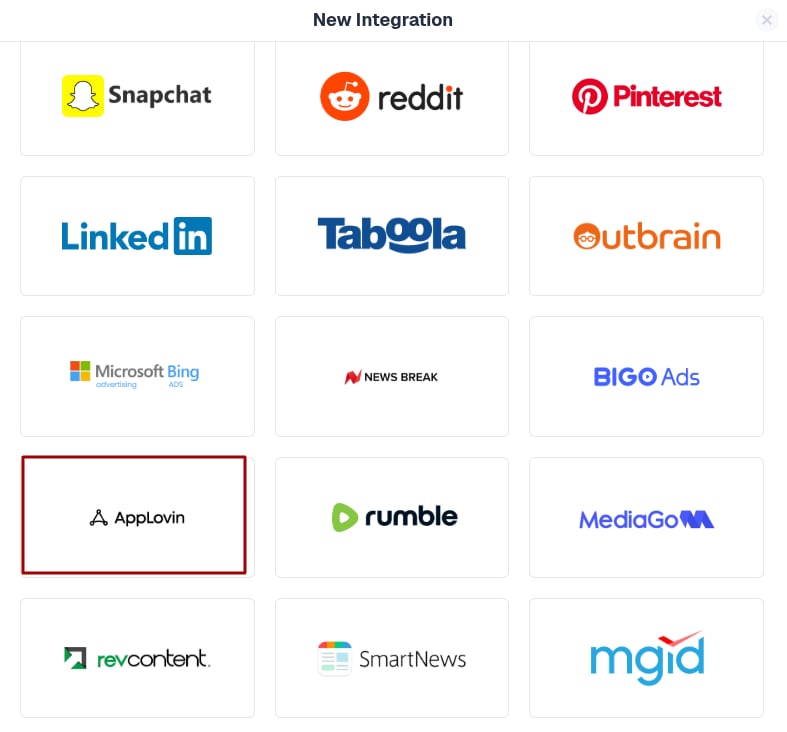
- Select AppLovin from the available options.
Generate your AppLovin Reporting API Key
-
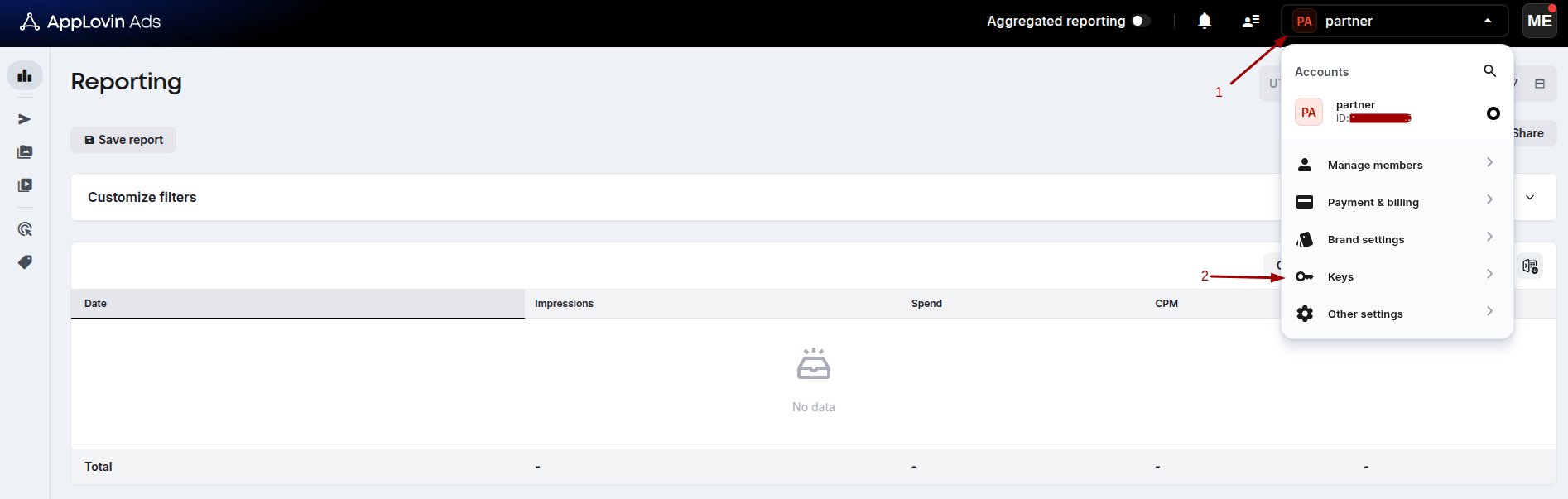
- Log in to your AppLovin dashboard.
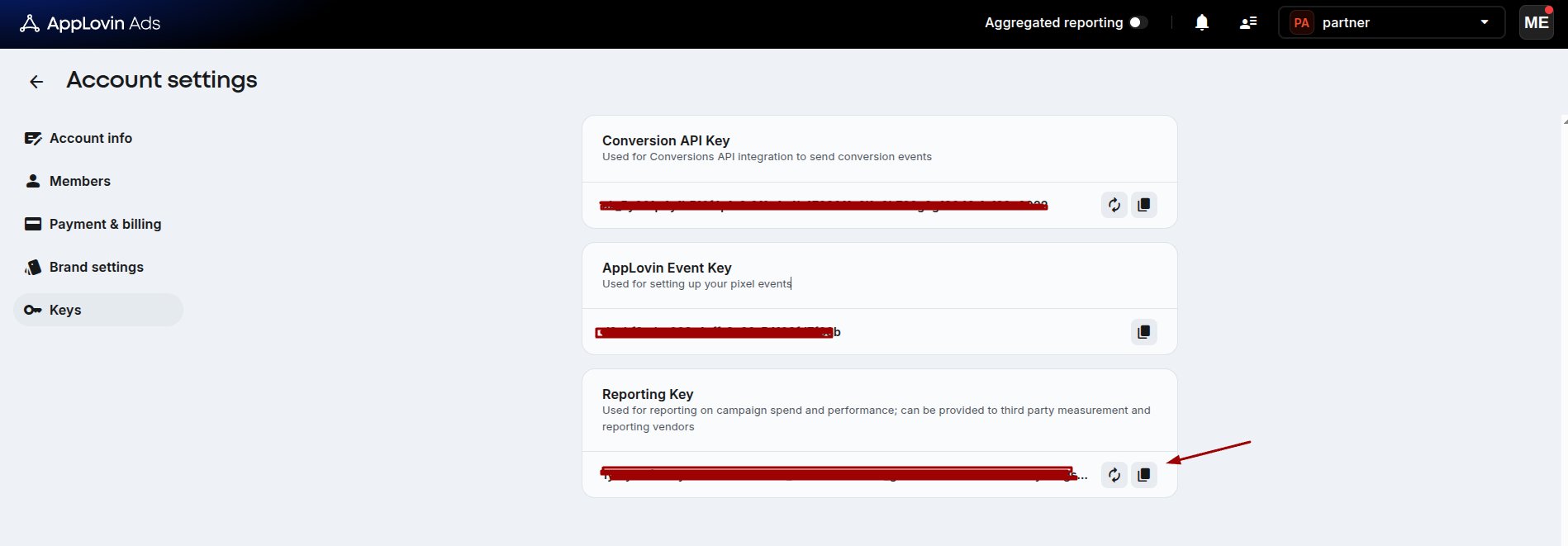
- Navigate to Keys.
- Copy your Reporting API Key.
Connect AppLovin with ClickFlare
Return to the ClickFlare integration window and enter your AppLovin Reporting API Key. After entering the key and selecting the integration timezone, click Save to complete the connection.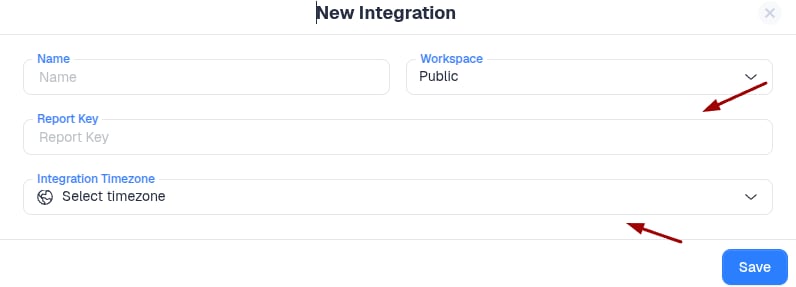
Optional Step - Specify the traffic source configurations you want to assign this cost integration to.
If you do not assign traffic source configurations during the integration setup, you can add the cost integration later from the traffic source template settings.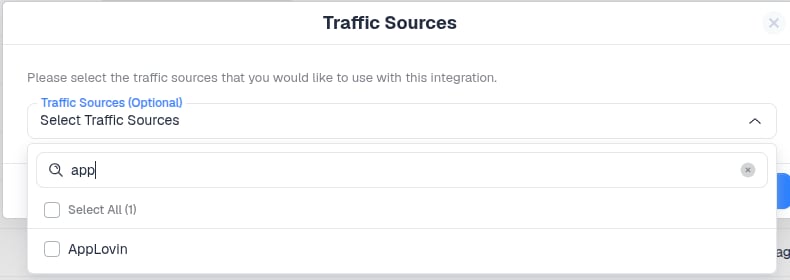
Important note: Make sure that the traffic source configurations you select belong to the same traffic source you created the integration for.
Add the cost integration to your traffic source configuration
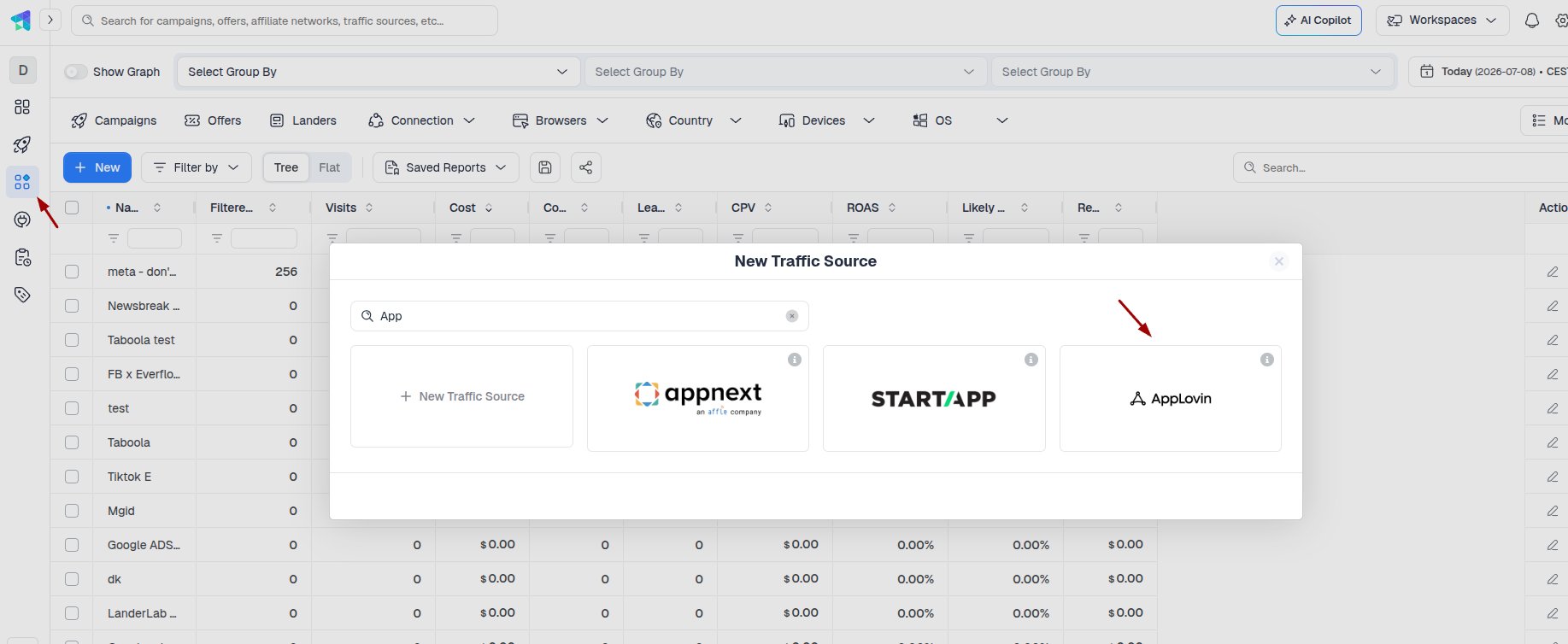
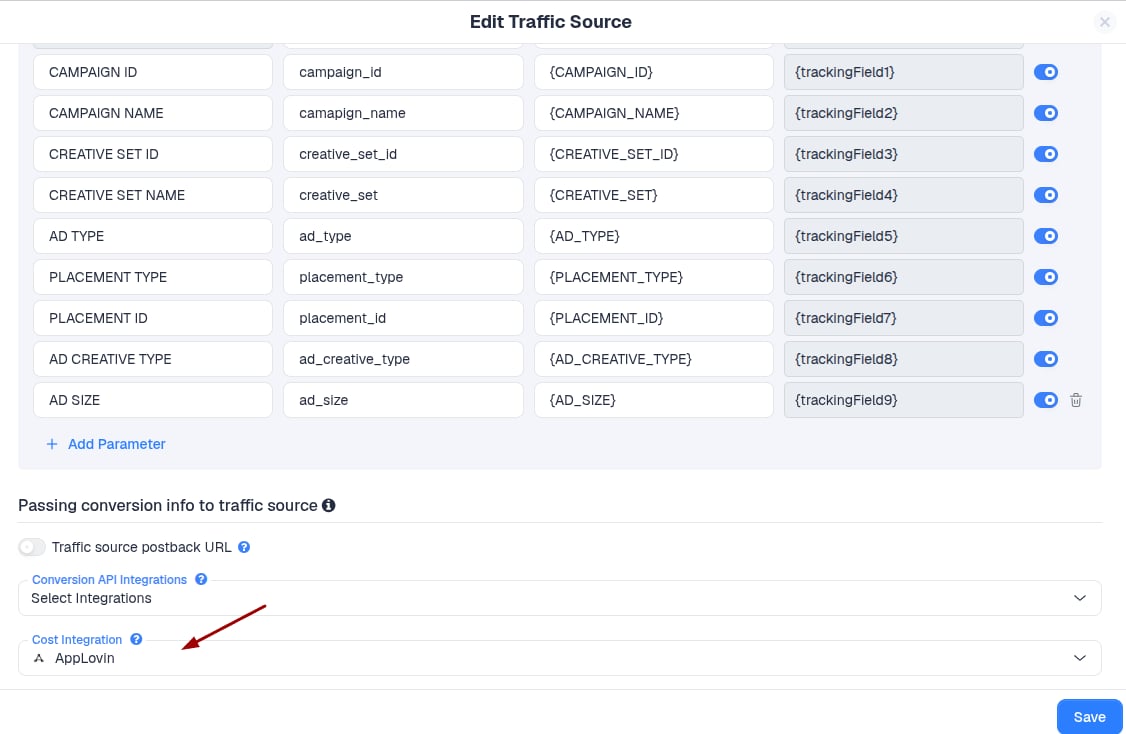
Lastly, go to your Traffic Source template and add the newly created AppLovin cost integration under the Cost Integration settings.Make sure to create the AppLovin traffic source by selecting it from the list of prebuilt templates.
Related guides: