

- An active System1 Account.
- An active ClickFlare Account.
- Your System1 Auth. Key
- Under RSOC Integrations, click Add Integration.
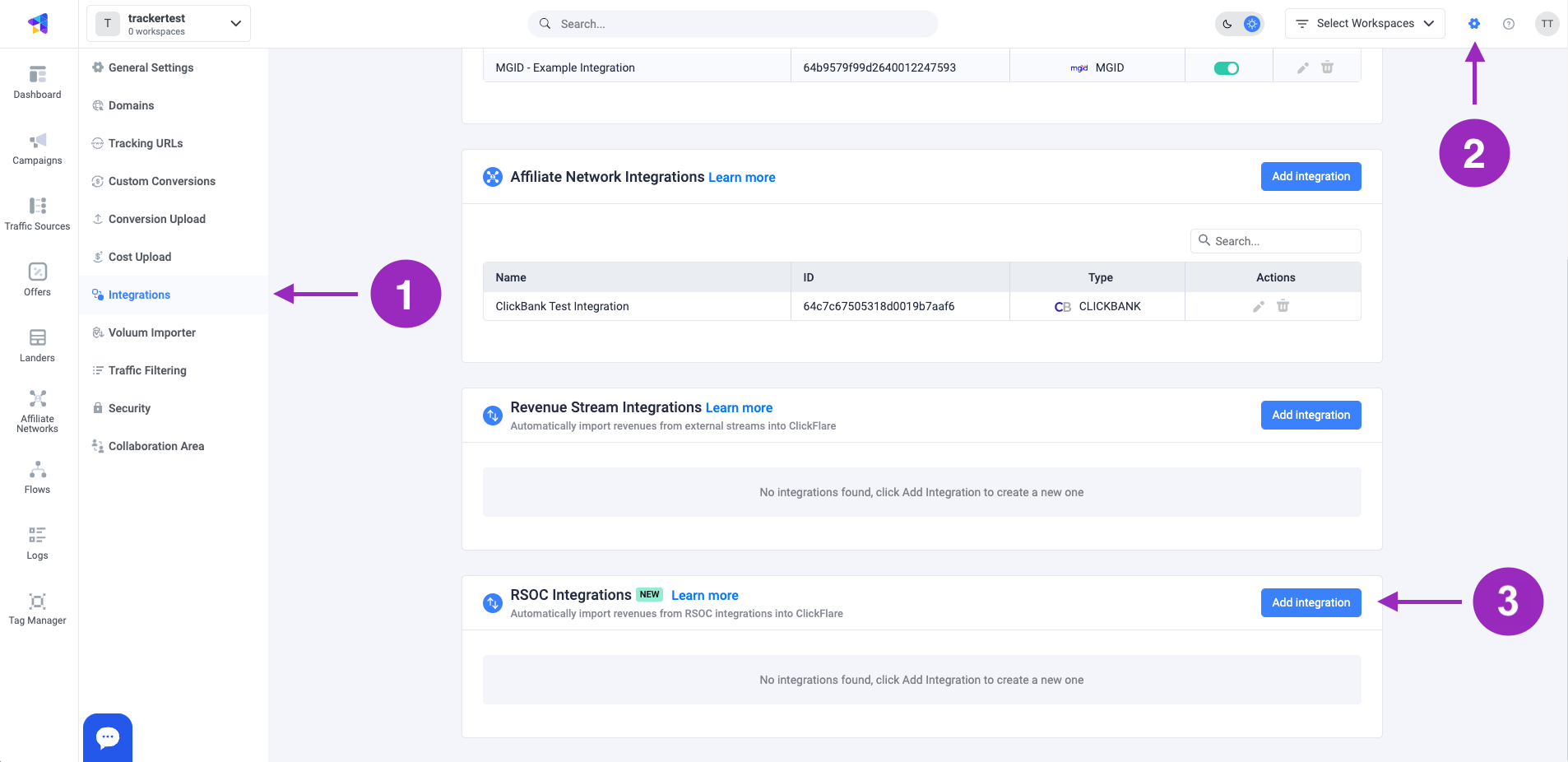
- Choose the System1 template
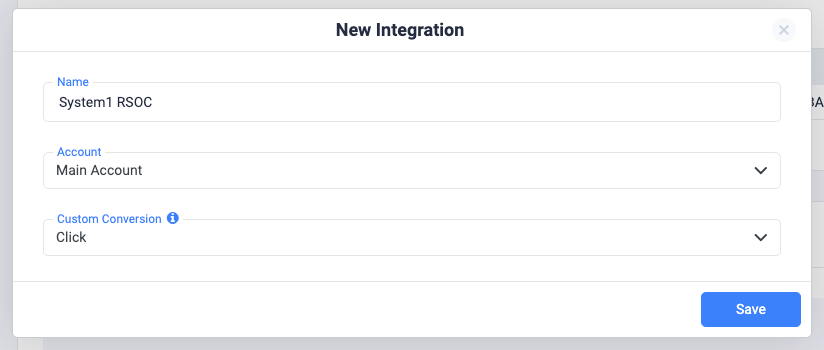
- Give your new integration a Name.
- Under Accounts, click on + Connect Account.
- Enter the account name, auth key and click on Save.
- Move on to choosing the custom conversion, you want to attribute the conversion event to. To learn how to add a custom conversion in ClickFlare, follow our article here.
Note: In order for the integration to work, you have to send the {cf_click_id} to the “nonrevsubid” parameter (check offer URL example below).
- Lastly, click on Save.
*Important Note:
It’s crucial to append the following parameter to your offer URLs:• The ClickFlare click ID: “&nonrevsubid={cf_click_id}”• The ClickFlare campaign ID: “subid={campaign_id}”If you fail to append the {cf_click_id}, your postbacks will not fire and ClickFlare will not pull any revenue from System1.If you fail to send the {campaign_id} in the subid parameter, you’ll not have same day revenue. The revenue will be reflected starting from the next day
*Note:
Make sure that the postback are encoded correctly. For instance, only the postback after the equal sign should be encoded.If your postbacks are:The enocded postback should look like this:
&search_track_url=https%3A%2F%2Fyour_tracking_domain.com%2Fcf%2Fcv%3Fclick_id%3D%7Bcf_click_id%7D%26ct%3Dsearch&click_track_url=https%3A%2F%2Fyour_tracking_domain.com%2Fcf%2Fcv%3Fclick_id%3D%7Bcf_click_id%7D%26param10%3DSEGMENT_NAME%26ct%3Dclick
Failing to encode the postbacks correctly, will cause them to break and not report conversions correctly.impression_track_url=https://your_tracking_domain/cf/cv?click_id=cf_click_id&ct=impression
search_track_url=https://your_tracking_domain/cf/cv?click_id=cf_click_id&ct=search
click_track_url=https://your_tracking_domain/cf/cv?click_id=cf_click_id¶m10=SEGMENT_NAME&ct=click
Note: Always make sure to encode the postbacks, before appending them to your offer URL.
Note: Sytem1 revenue reporting operates on PST time. Please ensure to set your ClickFlare settings to PST when checking reporting for System1.
- You can only pass one keyword per forceKey.
- You should provide at least six unique forceKey terms (A - F) to ensure there are enough terms for all RSoC widgets on the page.
- If you’d like your page to feature more than one RSoC block, please notify your account manager first. You must then provide enough keywords to populate both blocks, and all keywords must be unique across both blocks.
! Important Note: The revenue we calculate on a click ID level, it’s not accurate but just an estimation, based on the revenue dimensions (segment, subid, geo, device) provided by System1